Virtual Basketball League

UI - Visualization Component

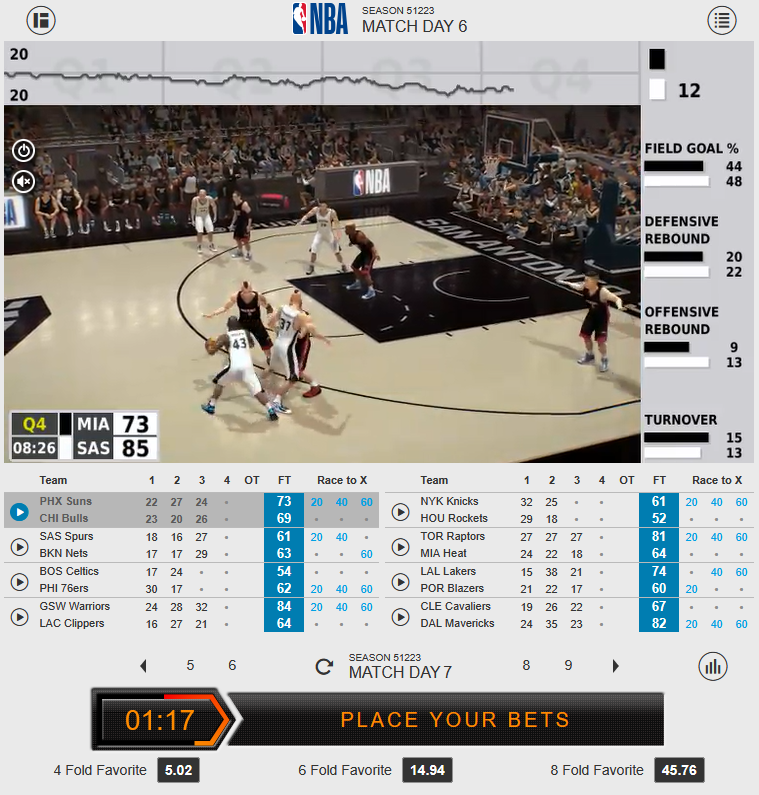
The UI component (Entertainment Area) is delivered as an iframe with a fixed width of 762 pixels.

The height depends on the view being used. The Skill View is used by default and has a size of 762 x 662 pixels. The Compact View has a size of 762 x 797 pixels.

Switch between Skill and Compact View can be done by pressing the dedicated button in the top left corner of the UI.

Below you will find en example of an typical integration URL for the Entertainment Area:

https://{domain}/vbl/vbl/index?clientid={clientid}&lang={lang}&style={style}&oddType={oddType}
Parameter
Required
Description

clientid

required

Identifies you as a bookmaker in our system. The id will be provided to you by your technical account manager.

lang

optional

Specifies the display language in the visualization component(ISO 639-1 specification).

Most European language are already available and other can be added on demand

style

optional

If needed, your technical account manager will provide you with a style parameter. If not provided, the default style will be applied and there is no further action needed from your side.

oddType

optional

Specifies the odds display format. The parameter does not have impact on how odds are calculated and only triggers a simple conversion from decimal odds to the specified odds format. If this is not specified, the default odds format will be decimal.

For further examples, please refer to the Sportradar iGaming Demonstratorarrow-up-right.

Multi language support is available by optional language parameter in URL. Most common languages are already supported, others on demand.

Skill View

Compact View

Cross-origin communication between UI and parent iframe

We need to enable communication between the UI and the market offer (e.g. switch the odds section to selected match day by mouse click at a match day button within the match day selector component).

We also need to consider, most customers may access Sportradar's Virtual Sports via more than one domain name (and of course these domain names may change or new domains need to be added).

Communication between UI and market offer is done via postMessages. The following shows an example for how to listen to the postMessages:

This example implementation can be used to listen to the events of the iframe and execute functions based on the received event type and event data.

The different post messages will be described in the following sub-sections.

There might be other messages as well sent via the postMessage interface of the browser which can be ignored for our applications.

Add bets from iframe to bet slip

In Virtual Basketball bets can conveniently be placed via the iframe and bets will be added to your bet slip accordingly.

We offer a combination betting markets: X fold-favourite and X fold-outsider. X fold-favourite market offers the possibility of combining either 2, 3, 4, 6 or 8 teams most likely to win. The X fold-outsider market offers the possibility of combining 2, 3 or 4 teams most likely to lose.

The postMessage placeBets will be send to the parent frame and will give it an array as data. Every array element contains the following object with object attributes:

If you get an array with only one element, you get a single bet. More than one element is a multi bet. See the following examples for further details:

Single bet

Multi bet

Match day switch

With every bet stop or when a user clicks the match day selector within the UI to go to the next available or past matches, the following postMessage will be sent.

setMatchday

Preset match day

The mouse click on a match day of the match day selector component can be simulated by calling sending the setSelectedMatchday postMessage.

setSelectedMatchday

Height changes of the iframe

Each time the height of the UI changes, either caused by the switch between the 2 available views (compact and skill view) or due to changes of the width, the current height of the body in pixel is sent to the parent frame via postMessage.

setHeight

Statistics Center integration

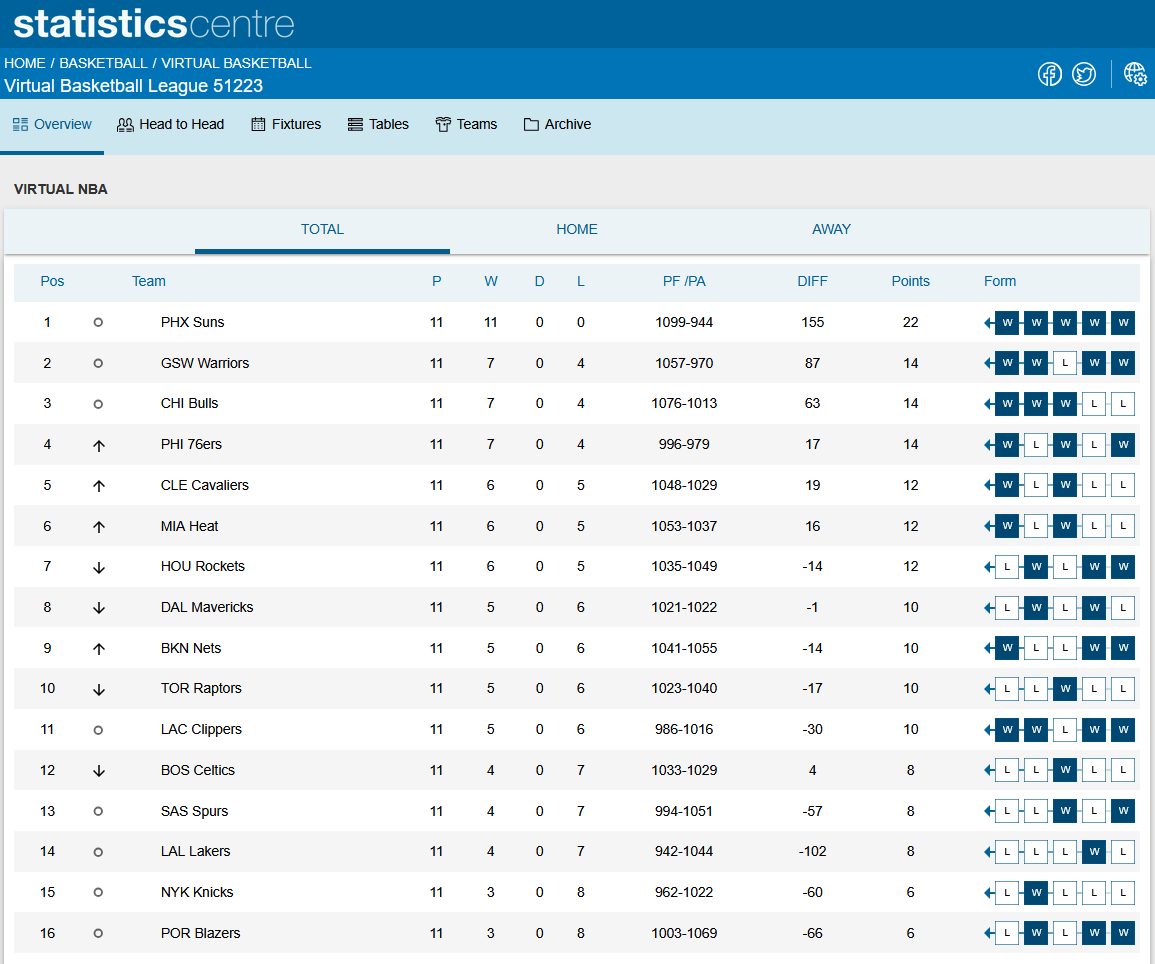
As one important component, Sportradar's Statistics Center (also available for real sport) is fully integrated in Virtual Basketball:

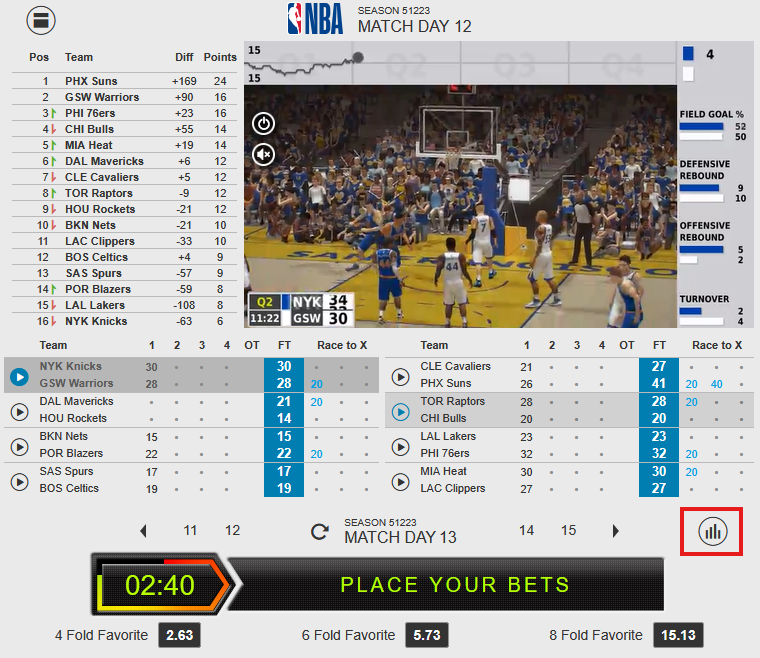
The Statistics Center can be accessed ‘out of the box’ directly by clicking the icon on the right to the match day picker:

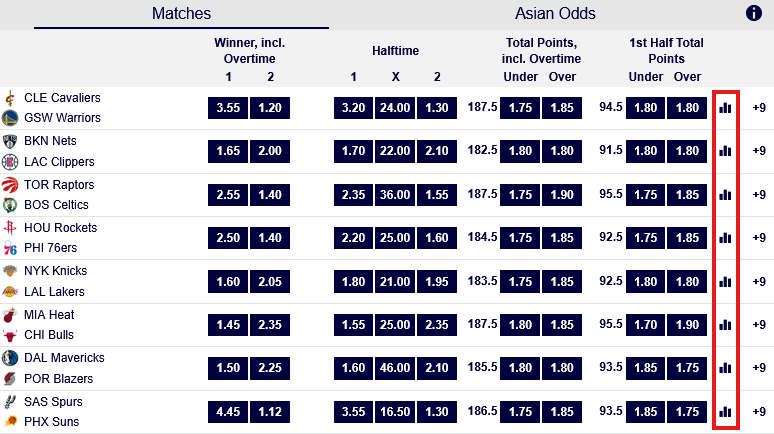
It’s also recommended to add a statistics icon and link to your market offer (to be done on customer side) and refer to the head 2 head statistics for on match level:

The head to head statistics can be opened in a separate popup window by sending the following postMessage:

Last updated

Was this helpful?