Return to Player

In this section, you will find information about how Return to Player, as well as, margin work for Sportradar's Virtual Sports and how to configure them.

Return to player in Sportradar's Virtual Sports

The Return to Player (RTP) of Betradar’s Virtual Sports is based on the bookmaker’s odds key configuration.

The odds key reflects the bookmaker’s desired margin that is included in the odds calculation. The odds key can be set for each betting market individually and will be applied with weight to all possible outcomes.

For each market, there are three values that need to be set to configure your market offer:

  • Key - Defines the the theoretical margin / RTP according to the following formulas:

    • RTP = 1 / odds key

    • Margin = 1 - (1 / odds key)

  • Min Offer - Defines the minimum value of the odds you want to offer.

  • Max Cap - Caps the odds at the specified value.

triangle-exclamation

Configuration environments

Odds keys are configured separately on the integration and production environment. To access the configuration, please follow the URLs below:

Portal – Integration Environment https://integration.portal.betradar.com/arrow-up-right

Portal – Production Environment https://portal.betradar.com/arrow-up-right

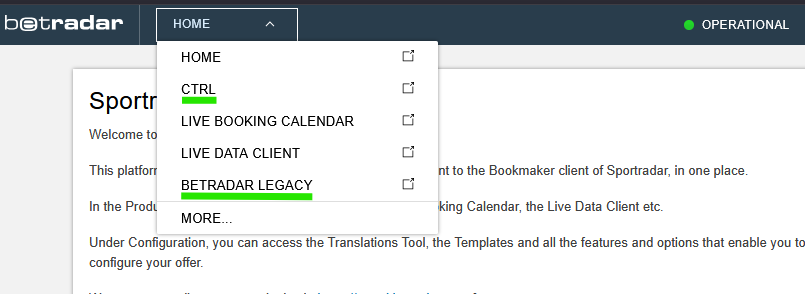
While the latest Virtual Sports are already configurable in Betradar CTRL, most products are being configured in Betradar Legacy which is accessible via Portal.

Products configurable in Betradar CTRL:

  • Sim-Play Cricket

Products configurable in Betradar Legacy environment:

  • Virtual Football (all modes)

  • Virtual Fast Football

  • Virtual World Match Football

  • Virtual Basketball / Virtual NBA

  • Virtual Horse Racing

  • Virtual Dog Racing

  • Sim-Play Tennis

  • Sim-Play ATP Legends

  • Sim-Play Major League Baseball

To access either of the configuration tools, log in to the portal website using the link above, and select the one you would like to use via Portal's main menu:

Configuration in Betradar CTRL

circle-info

Please not the this configuration procedure only applies to Sim-Play Cricket.

Odds keys are being configured by defining so-called templates in Betradar’s CTRL bookmaker system.

Finding a template

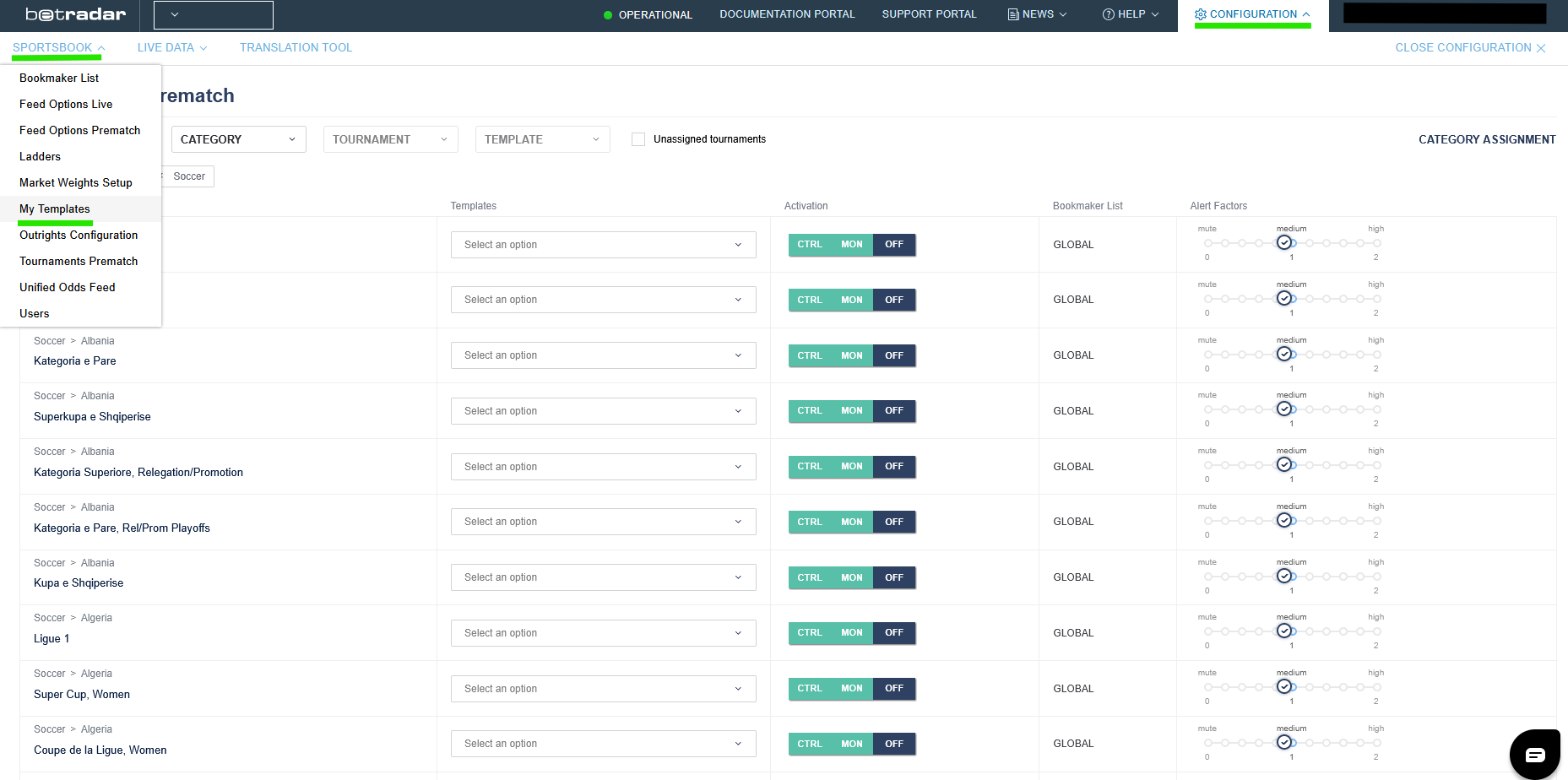
Templates are used to define odds keys for a particular tournament. They can be found under Configuration / Sportsbook / My Templates in Betradar Ctrl.

To find the Sim-Play Cricket template, select Cricket using the Sport Filter:

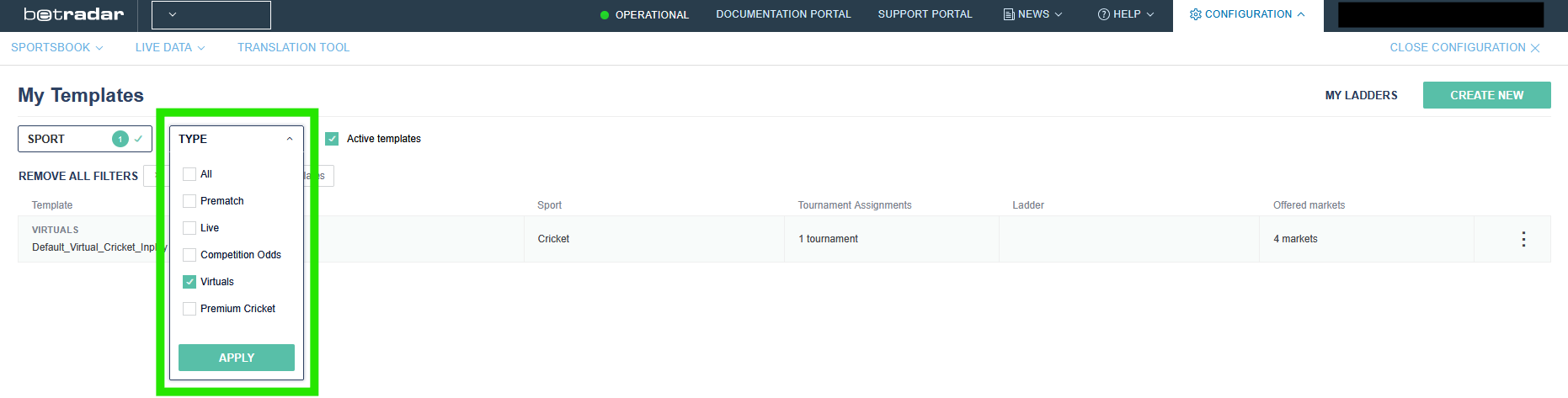
Then you may want to use the Type Filter in order to only show templates for Virtual Sports:

Now you should only see the templates for Sim-Play Cricket named as Default_Virtual_Cricket_Inplay. In case you are setting the odds keys the first time, you will only see our default template:

In case you miss a template, try to de-select the Active templates option. This will reveal templates that are currently not assigned to a tournament.

Duplicating the default template

triangle-exclamation

Before you set your own odds keys, we highly recommend duplicating the default template in order to create your own custom template.

To duplicate a custom template from the default template, please open the default template by clicking on it in My Templates.

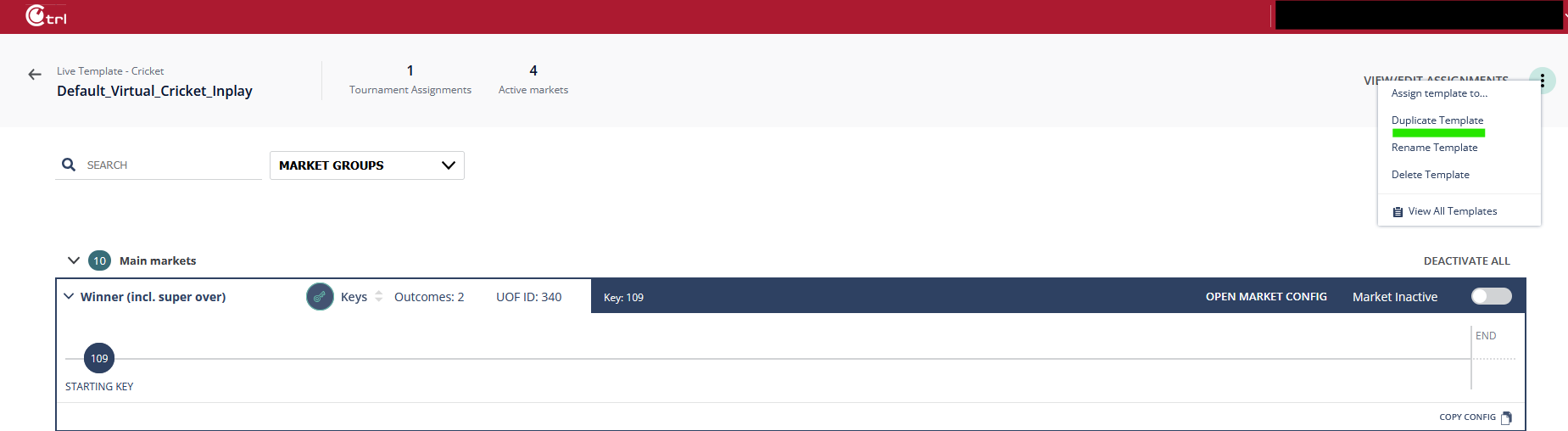
In the default template, click on the 3-dot hamburger menu in the upper right-hand side corner:

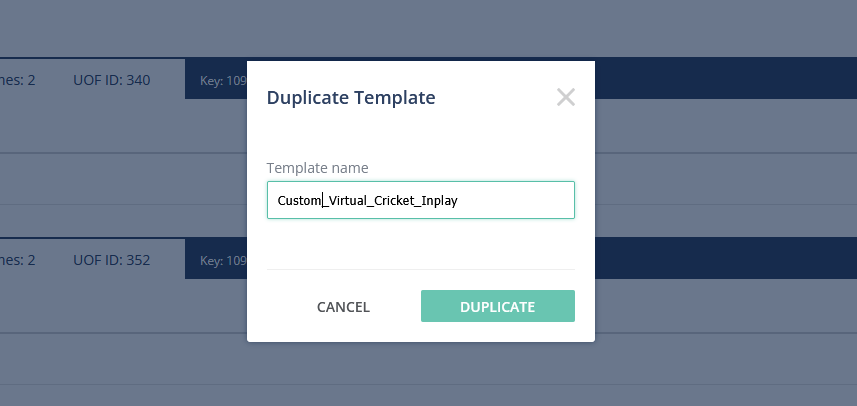
From the context menu, please select Duplicate Template. This will open a dialog that prompts you for the name of your custom template:

Once you confirmed the template name by pressing Duplicate, your new custom template will be opened.

You now can edit the odds keys to set the desired margin/RTP per market.

Editing a template

Editing the odds keys in a template is very simple. Below sections describe how to set Key, Min Offer and Max Cap.

Editing the key

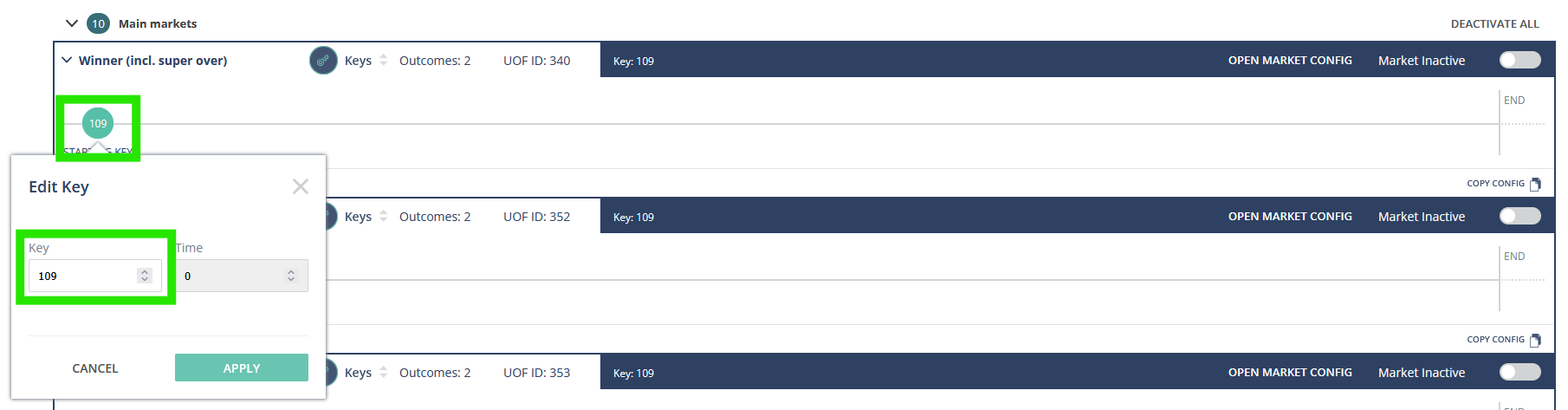
In Virtual Sports, you can only set one key per market (Starting Key). The key can be found on the left-hand side of a market’s settings:

To edit the, simply click on the blue circle to open an edit dialog. Enter the desired key into the field for the key and click the Apply button to save the new value.

Editing Min Offer and Max Cap

To edit Min Offer and Max Cap, you need to open a market’s configuration by clicking the button shown in following screenshot:

The input fields for Min Offer and Max Cap will be revealed for you to edit:

Once you are done with your changes, click the Apply button.

Features not affecting Virtual Sports

Please make sure that the configuration mode is set to Keys. The Permissible Pairs Ladders feature is not implemented for Virtual Sports.

Assigning a template to a tournament

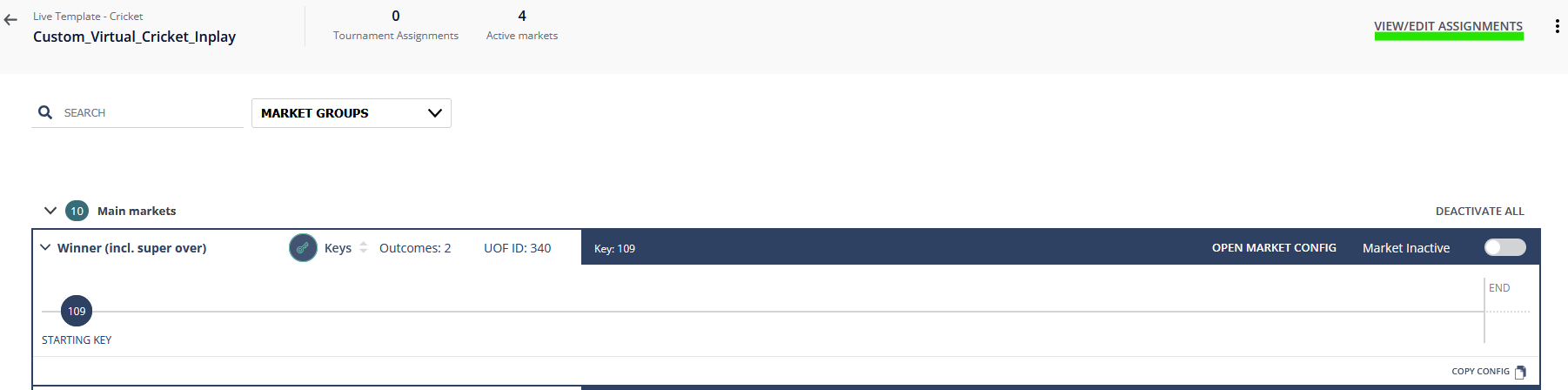
Once you are done with the configuration of your custom template, you need to assign it to Virtual Cricket In-Play tournament for the changes to take effect.

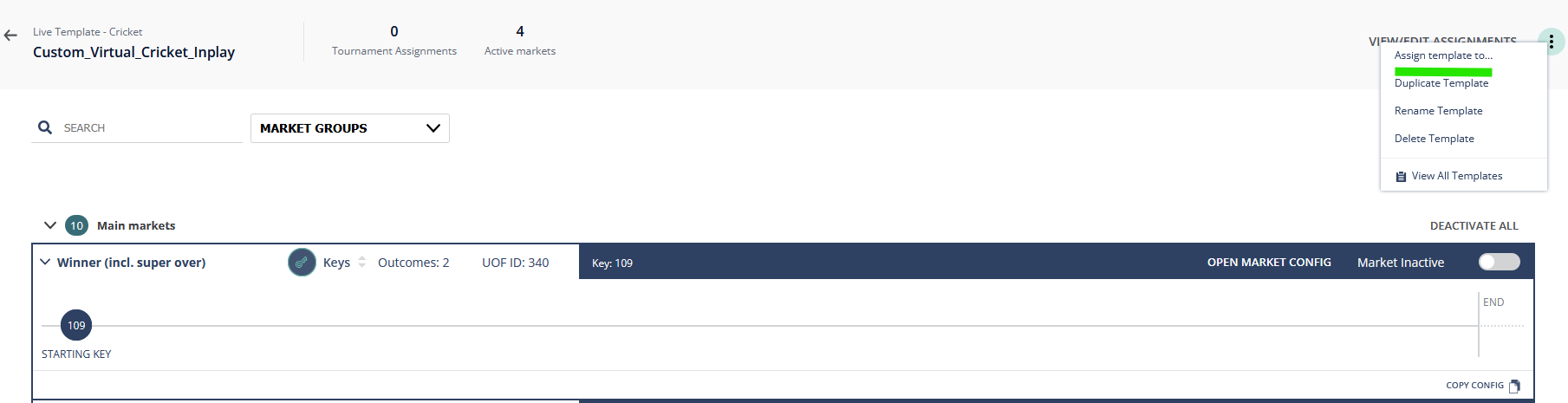
To do so, click on the 3-dot context menu in the upper right-hand side corner of your custom template and select Assign template to…:

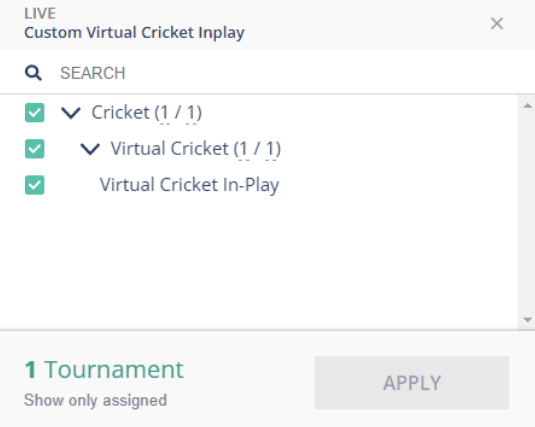
Now, select the Virtual Cricket In-Play tournament and click the Apply button to confirm:

triangle-exclamation

Please note that this will replace existing assignments.

You can view or edit a template’s assignments by clicking on the View/Edit Assignments button in the upper right-hand side corner of your custom template next to the 3-dot context menu:

Configuration in Betradar Legacy

circle-info

Please not the this configuration procedure only applies to Virtual Sports products other than Sim-Play Cricket.

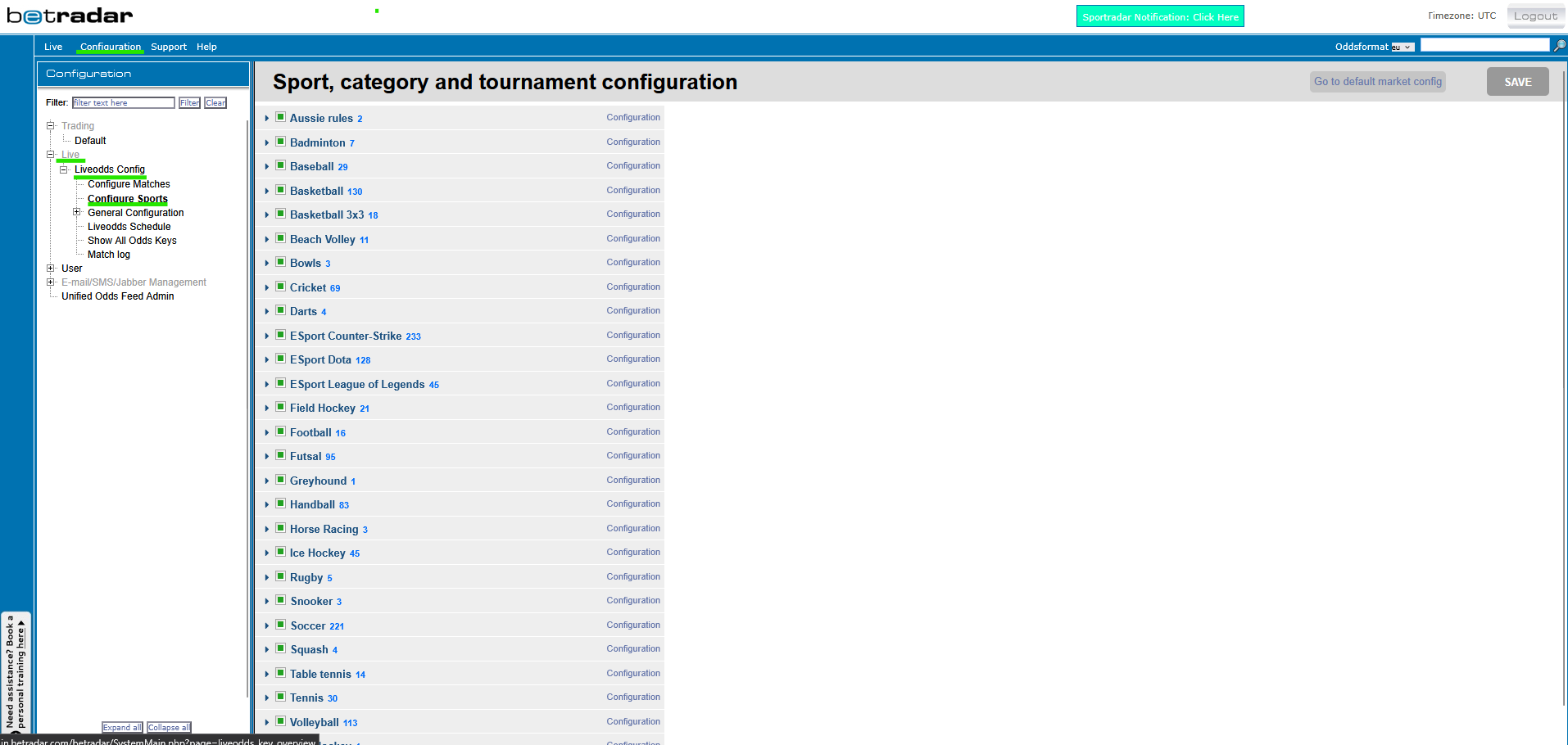
Once you opened the Betradar Legacy web frontend as described in the section Configuration environments, chose the Configuration entry from the main menu, and navigate to Live / Liveodds Config / Configure Sports in the configuration tree on the left hand side as shown in the screenshot below:

Now you have access to Betradar's Legacy sport, category and tournament configuration which is structured hierarchically.

On each hierarchy level, you can configure each market individually according to you desired margin. You can even configure markets on Sports level and the settings will be, and categories and tournaments will inherit the settings as long as lower levels do not have dedicated configurations already.

Finding a Virtual Sport

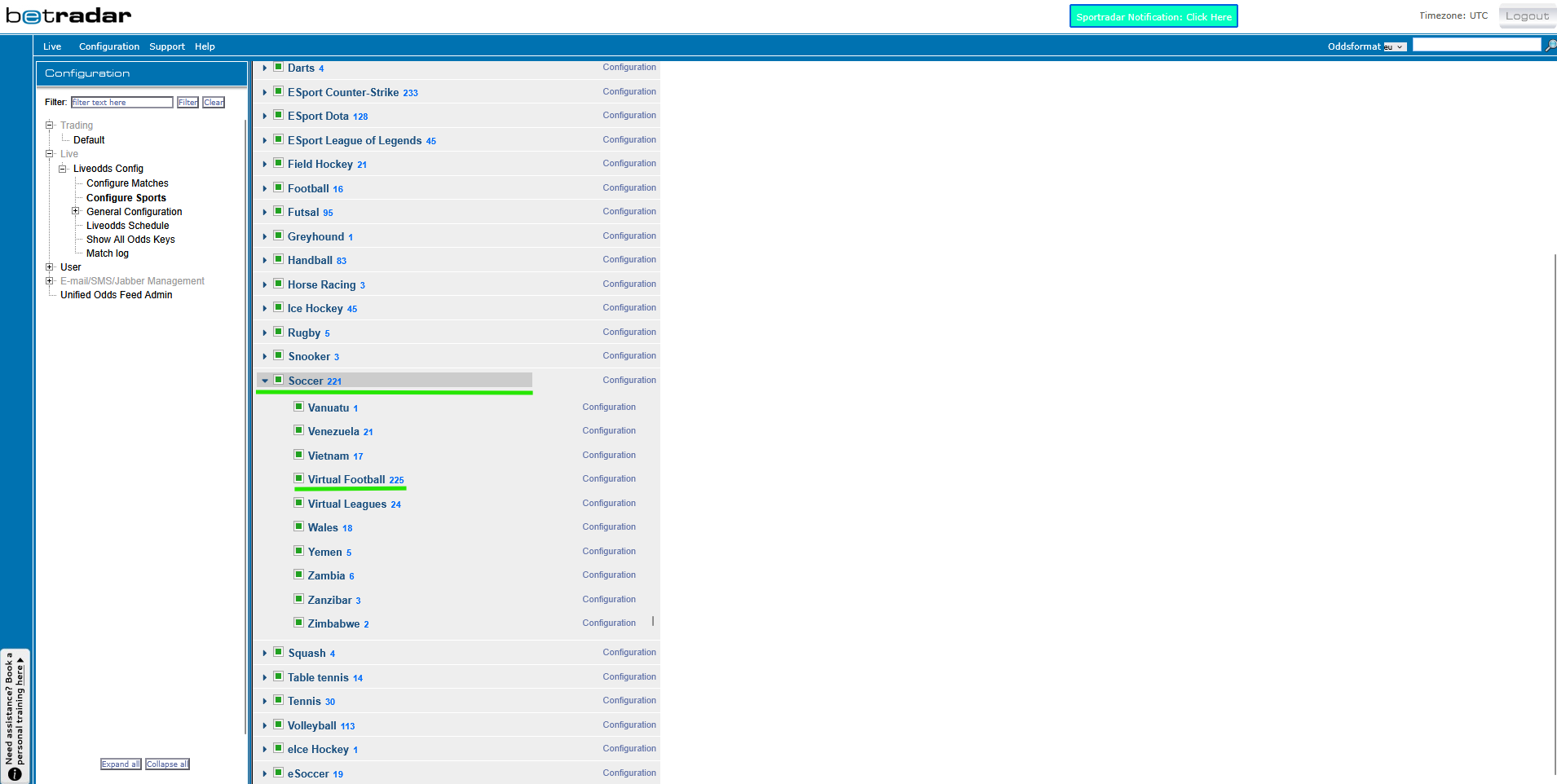
Virtual Sports are located as dedicated category under the respective real sport. E.g., Virtual Football will be found under Soccer / Virtual Football.

circle-info

Under Soccer, you will also find the category Virtual Leagues. This belongs to a decommissioned product and can be ignored.

From here, you can configure each Virtual Sport on category or tournament level.

Below, you will find an overview of where to find a particular Virtual Sport in the sport, category and tournament configuration:

Product
Sport
Category
Stage
Tournament

Virtual Football Bundesliga

Soccer

Virtual Football

N/A

Virtual Football Bundesliga

Virtual Football League Mode

Soccer

Virtual Football

N/A

Virtual Football League Mode

Virtual Fast Football (Brazilian league)

Soccer

Virtual Football

Brazil

Virtual Fast Football S1

Virtual Fast Football (English league)

Soccer

Virtual Football

England

Virtual Fast Football S2

Virtual Fast Football (Spanish league)

Soccer

Virtual Football

Spain

Virtual Fast Football S3

Virtual World Match Football (England)

Soccer

Virtual Football

England

Virtual World Match Football S1

Virtual World Match Football (Spain)

Soccer

Virtual Football

Spain

Virtual World Match Football S2

Virtual World Match Football (Brazil)

Soccer

Virtual Football

Brazil

Virtual World Match Football S3

Virtual Football English League 2

Soccer

Virtual Football

N/A

Virtual Football English League 2

Virtual Football English League

Soccer

Virtual Football

N/A

Virtual Football English League

Virtual Football German League

Soccer

Virtual Football

N/A

Virtual Football German League

Virtual Football Spanish League

Soccer

Virtual Football

N/A

Virtual Football Spanish League

Virtual Football Italian League

Soccer

Virtual Football

N/A

Virtual Football Italian League

Virtual Football French League

Soccer

Virtual Football

N/A

Virtual Football French League

Virtual Football World Cup

Soccer

Virtual Football

Group A...H

Virtual Football World Cup Group A...H

Virtual Football World Cup

Soccer

Virtual Football

Knock Out

Virtual Football World Cup Group Knock Out

Virtual Football Euro Cup

Soccer

Virtual Football

Group A...F

Virtual Football Euro Cup Group A...F

Virtual Football Euro Cup

Soccer

Virtual Football

Knock Out

Virtual Football Euro Cup Knockout stage

Virtual Football Champions Cup

Soccer

Virtual Football

Group A...H

Virtual Football Champions Cup Gr A...H

Virtual Football Champions Cup

Soccer

Virtual Football

Knock Out

Virtual Football Champion Cup Knock out

Virtual Football Asian Cup

Soccer

Virtual Football

Group A...F

Virtual Football Asian Cup Gr A...F

Virtual Football Asian Cup

Soccer

Virtual Football

Knock Out

Virtual Football Asian Cup Knock out

Virtual Football Nations Cup

Soccer

Virtual Football

Group A...F

Virtual Football Nation Cup Group A...F

Virtual Basketball League / NBA

Basketball

Virtual Basketball

N/A

Virtual Basketball League

Sim-Play Tennis / ATP Legends

Tennis

Virtual Tennis In-Play

N/A

N/A

Sim-Play Major League Baseball

Baseball

Virtual Baseball

N/A

Virtual Baseball In-Play

Virtual Dog Racing

Greyhound

Virtual Dog Racing

N/A

Virtual Dogs (VDK)

Virtual Horse Racing

Horse Racing

Virtual Horse Racing

N/A

Virtual Horses (VHK)

Configuration on category level

To configure a product on category level, click on the Configuration link next to the corresponding category name:

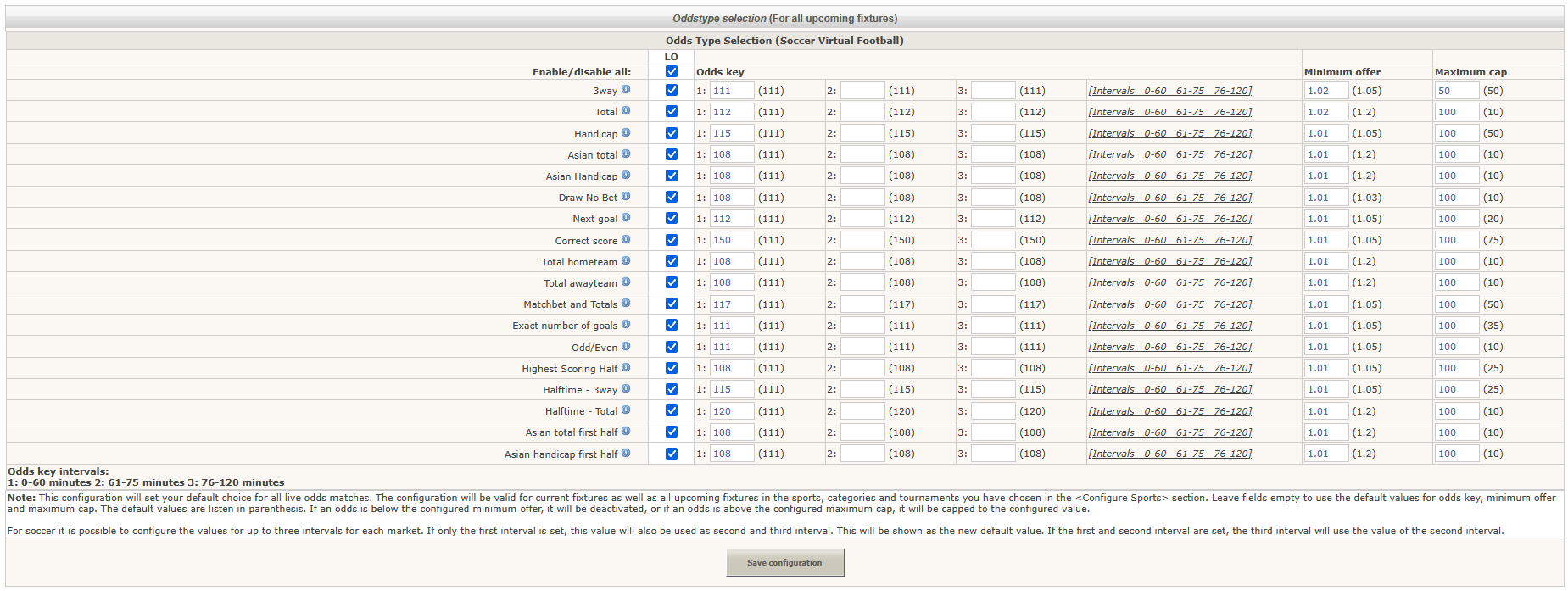
This will open the following popup dialog allowing you to configure the markets individually:

circle-info

Odds key intervals do not have an effect on Virtual Sports. Thus, only the first column must be configured.

Configuration on tournament level

Configuration on tournament level works the same as on category level. If desired, you can configure margins for each tournament individually. However, when you configure markets on tournament level, you will overwrite the settings made higher up in the hierarchy.

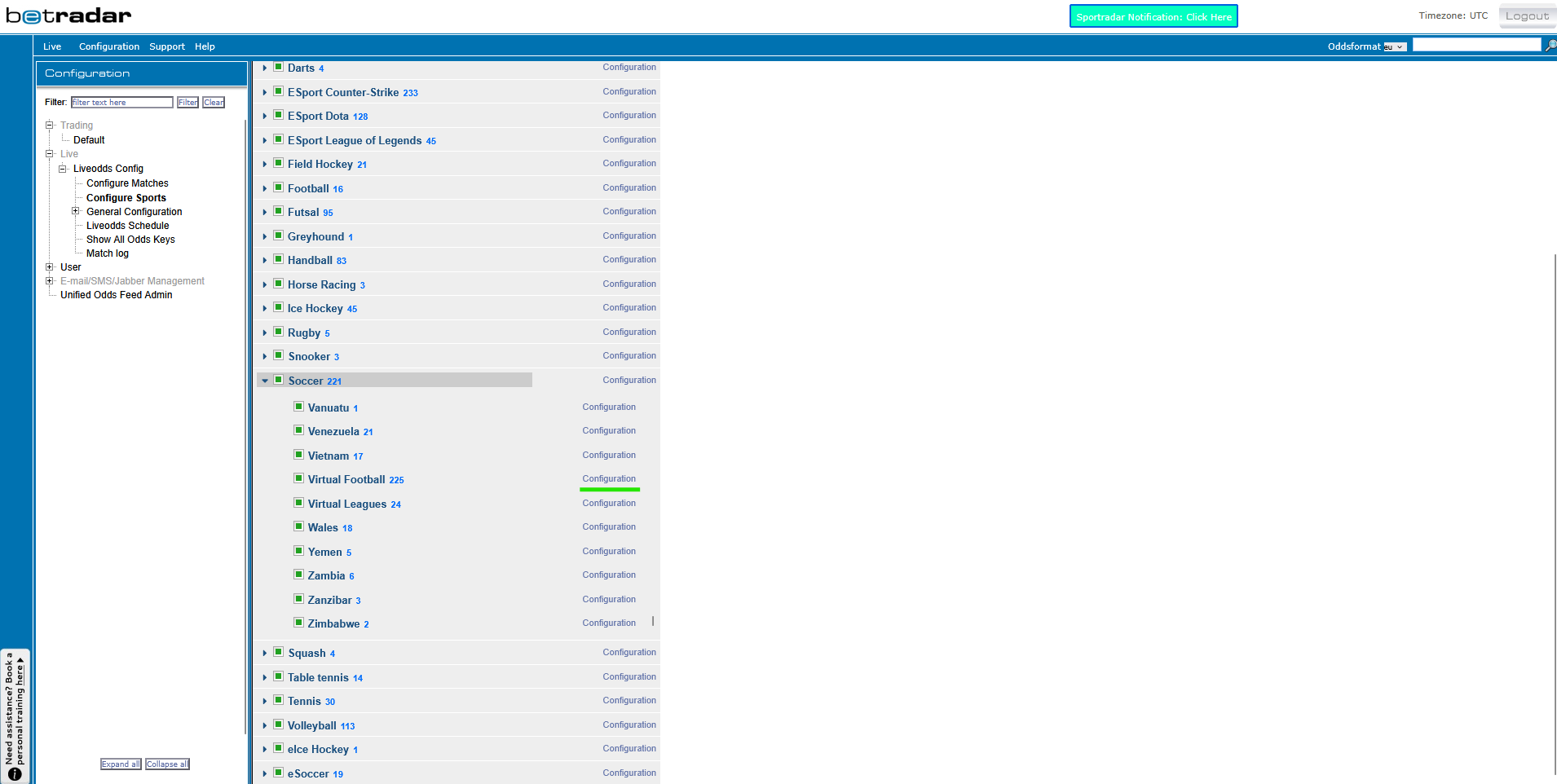
To configure an individual tournament, find the corresponding Virtual Sports category in the configuration tree, and click on the category name. Now, all tournaments belonging to that category will be listed next to the sports tree.

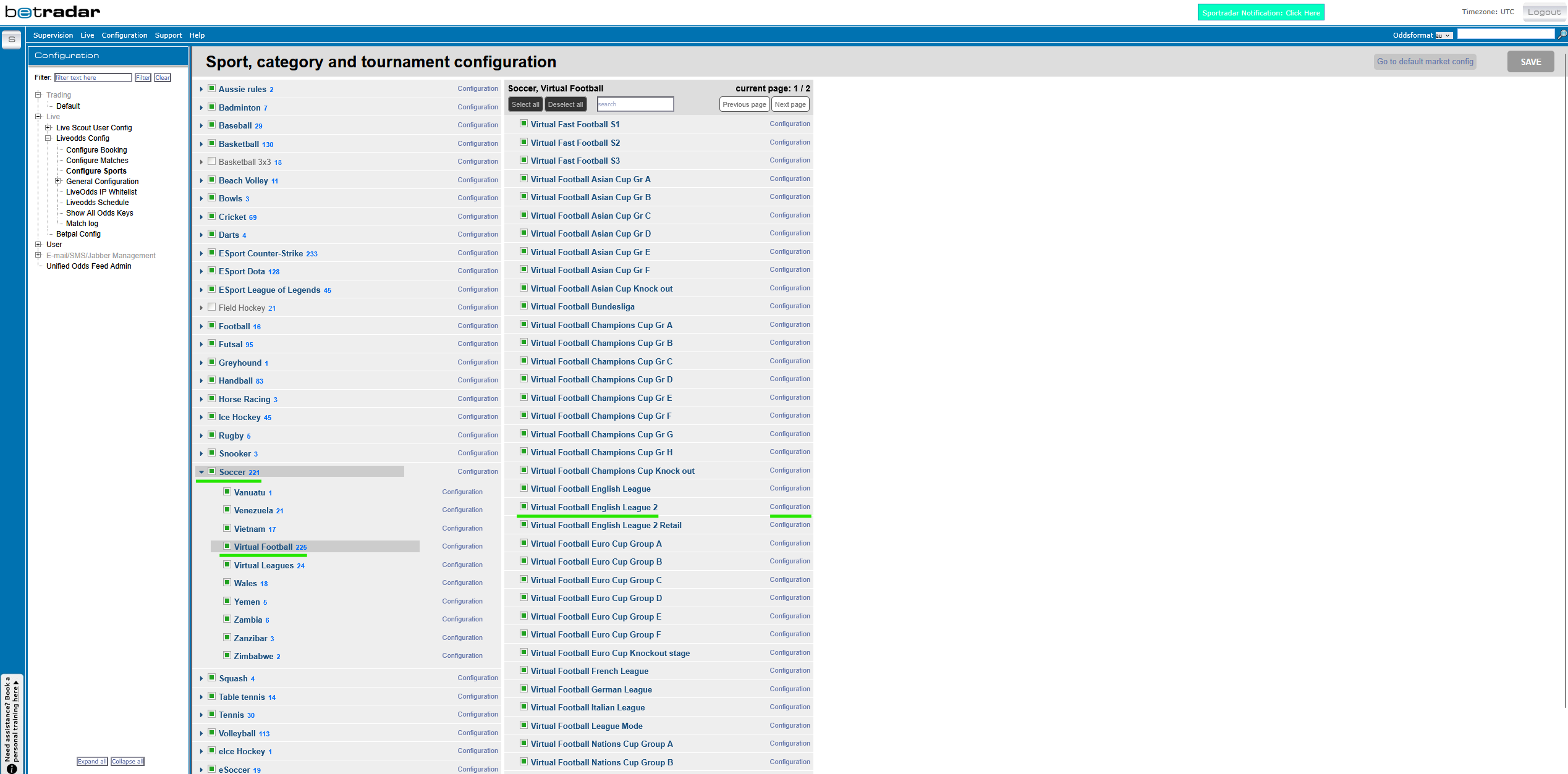
E.g., if you want to configure a particular tournament in Virtual Football, simply navigate to Soccer /Virtual Football. In the listed tournaments, find the desired tournament, and click the Configuration link shown next to it:

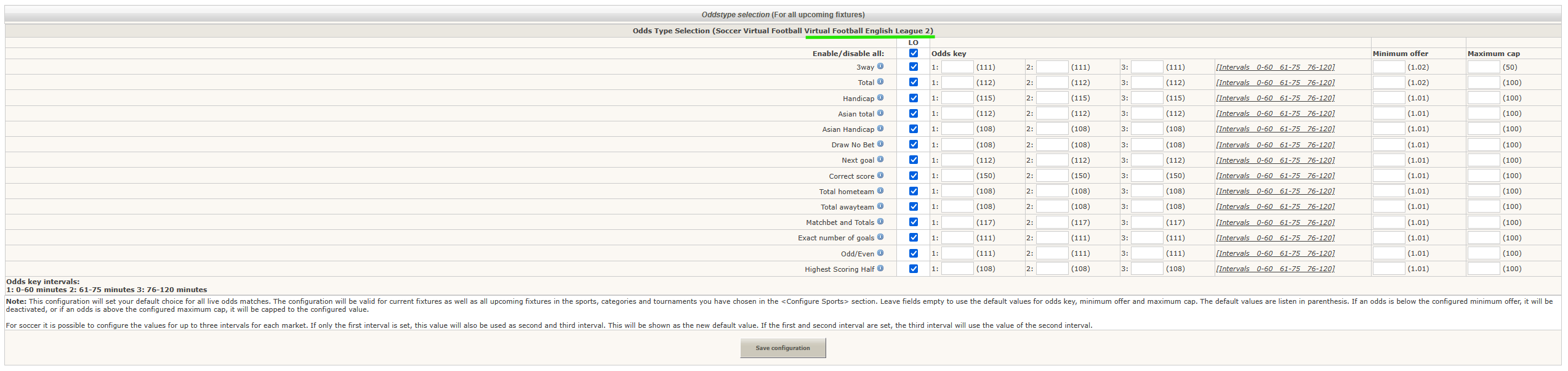
This will open the following popup dialog allowing you to configure the markets individually:

triangle-exclamation

Additional configuration overview

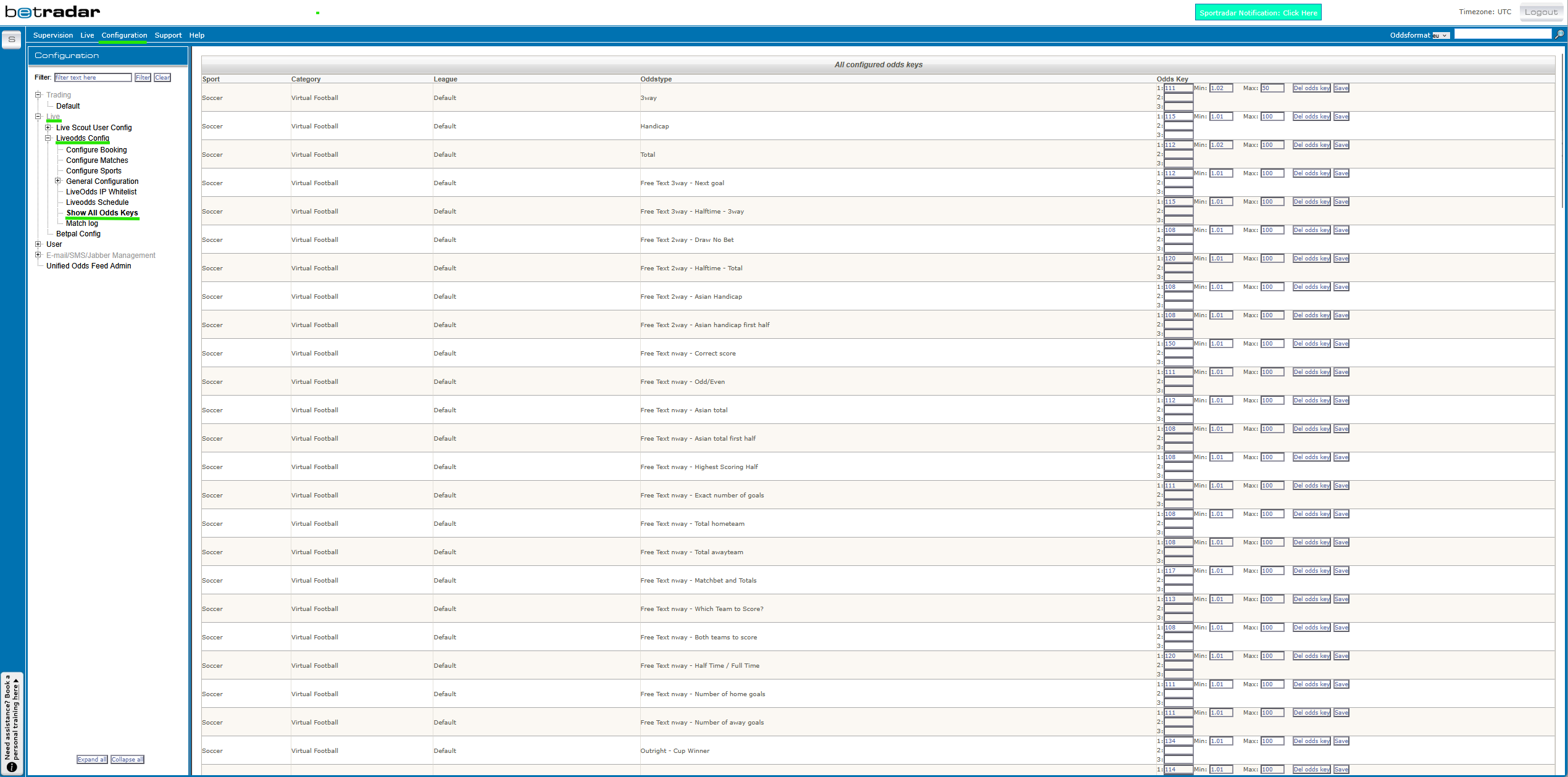
In addition to the sports configuration, there is an overview of all you configured odds keys. You will find it under Configuration / Live / Liveodds Config / Show All Odds Keys:

This will give you easy access for making adjustments in a timely manner, and a quick overview of your current configuration.

Last updated

Was this helpful?