> For the complete documentation index, see [llms.txt](https://docs.sportradar.com/llms.txt). Markdown versions of documentation pages are available by appending `.md` to page URLs; this page is available as [Markdown](https://docs.sportradar.com/uof/sdk/languages/.net/examples.md).
# Examples
The SDK release includes 10 runnable `.NET` Examples to help you get started quickly with the Unified Odds Feed SDK.\
These examples demonstrate common integration scenarios and provide a hands-on way to explore the SDK’s functionality.
While the original examples were provided in Java, this guide focuses on `.NET`. You can run the examples using Visual Studio, Visual Studio Code, or the CLI.
### Prerequisites
Before you start with these examples, ensure you have:
#### 1. Development Environment
* Visual Studio (preferred) or Visual Studio Code.
* .NET 6.0 or higher installed.
#### 2. Project Setup
* Access to the **Unified Odds Feed .NET SDK** project files.
* Knowledge of building .NET projects from the **CLI** if you plan to use commands like `dotnet build` or `dotnet run`.
#### 3. Access Credentials
* A valid **integration token** to connect to the Unified Odds Feed.
#### 4. Basic Knowledge
* Familiarity with **C# programming concepts**.
* Understanding of **SDK initialization** and running simple **.NET programs**.
### Project Structure
```
Sportradar.OddsFeed.SDK.DemoProject/
├── App.config # SDK configuration
├── UofSdkExample.cs # Main program with example selection
├── Example/ # Example implementations
│ ├── Basic.cs
│ ├── MultiSession.cs
│ ├── SpecificDispatchers.cs
│ ├── ShowMarketNames.cs
│ ├── ShowEventInfo.cs
│ ├── CompleteInfo.cs
│ ├── ShowMarketMappings.cs
│ ├── ReplayServer.cs
│ └── CacheExportImport.cs
├── Utils/ # Utility classes
└── Logs/ # Log output directory
```
### Available Examples
You can choose from the following examples when starting the SDK. Each example demonstrates a specific usage pattern or architecture for working with the Unified Odds SDK.
{% hint style="success" %}
Watch the video below :arrow\_heading\_down: for a quick walkthrough on how to run these examples in **Visual Studio Code (VS Code)**.
{% endhint %}
 ### Running the Example
To test the SDK examples, select the corresponding number from the list displayed in the terminal.\
As shown in the image below, there are nine examples (1–9), each representing a specific functionality of the SDK.
### Running the Example
To test the SDK examples, select the corresponding number from the list displayed in the terminal.\
As shown in the image below, there are nine examples (1–9), each representing a specific functionality of the SDK.
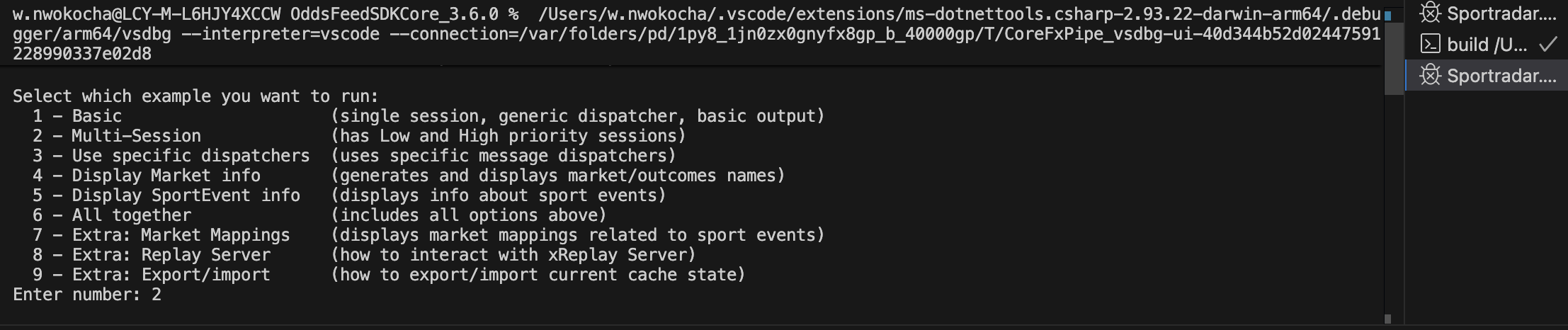 When prompted with **“Enter number:”**, type the number of the example you want to run.\
For instance:
* To run the **Multi-Session** example, enter **2**.
* To display **Market Info**, enter **4**.
* Repeat this process for any other example you wish to test.
Use the image above as a reference to understand what each number represents before making your selection.
#### 1. Basic SDK Setup
This example uses a single `UofSession` configured with `MessageInterest.AllMessages`, enabling full odds recovery from all producers. It focuses on SDK initialization and how to handle global and message-level events.
**Response:**
```sh
13:13:05,154 INFO [4] Basic Producer 15(VBI):[IsUp=True,Timestamp=13.10.2025-13:13:05.157] is up
13:13:07,548 INFO [4] Basic [5-PC] OddsChange received for event sr:match:64421705 (778354784)
13:13:07,549 INFO [4] Basic [5-PC] OddsChange received for event sr:match:61406535 (778354784)
13:13:07,549 INFO [4] Basic [5-PC] OddsChange received for event sr:match:64408649 (778354784)
13:13:07,549 INFO [4] Basic [5-PC] OddsChange received for event sr:match:64412151 (778354784)
13:13:07,550 INFO [4] Basic [5-PC] OddsChange received for event sr:match:64194217 (778354784)
13:13:07,550 INFO [4] Basic [5-PC] OddsChange received for event sr:match:64193533 (778354784)
13:13:07,560 INFO [4] Basic [5-PC] BetSettlement received for event sr:match:64421705 (778354784)
13:13:07,561 INFO [4] Basic [5-PC] BetSettlement received for event sr:match:61406535 (778354784)
13:13:07,561 INFO [4] Basic [5-PC] BetSettlement received for event sr:match:64408649 (778354784)
13:13:07,561 INFO [4] Basic [5-PC] BetSettlement received for event sr:match:64412151 (778354784)
13:13:07,561 INFO [4] Basic [5-PC] BetSettlement received for event sr:match:64194217 (778354784)
13:13:07,705 INFO [4] Basic [5-PC] BetSettlement received for event sr:match:64193533 (778354784)
13:13:07,706 INFO [12] Basic Producer 5(PremiumCricket):[IsUp=True,Timestamp=13.10.2025-13:13:07.562] is up
13:13:08,066 INFO [10] Basic Producer 14(C-Odds):[IsUp=True,Timestamp=13.10.2025-13:13:07.865] is up
13:13:09,498 INFO [4] Basic Producer 8(VBL):[IsUp=True,Timestamp=13.10.2025-13:13:09.513] is up
13:13:09,992 INFO [10] Basic Producer 12(VTI):[IsUp=True,Timestamp=13.10.2025-13:13:10.007] is up
13:13:10,055 INFO [10] Basic [1-LO] FixtureChange received for event sr:match:60903673
13:13:10,055 INFO [10] Basic [1-LO] FixtureChange received for event sr:match:64434775
13:13:10,056 INFO [10] Basic [1-LO] FixtureChange received for event sr:match:64434791
```
#### 2. Multi-Session Architecture
In this setup, two parallel sessions are created, one with **high** priority and another with **low** priority. It highlights how to isolate sessions, filter messages based on priority, and handle events concurrently.
**Response:**
```sh
13:24:54,190 INFO [9] MultiSession Producer 12(VTI):[IsUp=True,Timestamp=27.10.2025-13:24:54.189] is up
13:24:54,247 INFO [12] MultiSession Producer 6(VF):[IsUp=True,Timestamp=27.10.2025-13:24:54.255] is up
13:24:54,826 INFO [9] MultiSession Producer 15(VBI):[IsUp=True,Timestamp=27.10.2025-13:24:54.773] is up
13:24:55,101 INFO [12] MultiSession [LOW] BetSettlement message for eventId: sr:match:64938082
13:24:56,707 INFO [9] MultiSession [HIGH] OddsChange message for eventId: sr:match:64193473 (670134071)
13:24:56,708 INFO [9] MultiSession [HIGH] OddsChange message for eventId: sr:match:64194471 (670134071)
13:24:56,713 INFO [9] MultiSession [HIGH] OddsChange message for eventId: sr:match:63692465 (670134071)
13:24:56,714 INFO [9] MultiSession [HIGH] OddsChange message for eventId: sr:match:64193797 (670134071)
13:24:56,714 INFO [9] MultiSession [HIGH] OddsChange message for eventId: sr:match:64194133 (670134071)
13:24:56,716 INFO [9] MultiSession [HIGH] OddsChange message for eventId: sr:match:63693013 (670134071)
13:24:56,716 INFO [9] MultiSession [HIGH] OddsChange message for eventId: sr:match:64011521 (670134071)
13:24:56,717 INFO [9] MultiSession [HIGH] OddsChange message for eventId: sr:match:64011519 (670134071)
13:24:56,717 INFO [9] MultiSession [HIGH] OddsChange message for eventId: sr:match:64194135 (670134071)
13:24:56,718 INFO [9] MultiSession [HIGH] OddsChange message for eventId: sr:match:64455627 (670134071)
13:24:56,719 INFO [9] MultiSession [HIGH] OddsChange message for eventId: sr:match:64193591 (670134071)
13:24:56,719 INFO [9] MultiSession [HIGH] OddsChange message for eventId: sr:match:64194309 (670134071)
13:24:56,720 INFO [9] MultiSession [HIGH] OddsChange message for eventId: sr:match:64193589 (670134071)
13:24:56,720 INFO [9] MultiSession [HIGH] OddsChange message for eventId: sr:match:64011499 (670134071)
13:24:56,722 INFO [9] MultiSession [HIGH] OddsChange message for eventId: sr:match:63673629 (670134071)
13:24:56,722 INFO [9] MultiSession [HIGH] OddsChange message for eventId: sr:match:64814160 (670134067)
13:24:56,723 INFO [9] MultiSession [HIGH] OddsChange message for eventId: sr:match:64814156 (670134067)
13:24:56,723 INFO [9] MultiSession [HIGH] OddsChange message for eventId: sr:match:64814158 (670134067)
13:24:56,724 INFO [9] MultiSession [HIGH] OddsChange message for eventId: sr:match:61406903 (670134071)
13:24:56,727 INFO [9] MultiSession [HIGH] OddsChange message for eventId: sr:match:64224445 (670134067)
```
#### 3. Event Type-Specific Handlers
Here, a single session is used, but each sport event type (such as Match, Stage, or Tournament) has its own dedicated handler. This pattern is ideal for processing different event types separately with custom logic.
**Response:**
```sh
14:06:12,766 INFO [1] SpecificDispatchers Running the Specific Dispatchers example
14:06:13,566 INFO [1] SpecificDispatchers Creating UofSdk instance
14:06:13,676 INFO [1] SpecificDispatchers Attaching to global events
14:06:13,676 INFO [1] SpecificDispatchers Creating IUofSessions
14:06:13,681 INFO [1] SpecificDispatchers Creating entity specific dispatchers
14:06:13,681 INFO [1] SpecificDispatchers Creating event processors
14:06:13,681 INFO [1] SpecificDispatchers Opening event processors
14:06:13,682 INFO [1] SpecificDispatchers Attaching to session events
14:06:13,682 INFO [1] SpecificDispatchers Attaching to dispatcher events
14:06:13,682 INFO [1] SpecificDispatchers Opening the dispatcher
14:06:13,682 INFO [1] SpecificDispatchers Event processor successfully opened
14:06:13,682 INFO [1] SpecificDispatchers Attaching to dispatcher events
14:06:13,682 INFO [1] SpecificDispatchers Opening the dispatcher
14:06:13,682 INFO [1] SpecificDispatchers Event processor successfully opened
14:06:13,682 INFO [1] SpecificDispatchers Attaching to dispatcher events
14:06:13,683 INFO [1] SpecificDispatchers Opening the dispatcher
14:06:13,683
```
#### 4. Market Information
This example displays market data contained in each incoming message. It helps you explore market metadata and understand how market and outcome structures are represented in the feed.
**Response:**
```sh
14:36:24,104 INFO [14] ShowMarketNames MarketId:646, Specifiers:'dismissalnr=1|maxovers=280', Name[en]:'Team with highest score at 1st dismissal', Status:Active, IsFavorite:True
14:36:24,181 INFO [14] ShowMarketNames OutcomeWithOdds:1, Name[en]:'Western Australia', Active:true, Odds:1.75, OddsUs:-133.33333333333334, Probabilities:, AdditionalProbabilities[OO]=, OutcomeDefinition:[NameTemplate[en]:{$competitor1}]
14:36:24,181 INFO [14] ShowMarketNames OutcomeWithOdds:3, Name[en]:'South Australia Redbacks', Active:true, Odds:1.95, OddsUs:-105.26315789473684, Probabilities:, AdditionalProbabilities[OO]=, OutcomeDefinition:[NameTemplate[en]:{$competitor2}]
14:36:24,181 INFO [14] ShowMarketNames OutcomeWithOdds:2, Name[en]:'draw', Active:true, Odds:40, OddsUs:3900, Probabilities:, AdditionalProbabilities[OO]=, OutcomeDefinition:[NameTemplate[en]:draw]
14:36:24,181 INFO [14] ShowMarketNames MarketId:11, Specifiers:'', Name[en]:'Draw no bet', Status:Active, IsFavorite:True
14:36:24,182 INFO [14] ShowMarketNames OutcomeWithOdds:4, Name[en]:'Western Australia', Active:true, Odds:1.9, OddsUs:-111.11111111111111, Probabilities:, AdditionalProbabilities[OO]=, OutcomeDefinition:[NameTemplate[en]:{$competitor1}]
14:36:24,182 INFO [14] ShowMarketNames OutcomeWithOdds:5, Name[en]:'South Australia Redbacks', Active:true, Odds:1.85, OddsUs:-117.64705882352939, Probabilities:, AdditionalProbabilities[OO]=, OutcomeDefinition:[NameTemplate[en]:{$competitor2}]
14:36:24,252 INFO [14] ShowMarketNames MarketId:662, Specifiers:'maxovers=280|milestone=50|inningnr=1|player=sr:player:1590312', Name[en]:'1st innings - McInerney, Conor J to score 50', Status:Active, IsFavorite:True
14:36:24,253 INFO [14] ShowMarketNames OutcomeWithOdds:74, Name[en]:'yes', Active:true, Odds:4.25, OddsUs:325, Probabilities:, AdditionalProbabilities[OO]=, OutcomeDefinition:[NameTemplate[en]:yes]
14:36:24,253 INFO [14] ShowMarketNames OutcomeWithOdds:76, Name[en]:'no', Active:true, Odds:1.18, OddsUs:-555.5555555555555, Probabilities:, AdditionalProbabilities[OO]=, OutcomeDefinition:[NameTemplate[en]:no]
14:36:24,339 INFO [14] ShowMarketNames MarketId:643, Specifiers:'maxovers=280|total=3.5|inningnr=1|player=sr:player:1374295', Name[en]:'1st innings - Green, Cameron total fours', Status:Active, IsFavorite:True
14:36:24,340 INFO [14] ShowMarketNames OutcomeWithOdds:12, Name[en]:'over 3.5', Active:true, Odds:1.75, OddsUs:-133.33333333333334, Probabilities:, AdditionalProbabilities[OO]=, OutcomeDefinition:[NameTemplate[en]:over {total}]
14:36:24,340 INFO [14] ShowMarketNames OutcomeWithOdds:13, Name[en]:'under 3.5', Active:true, Odds:1.95, OddsUs:-105.26315789473684, Probabilities:, AdditionalProbabilities[OO]=, OutcomeDefinition:[NameTemplate[en]:under {total}]
14:36:24,408 INFO [14] ShowMarketNames MarketId:638, Specifiers:'maxovers=280|total=24.5|inningnr=1|player=sr:player:1944172', Name[en]:'1st innings - Hunt, Henry total', Status:Active, IsFavorite:True
14:36:24,408 INFO [14] ShowMarketNames OutcomeWithOdds:12, Name[en]:'over 24.5', Active:true, Odds:1.85, OddsUs:-117.64705882352939, Probabilities:, AdditionalProbabilities[OO]=, OutcomeDefinition:[NameTemplate[en]:over {total}]
14:36:24,409 INFO [14] ShowMarketNames OutcomeWithOdds:13, Name[en]:'under 24.5', Active:true, Odds:1.85, OddsUs:-117.64705882352939, Probabilities:, AdditionalProbabilities[OO]=, OutcomeDefinition:[NameTemplate[en]:under {total}]
14:36:24,520 INFO [14] ShowMarketNames MarketId:638, Specifiers:'maxovers=280|total=26.5|inningnr=1|player=sr:player:730696', Name[en]:'1st innings - Cartwright, Hilton total', Status:Active, IsFavorite:True
14:36:24,520 INFO [14] ShowMarketNames OutcomeWithOdds:12, Name[en]:'over 26.5', Active:true, Odds:1.85, OddsUs:-117.64705882352939, Probabilities:, AdditionalProbabilities[OO]=, OutcomeDefinition:[NameTemplate[en]:over {total}]
14:36:24,520 INFO [14] ShowMarketNames OutcomeWithOdds:13, Name[en]:'under 26.5', Active:true, Odds:1.85, OddsUs:-117.64705882352939, Probabilities:, AdditionalProbabilities[OO]=, OutcomeDefinition:[NameTemplate[en]:under {total}]
14:36:24,520 INFO [14] ShowMarketNames MarketId:662, Specifiers:'maxovers=280|milestone=100|inningnr=1|player=sr:player:1590312', Name[en]:'1st innings - McInerney, Conor J to score 100', Status:Active, IsFavorite:True
14:36:24,520 INFO [14] ShowMarketNames OutcomeWithOdds:74, Name[en]:'yes', Active:true, Odds:8.75, OddsUs:775, Probabilities:, AdditionalProbabilities[OO]=, OutcomeDefinition:[NameTemplate[en]:yes]
14:36:24,520 INFO [14] ShowMarketNames OutcomeWithOdds:76, Name[en]:'no', Active:true, Odds:1.04, OddsUs:-2500, Probabilities:, AdditionalProbabilities[OO]=, OutcomeDefinition:[NameTemplate[en]:no]
14:36:24,587 INFO [14] ShowMarketNames MarketId:643, Specifiers:'maxovers=280|total=2.5|inningnr=1|player=sr:player:1355860', Name[en]:'1st innings - Sangha, Jason total fours', Status:Active, IsFavorite:True
14:36:24,587 INFO [14] ShowMarketNames OutcomeWithOdds:12, Name[en]:'over 2.5', Active:true, Odds:1.65, OddsUs:-153.84615384615384, Probabilities:, AdditionalProbabilities[OO]=, OutcomeDefinition:[NameTemplate[en]:over {total}]
14:36:24,588 INFO [14] ShowMarketNames OutcomeWithOdds:13, Name[en]:'under 2.5', Active:true, Odds:2.15, OddsUs:115, Probabilities:, AdditionalProbabilities[OO]=, OutcomeDefinition:[NameTemplate[en]:under {total}]
14:36:24,588 INFO [14] ShowMarketNames MarketId:669, Specifiers:'maxovers=280|total=0.5|inningnr=1', Name[en]:'1st innings - South Australia Redbacks total run outs', Status:Active, IsFavorite:True
```
#### 5. Sport Event Information
In this example, each incoming message is enriched with `SportEvent` details. It demonstrates the `SportEvent` hierarchy and how to access related API calls for retrieving detailed event information.
**Response:**
```shell
14:36:24,920 INFO [14] ShowMarketNames MarketId:646, Specifiers:'dismissalnr=1|maxovers=20', Name[en]:'Team with highest score at 1st dismissal', Status:Active, IsFavorite:True
14:36:24,920 INFO [14] ShowMarketNames OutcomeWithOdds:1, Name[en]:'Paarl Royals SRL', Active:true, Odds:1.65, OddsUs:-153.84615384615384, Probabilities:, AdditionalProbabilities[OO]=, OutcomeDefinition:[NameTemplate[en]:{$competitor1}]
14:36:24,920 INFO [14] ShowMarketNames OutcomeWithOdds:3, Name[en]:'Pretoria Capitals SRL', Active:true, Odds:2, OddsUs:100, Probabilities:, AdditionalProbabilities[OO]=, OutcomeDefinition:[NameTemplate[en]:{$competitor2}]
14:36:24,920 INFO [14] ShowMarketNames OutcomeWithOdds:2, Name[en]:'draw', Active:true, Odds:45, OddsUs:4400, Probabilities:, AdditionalProbabilities[OO]=, OutcomeDefinition:[NameTemplate[en]:draw]
14:36:24,920 INFO [14] ShowMarketNames MarketId:699, Specifiers:'', Name[en]:'Team with top bowler', Status:Active, IsFavorite:True
14:36:24,920 INFO [14] ShowMarketNames OutcomeWithOdds:4, Name[en]:'Paarl Royals SRL', Active:true, Odds:1.75, OddsUs:-133.33333333333334, Probabilities:, AdditionalProbabilities[OO]=, OutcomeDefinition:[NameTemplate[en]:{$competitor1}]
14:36:24,920 INFO [14] ShowMarketNames OutcomeWithOdds:5, Name[en]:'Pretoria Capitals SRL', Active:true, Odds:1.95, OddsUs:-105.26315789473684, Probabilities:, AdditionalProbabilities[OO]=, OutcomeDefinition:[NameTemplate[en]:{$competitor2}]
14:36:24,920 INFO [14] ShowMarketNames MarketId:342, Specifiers:'', Name[en]:'Will there be a tie', Status:Active, IsFavorite:True
14:36:24,920 INFO [14] ShowMarketNames OutcomeWithOdds:74, Name[en]:'yes', Active:true, Odds:12, OddsUs:1100, Probabilities:, AdditionalProbabilities[OO]=, OutcomeDefinition:[NameTemplate[en]:yes]
14:36:24,920 INFO [14] ShowMarketNames OutcomeWithOdds:76, Name[en]:'no', Active:false, Odds:0, OddsUs:100, Probabilities:, AdditionalProbabilities[OO]=, OutcomeDefinition:[NameTemplate[en]:no]
14:36:24,920 INFO [14] ShowMarketNames MarketId:340, Specifiers:'', Name[en]:'Winner (incl. super over)', Status:Active, IsFavorite:True
14:36:24,920 INFO [14] ShowMarketNames OutcomeWithOdds:4, Name[en]:'Paarl Royals SRL', Active:true, Odds:1.75, OddsUs:-133.33333333333334, Probabilities:, AdditionalProbabilities[OO]=, OutcomeDefinition:[NameTemplate[en]:{$competitor1}]
14:36:24,921 INFO [14] ShowMarketNames OutcomeWithOdds:5, Name[en]:'Pretoria Capitals SRL', Active:true, Odds:2.1, OddsUs:110, Probabilities:, AdditionalProbabilities[OO]=, OutcomeDefinition:[NameTemplate[en]:{$competitor2}]
14:36:24,921 INFO [14] ShowMarketNames MarketId:662, Specifiers:'maxovers=20|milestone=50|inningnr=1|player=sr:player:2181434', Name[en]:'1st innings - Jacks, Will - SRL to score 50', Status:Active, IsFavorite:True
14:36:24,921 INFO [14] ShowMarketNames OutcomeWithOdds:74, Name[en]:'yes', Active:true, Odds:4.25, OddsUs:325, Probabilities:, AdditionalProbabilities[OO]=, OutcomeDefinition:[NameTemplate[en]:yes]
14:36:24,921 INFO [14] ShowMarketNames OutcomeWithOdds:76, Name[en]:'no', Active:true, Odds:1.18, OddsUs:-555.5555555555555, Probabilities:, AdditionalProbabilities[OO]=, OutcomeDefinition:[NameTemplate[en]:no]
14:36:24,921 INFO [14] ShowMarketNames MarketId:662, Specifiers:'maxovers=20|milestone=50|inningnr=1|player=sr:player:2951871', Name[en]:'1st innings - Hermann, Rubin - SRL to score 50', Status:Active, IsFavorite:True
14:36:24,921 INFO [14] ShowMarketNames OutcomeWithOdds:74, Name[en]:'yes', Active:true, Odds:4.2, OddsUs:320, Probabilities:, AdditionalProbabilities[OO]=, OutcomeDefinition:[NameTemplate[en]:yes]
14:36:24,921 INFO [14] ShowMarketNames OutcomeWithOdds:76, Name[en]:'no', Active:true, Odds:1.18, OddsUs:-555.5555555555555, Probabilities:, AdditionalProbabilities[OO]=, OutcomeDefinition:[NameTemplate[en]:no]
14:36:24,921 INFO [14] ShowMarketNames MarketId:662, Specifiers:'maxovers=20|milestone=50|inningnr=1|player=sr:player:2038695', Name[en]:'1st innings - Root, Joe - SRL to score 50', Status:Active, IsFavorite:True
14:36:24,921 INFO [14] ShowMarketNames OutcomeWithOdds:74, Name[en]:'yes', Active:true, Odds:3.25, OddsUs:225, Probabilities:, AdditionalProbabilities[OO]=, OutcomeDefinition:[NameTemplate[en]:yes]
14:36:24,921 INFO [14] ShowMarketNames OutcomeWithOdds:76, Name[en]:'no', Active:true, Odds:1.3, OddsUs:-333.3333333333333, Probabilities:, AdditionalProbabilities[OO]=, OutcomeDefinition:[NameTemplate[en]:no]
```
#### 6. Complete Information
This combines both market and sport event data in a single session. It also shows how to limit recovery using timestamps and provides deeper insights into market metadata, outcome structures, and the `SportEvent` hierarchy.
**Response:**
```sh
14:54:56,900 INFO [10] CompleteInfo Id=sr:match:64707842 Name=Vidarbha vs. Karnataka SportId=sr:sport:21 Scheduled=10/27/2025 ScheduledEnd=null CompetitionStatus=Cancelled BookingStatus=Bookable Venue=null Conditions= Competitors=[Id=sr:competitor:959561, Names=[en:Vidarbha], Countries=[en:India], Reference=betradar=23146459, Abbreviations=[en:VID], IsVirtual=False, AssociatedPlayers=[Id=sr:player:3083870, Names=[en:Kohale, Nupur], Type=, DateOfBirth=, FullName=Nupur Kohale, Nickname=, Weight=, Height=, Nationality=[], CountryCode=, Id=sr:player:3083880, Names=[en:Wankar, Gargi], Type=, DateOfBirth=, FullName=Gargi Wankar, Nickname=, Weight=, Height=, Nationality=[], CountryCode=, Id=sr:player:3083874, Names=[en:Lodhe, Trupti], Type=, DateOfBirth=, FullName=Trupti Lodhe, Nickname=, Weight=, Height=, Nationality=[], CountryCode=, Id=sr:player:3083862, Names=[en:Behenwal, Arti], Type=, DateOfBirth=, FullName=Arti Behenwal, Nickname=, Weight=, Height=, Nationality=[], CountryCode=, Id=sr:player:3083884, Names=[en:Lanjewar, Shreya], Type=, DateOfBirth=, FullName=Shreya Lanjewar, Nickname=, Weight=, Height=, Nationality=[], CountryCode=, Id=sr:player:3083872, Names=[en:Shinde, Sayali], Type=, DateOfBirth=, FullName=Sayali Shinde, Nickname=, Weight=, Height=, Nationality=[], CountryCode=, Id=sr:player:3083860, Names=[en:Bhongade, Ankita], Type=, DateOfBirth=, FullName=Ankita Bhongade, Nickname=, Weight=, Height=, Nationality=[], CountryCode=, Id=sr:player:3083882, Names=[en:Zanzad, Komal], Type=, DateOfBirth=, FullName=Komal Zanzad, Nickname=, Weight=, Height=, Nationality=[], CountryCode=, Id=sr:player:712344, Names=[en:Meshram, Mona], Type=, DateOfBirth=9/30/1991 12:00:00 AM, FullName=Mona Rajesh Meshram, Nickname=, Weight=, Height=, Nationality=[en:India], CountryCode=IND, Id=sr:player:2386545, Names=[en:Kasat, Disha Deepak], Type=, DateOfBirth=9/19/1997 12:00:00 AM, FullName=Disha Deepak Kasat, Nickname=, Weight=, Height=, Nationality=[], CountryCode=, Id=sr:player:3083878, Names=[en:Maradwar, Riddhima], Type=, DateOfBirth=, FullName=Riddhima Maradwar, Nickname=, Weight=, Height=, Nationality=[], CountryCode=, Id=sr:player:2487233, Names=[en:Naik, Riddhi], Type=, DateOfBirth=, FullName=Riddhi Naik, Nickname=, Weight=, Height=, Nationality=[], CountryCode=, Id=sr:player:3083866, Names=[en:Thakre, Aayushi], Type=, DateOfBirth=, FullName=Aayushi Thakre, Nickname=, Weight=, Height=, Nationality=[], CountryCode=, Id=sr:player:3083876, Names=[en:Inamdar, Latika], Type=, DateOfBirth=, FullName=Latika Inamdar, Nickname=, Weight=, Height=, Nationality=[], CountryCode=, Id=sr:player:3083864, Names=[en:Fulmali, Bharti], Type=, DateOfBirth=, FullName=Bharti Fulmali, Nickname=, Weight=, Height=, Nationality=[], CountryCode=, Id=sr:player:2487237, Names=[en:Nagwani, Kanchan Shankar], Type=, DateOfBirth=7/9/1994 12:00:00 AM, FullName=Kanchan Shankar Nagwani, Nickname=, Weight=, Height=, Nationality=[], CountryCode=, Id=sr:player:2487125, Names=[en:Gohane, Arya], Type=, DateOfBirth=, FullName=Arya Gohane, Nickname=, Weight=, Height=, Nationality=[], CountryCode=, Id=sr:player:3083868, Names=[en:Pande, Mansi], Type=, DateOfBirth=, FullName=Mansi Pande, Nickname=, Weight=, Height=, Nationality=[], CountryCode=], Qualifier=home, Id=sr:competitor:553598, Names=[en:Karnataka], Countries=[en:India], Reference=betradar=11992484, Abbreviations=[en:KAR], IsVirtual=False, AssociatedPlayers=[Id=sr:player:3083790, Names=[en:Verma, Soumya], Type=, DateOfBirth=, FullName=Soumya Verma, Nickname=, Weight=, Height=, Nationality=[], CountryCode=, Id=sr:player:2118652, Names=[en:Dinesh, Vrinda], Type=, DateOfBirth=3/2/2001 12:00:00 AM, FullName=Vrinda Dinesh, Nickname=, Weight=, Height=, Nationality=[en:India], CountryCode=IND, Id=sr:player:2118674, Names=[en:Kumar, Prathyoosha], Type=, DateOfBirth=, FullName=Prathyoosha Kumar, Nickname=, Weight=, Height=, Nationality=[], CountryCode=, Id=sr:player:1719312, Names=[en:Chhelaram Patel, Monica], Type=, DateOfBirth=4/26/1999 12:00:00 AM, FullName=Monica Chhelaram Patel, Nickname=, Weight=, Height=, Nationality=[en:India], CountryCode=IND, Id=sr:player:1719314, Names=[en:Shubha, S], Type=, DateOfBirth=, FullName=S Shubha, Nickname=, Weight=, Height=, Nationality=[], CountryCode=, Id=sr:player:1719316, Names=[en:Henry, Simren], Type=, DateOfBirth=, FullName=Simren Henry, Nickname=, Weight=, Height=, Nationality=[], CountryCode=, Id=sr:player:2737215, Names=[en:Shubha, Satheesh], Type=, DateOfBirth=7/13/1999 12:00:00 AM, FullName=Satheesh Shubha, Nickname=, Weight=, Height=, Nationality=[en:India], CountryCode=IND, Id=sr:player:744590, Names=[en:Gayakwad, Rajeshwari], Type=, DateOfBirth=6/1/1991 12:00:00 AM, FullName=Rajeshwari Shivanand Gayakwad, Nickname=, Weight=, Height=, Nationality=[en:India], CountryCode=IND, Id=sr:player:1719318, Names=[en:Batni, Sanjana], Type=, DateOfBirth=9/19/1996 12:00:00 AM, FullName=Sanjana Batni, Nickname=, Weight=, Height=, Nationality=[], CountryCode=, Id=sr:player:2114732, Names=[en:Gowda, Shishira Ashwathbabu], Type=, DateOfBirth=, FullName=Shishira Ashwathbabu Gowda, Nickname=, Weight=, Height=, Nationality=[], CountryCode=, Id=sr:player:2114730, Names=[en:Prasad, Nikki Siribhagwan], Type=, DateOfBirth=10/25/2005 12:00:00 AM, FullName=Nikki Siribhagwan Prasad, Nickname=, Weight=, Height=, Nationality=[en:India], CountryCode=IND, Id=sr:player:2260089, Names=[en:K, Ashmera Banu], Type=, DateOfBirth=, FullName=Ashmera Banu K, Nickname=, Weight=, Height=, Nationality=[], CountryCode=, Id=sr:player:2114718, Names=[en:Venkateshappa, Chandu M], Type=, DateOfBirth=, FullName=Chandu M Venkateshappa, Nickname=, Weight=, Height=, Nationality=[], CountryCode=, Id=sr:player:2118634, Names=[en:Gayakwad, Rameshwari Shivanand], Type=, DateOfBirth=5/9/1995 12:00:00 AM, FullName=Rameshwari Shivanand Gayakwad, Nickname=, Weight=, Height=, Nationality=[], CountryCode=, Id=sr:player:3083788, Names=[en:Kumar M, Pooja], Type=, DateOfBirth=, FullName=Pooja Kumar M, Nickname=, Weight=, Height=, Nationality=[], CountryCode=, Id=sr:player:2114734, Names=[en:Gnanananda, Divya], Type=, DateOfBirth=3/2/1996 12:00:00 AM, FullName=Divya Gnanananda, Nickname=, Weight=, Height=, Nationality=[], CountryCode=, Id=sr:player:2450439, Names=[en:Rajesh, Aditi], Type=, DateOfBirth=8/26/2001 12:00:00 AM, FullName=Aditi Rajesh, Nickname=, Weight=, Height=, Nationality=[], CountryCode=, Id=sr:player:3083786, Names=[en:Tejashwini, B G], Type=, DateOfBirth=, FullName=B G Tejashwini, Nickname=, Weight=, Height=, Nationality=[], CountryCode=, Id=sr:player:3083784, Names=[en:Hedge, Ananya], Type=, DateOfBirth=, FullName=Ananya Hedge, Nickname=, Weight=, Height=, Nationality=[], CountryCode=, Id=sr:player:1719322, Names=[en:Prathyoosha, K], Type=, DateOfBirth=, FullName=K Prathyoosha, Nickname=, Weight=, Height=, Nationality=[], CountryCode=, Id=sr:player:1719324, Names=[en:Sowmya, M], Type=, DateOfBirth=, FullName=M Sowmya, Nickname=, Weight=, Height=, Nationality=[], CountryCode=, Id=sr:player:698144, Names=[en:Krishnamurthy, Veda], Type=, DateOfBirth=10/16/1992 12:00:00 AM, FullName=Veda Krishnamurthy, Nickname=, Weight=, Height=, Nationality=[en:India], CountryCode=IND, Id=sr:player:1719308, Names=[en:V, Chandu], Type=, DateOfBirth=, FullName=Chandu V, Nickname=, Weight=, Height=, Nationality=[], CountryCode=, Id=sr:player:2114722, Names=[en:Prathyusha, Challuru], Type=, DateOfBirth=7/25/1998 12:00:00 AM, FullName=Challuru Prathyusha, Nickname=, Weight=, Height=, Nationality=[en:India], CountryCode=IND, Id=sr:player:2260091, Names=[en:D, Tanishka], Type=, DateOfBirth=, FullName=Tanishka D, Nickname=, Weight=, Height=, Nationality=[], CountryCode=, Id=sr:player:2121828, Names=[en:Rajesh, Prerana], Type=, DateOfBirth=, FullName=Prerana Rajesh, Nickname=, Weight=, Height=, Nationality=[], CountryCode=, Id=sr:player:678606, Names=[en:Vanitha, Vellaswamy], Type=, DateOfBirth=7/19/1990 12:00:00 AM, FullName=Vellaswamy Ramu Vanitha, Nickname=, Weight=, Height=, Nationality=[en:India], CountryCode=IND, Id=sr:player:2114728, Names=[en:Patil, Shreyanka Rajesh], Type=, DateOfBirth=7/31/2002 12:00:00 AM, FullName=Shreyanka Rajesh Patil, Nickname=, Weight=, Height=, Nationality=[en:India], CountryCode=IND, Id=sr:player:2118548, Names=[en:Kiran, Roshni], Type=, DateOfBirth=, FullName=Roshni Kiran, Nickname=, Weight=, Height=, Nationality=[], CountryCode=, Id=sr:player:2118646, Names=[en:Mithila vinod], Type=, DateOfBirth=9/12/2005 12:00:00 AM, FullName=Mithila Radhakrishnan Vinod, Nickname=, Weight=, Height=, Nationality=[en:India], CountryCode=IND, Id=sr:player:2135228, Names=[en:Kiresur, Pushpa], Type=, DateOfBirth=3/14/1996 12:00:00 AM, FullName=Pushpa Panduranga Kiresur, Nickname=, Weight=, Height=, Nationality=[en:India], CountryCode=IND, Id=sr:player:2114724, Names=[en:Pawar, Sahana Shamsunder], Type=, DateOfBirth=11/20/1996 12:00:00 AM, FullName=Sahana Shamsunder Pawar, Nickname=, Weight=, Height=, Nationality=[], CountryCode=], Qualifier=away] MatchStatus=70 - Cancelled HomeTeam=sr:competitor:959561 HomeTeamReferences=[BetradarId=23146459, BetfairId=0, Refs=betradar=23146459] AwayTeam=sr:competitor:553598 AwayTeamReferences=[BetradarId=11992484, BetfairId=0, Refs=betradar=11992484] Season=sr:season:135219 Round=null Fixture=10/27/2025 3:30:00 AM Tournament=Id=sr:tournament:36607 EventStatus=Cancelled Timeline=[] PeriodScores=[] EventResults=[] DelayedInfo=null Tournament=Id=sr:tournament:36607 Name=Senior Womens T20 Trophy SportId=sr:sport:21 Scheduled=null ScheduledEnd=null Sport=Id=sr:sport:21 Category=Id=sr:category:497 CurrentSeasonInfo= TournamentCoverage= Seasons=[sr:season:92987,sr:season:112464,sr:season:124787,sr:season:135219]
14:54:56,907 INFO [10] CompleteInfo MarketId:340, Specifiers:'', AdditionalInfo:'', Name[en]:'Winner (incl. super over)', VoidReason:null, MarketDefinition:Winner (incl. super over)
14:54:56,912 INFO [10] CompleteInfo OutcomeForSettlement:4, Name[en]:'Vidarbha', Result:Lost, VoidFactor: One, DeadHeatFactor:, OutcomeDefinition:[NameTemplate[en]:{$competitor1}]
14:54:56,913 INFO [10] CompleteInfo OutcomeForSettlement:5, Name[en]:'Karnataka', Result:Lost, VoidFactor: One, DeadHeatFactor:, OutcomeDefinition:[NameTemplate[en]:{$competitor2}]
14:54:56,913 INFO [10] CompleteInfo MarketId:342, Specifiers:'', AdditionalInfo:'', Name[en]:'Will there be a tie', VoidReason:null, MarketDefinition:Will there be a tie
14:54:56,913 INFO [10] CompleteInfo OutcomeForSettlement:74, Name[en]:'yes', Result:Lost, VoidFactor: One, DeadHeatFactor:, OutcomeDefinition:[NameTemplate[en]:yes]
14:54:56,913 INFO [10] CompleteInfo OutcomeForSettlement:76, Name[en]:'no', Result:Lost, VoidFactor: One, DeadHeatFactor:, OutcomeDefinition:[NameTemplate[en]:no]
14:54:56,913 INFO [10] CompleteInfo [5-PC] BetSettlement processing for event sr:match:64707842 took 849.888 ms
14:54:56,929 INFO [10] CompleteInfo [5-PC] OddsChange received for event sr:match:64194133 (599302489)
14:54:57,381 INFO [10] CompleteInfo Id=sr:match:64194133 Name=Lucknow Super Giants SRL vs. Punjab Kings SRL SportId=sr:sport:21 Scheduled=10/27/2025 ScheduledEnd=null CompetitionStatus=Ended BookingStatus=Bookable Venue=null Conditions= Competitors=[Id=sr:competitor:900909, Names=[en:Lucknow Super Giants SRL], Countries=[], Reference=betradar=21376987, Abbreviations=[en:LUC], IsVirtual=False, AssociatedPlayers=[Id=sr:player:2038673, Names=[en:Marsh, Mitchell (SRL)], Type=, DateOfBirth=, FullName=Mitchell - SRL Marsh, Nickname=, Weight=, Height=, Nationality=[], CountryCode=, Id=sr:player:2037871, Names=[en:Thakur, Shardul - SRL], Type=, DateOfBirth=, FullName=Shardul - SRL Thakur, Nickname=, Weight=, Height=, Nationality=[], CountryCode=, Id=sr:player:2364305, Names=[en:Badoni, Ayush (SRL)], Type=, DateOfBirth=, FullName=Ayush - SRL Badoni, Nickname=, Weight=, Height=, Nationality=[], CountryCode=, Id=sr:player:2036399, Names=[en:Pant, Rishabh (SRL)], Type=, DateOfBirth=, FullName=Rishabh - SRL Pant, Nickname=, Weight=, Height=, Nationality=[], CountryCode=, Id=sr:player:2036301, Names=[en:de Kock, Quinton - SRL], Type=, DateOfBirth=, FullName=Quinton - SRL de Kock, Nickname=, Weight=, Height=, Nationality=[], CountryCode=, Id=sr:player:2225582, Names=[en:Chameera, Dushmantha (SRL)], Type=, DateOfBirth=, FullName=Dushmantha - SRL Chameera, Nickname=, Weight=, Height=, Nationality=[], CountryCode=, Id=sr:player:2038745, Names=[en:Miller, David - SRL], Type=, DateOfBirth=, FullName=David - SRL Miller, Nickname=, Weight=, Height=, Nationality=[], CountryCode=, Id=sr:player:2037843, Names=[en:Stoinis, Marcus - SRL], Type=, DateOfBirth=, FullName=Marcus - SRL Stoinis, Nickname=, Weight=, Height=, Nationality=[], CountryCode=, Id=sr:player:2364309, Names=[en:Khan, Mohsin (SRL)], Type=, DateOfBirth=, FullName=Mohsin - SRL Khan, Nickname=, Weight=, Height=, Nationality=[], CountryCode=, Id=sr:player:2036315, Names=[en:Pandya, Krunal (SRL)], Type=, DateOfBirth=, FullName=Krunal - SRL Pandya, Nickname=, Weight=, Height=, Nationality=[], CountryCode=, Id=sr:player:2103222, Names=[en:Hooda, Deepak (SRL)], Type=, DateOfBirth=, FullName=Deepak - SRL Hooda, Nickname=, Weight=, Height=, Nationality=[], CountryCode=, Id=sr:player:2037827, Names=[en:Bishnoi, Ravi - SRL], Type=, DateOfBirth=, FullName=Ravi - SRL Bishnoi, Nickname=, Weight=, Height=, Nationality=[], CountryCode=, Id=sr:player:2037819, Names=[en:Pooran, Nicholas - SRL], Type=, DateOfBirth=, FullName=Nicholas - SRL Pooran, Nickname=, Weight=, Height=, Nationality=[], CountryCode=, Id=sr:player:2154172, Names=[en:Khan, Avesh (SRL)], Type=, DateOfBirth=, FullName=Avesh - SRL Khan, Nickname=, Weight=, Height=, Nationality=[], CountryCode=, Id=sr:player:3003513, Names=[en:Rathi, Digvesh - SRL], Type=, DateOfBirth=, FullName=Digvesh - SRL Rathi, Nickname=, Weight=, Height=, Nationality=[], CountryCode=, Id=sr:player:2103260, Names=[en:Holder, Jason (SRL)], Type=, DateOfBirth=, FullName=Jason - SRL Holder, Nickname=, Weight=, Height=, Nationality=[], CountryCode=, Id=sr:player:3003519, Names=[en:Singh, Akash - SRL], Type=, DateOfBirth=, FullName=Akash - SRL Singh, Nickname=, Weight=, Height=, Nationality=[], CountryCode=, Id=sr:player:2355353, Names=[en:Ul Haq, Naveen - SRL], Type=, DateOfBirth=, FullName=Naveen - SRL Ul Haq, Nickname=, Weight=, Height=, Nationality=[], CountryCode=, Id=sr:player:2617341, Names=[en:Thakur, Yash (SRL)], Type=, DateOfBirth=, FullName=Yash - SRL Thakur, Nickname=, Weight=, Height=, Nationality=[], CountryCode=, Id=sr:player:2225562, Names=[en:Markram, Aiden - SRL], Type=, DateOfBirth=, FullName=Aiden - SRL Markram, Nickname=, Weight=, Height=, Nationality=[], CountryCode=, Id=sr:player:2036393, Names=[en:Rahul, KL - SRL], Type=, DateOfBirth=, FullName=KL - SRL Rahul, Nickname=, Weight=, Height=, Nationality=[], CountryCode=], Qualifier=home, Id=sr:competitor:695589, Names=[en:Punjab Kings SRL], Countries=[], Reference=betradar=14393265, Abbreviations=[en:PUK], IsVirtual=False, AssociatedPlayers=[Id=sr:player:2103218, Names=[en:Patel, Harshal (SRL)], Type=, DateOfBirth=, FullName=Harshal - SRL Patel, Nickname=, Weight=, Height=, Nationality=[], CountryCode=, Id=sr:player:2036375, Names=[en:Chahal, Yuzvendra (SRL)], Type=, DateOfBirth=, FullName=Yuzvendra - SRL Chahal, Nickname=, Weight=, Height=, Nationality=[], CountryCode=, Id=sr:player:2036397, Names=[en:Iyer, Shreyas (SRL)], Type=, DateOfBirth=, FullName=Shreyas - SRL Iyer, Nickname=, Weight=, Height=, Nationality=[], CountryCode=, Id=sr:player:2070369, Names=[en:Meredith, Riley (SRL)], Type=, DateOfBirth=, FullName=Riley - SRL Meredith, Nickname=, Weight=, Height=, Nationality=[], CountryCode=, Id=sr:player:2036379, Names=[en:Bairstow, Jonny - SRL], Type=, DateOfBirth=, FullName=Jonny - SRL Bairstow, Nickname=, Weight=, Height=, Nationality=[], CountryCode=, Id=sr:player:2225570, Names=[en:Rajapaksa, Bhanuka (SRL)], Type=, DateOfBirth=, FullName=Bhanuka - SRL Rajapaksa, Nickname=, Weight=, Height=, Nationality=[], CountryCode=, Id=sr:player:2036413, Names=[en:Shami, Mohammed - SRL], Type=, DateOfBirth=, FullName=Mohammed - SRL Shami, Nickname=, Weight=, Height=, Nationality=[], CountryCode=, Id=sr:player:2037821, Names=[en:Khan, Sarfaraz - SRL], Type=, DateOfBirth=, FullName=Sarfaraz - SRL Khan, Nickname=, Weight=, Height=, Nationality=[], CountryCode=, Id=sr:player:2559909, Names=[en:Jansen, Marco - SRL], Type=, DateOfBirth=, FullName=Marco - SRL Jansen, Nickname=, Weight=, Height=, Nationality=[], CountryCode=, Id=sr:player:2037823, Names=[en:Gowtham, Krishnappa - SRL], Type=, DateOfBirth=, FullName=Krishnappa - SRL Gowtham, Nickname=, Weight=, Height=, Nationality=[], CountryCode=, Id=sr:player:2037825, Names=[en:Cottrell, Sheldon - SRL], Type=, DateOfBirth=, FullName=Sheldon - SRL Cottrell, Nickname=, Weight=, Height=, Nationality=[], CountryCode=, Id=sr:player:2036319, Names=[en:Chahar, Rahul - SRL], Type=, DateOfBirth=, FullName=Rahul - SRL Chahar, Nickname=, Weight=, Height=, Nationality=[], CountryCode=, Id=sr:player:2103214, Names=[en:Curran, Sam - SRL], Type=, DateOfBirth=, FullName=Sam - SRL Curran, Nickname=, Weight=, Height=, Nationality=[], CountryCode=, Id=sr:player:2037827, Names=[en:Bishnoi, Ravi - SRL], Type=, DateOfBirth=, FullName=Ravi - SRL Bishnoi, Nickname=, Weight=, Height=, Nationality=[], CountryCode=, Id=sr:player:2037829, Names=[en:Ur Rahman, Mujeeb - SRL], Type=, DateOfBirth=, FullName=Mujeeb - SRL Ur Rahman, Nickname=, Weight=, Height=, Nationality=[], CountryCode=, Id=sr:player:2364323, Names=[en:Dhawan, Rishi (SRL)], Type=, DateOfBirth=, FullName=Rishi - SRL Dhawan, Nickname=, Weight=, Height=, Nationality=[], CountryCode=, Id=sr:player:2037819, Names=[en:Pooran, Nicholas - SRL], Type=, DateOfBirth=, FullName=Nicholas - SRL Pooran, Nickname=, Weight=, Height=, Nationality=[], CountryCode=, Id=sr:player:3003529, Names=[en:Arya, Priyansh - SRL], Type=, DateOfBirth=, FullName=Priyansh - SRL Arya, Nickname=, Weight=, Height=, Nationality=[], CountryCode=, Id=sr:player:2617353, Names=[en:Singh, Prabhsimran (SRL)], Type=, DateOfBirth=, FullName=Prabhsimran - SRL Singh, Nickname=, Weight=, Height=, Nationality=[], CountryCode=, Id=sr:player:2036393, Names=[en:Rahul, KL - SRL], Type=, DateOfBirth=, FullName=KL - SRL Rahul, Nickname=, Weight=, Height=, Nationality=[], CountryCode=, Id=sr:player:2038687, Names=[en:Jordan, Chris (SRL)], Type=, DateOfBirth=, FullName=Chris - SRL Jordan, Nickname=, Weight=, Height=, Nationality=[], CountryCode=, Id=sr:player:2039237, Names=[en:Livingstone, Liam - SRL], Type=, DateOfBirth=, FullName=Liam - SRL Livingstone, Nickname=, Weight=, Height=, Nationality=[], CountryCode=, Id=sr:player:2364319, Names=[en:Sharma, Jitesh (SRL)], Type=, DateOfBirth=, FullName=Jitesh - SRL Sharma, Nickname=, Weight=, Height=, Nationality=[], CountryCode=, Id=sr:player:2036403, Names=[en:Maxwell, Glenn - SRL], Type=, DateOfBirth=, FullName=Glenn - SRL Maxwell, Nickname=, Weight=, Height=, Nationality=[], CountryCode=, Id=sr:player:2239941, Names=[en:Brar, Harpreet (SRL)], Type=, DateOfBirth=, FullName=Harpreet - SRL Brar, Nickname=, Weight=, Height=, Nationality=[], CountryCode=, Id=sr:player:2037813, Names=[en:Gayle, Chris - SRL], Type=, DateOfBirth=, FullName=Chris - SRL Gayle, Nickname=, Weight=, Height=, Nationality=[], CountryCode=, Id=sr:player:2103222, Names=[en:Hooda, Deepak (SRL)], Type=, DateOfBirth=, FullName=Deepak - SRL Hooda, Nickname=, Weight=, Height=, Nationality=[], CountryCode=, Id=sr:player:2103224, Names=[en:Ashwin, Murugan (SRL)], Type=, DateOfBirth=, FullName=Murugan - SRL Ashwin, Nickname=, Weight=, Height=, Nationality=[], CountryCode=, Id=sr:player:2036409, Names=[en:Rabada, Kagiso - SRL], Type=, DateOfBirth=, FullName=Kagiso - SRL Rabada, Nickname=, Weight=, Height=, Nationality=[], CountryCode=, Id=sr:player:2037817, Names=[en:Agarwal, Mayank (SRL)], Type=, DateOfBirth=, FullName=Mayank - SRL Agarwal, Nickname=, Weight=, Height=, Nationality=[], CountryCode=, Id=sr:player:2037839, Names=[en:Dhawan, Shikhar (SRL)], Type=, DateOfBirth=, FullName=Shikhar - SRL Dhawan, Nickname=, Weight=, Height=, Nationality=[], CountryCode=, Id=sr:player:2103226, Names=[en:Singh, Arshdeep (SRL)], Type=, DateOfBirth=, FullName=Arshdeep - SRL Singh, Nickname=, Weight=, Height=, Nationality=[], CountryCode=, Id=sr:player:2464969, Names=[en:Omarzai, Azmatullah (SRL)], Type=, DateOfBirth=, FullName=Azmatullah - SRL Omarzai, Nickname=, Weight=, Height=, Nationality=[], CountryCode=, Id=sr:player:3003535, Names=[en:Wedhera, Nehal - SRL], Type=, DateOfBirth=, FullName=Nehal - SRL Wedhera, Nickname=, Weight=, Height=, Nationality=[], CountryCode=, Id=sr:player:2617361, Names=[en:Taide, Atharva (SRL)], Type=, DateOfBirth=, FullName=Atharva - SRL Taide, Nickname=, Weight=, Height=, Nationality=[], CountryCode=, Id=sr:player:2804825, Names=[en:Sharma, Ashutosh], Type=, DateOfBirth=, FullName=Ashutosh - SRL Sharma, Nickname=, Weight=, Height=, Nationality=[], CountryCode=, Id=sr:player:2070367, Names=[en:Ellis, Nathan (SRL)], Type=, DateOfBirth=, FullName=Nathan - SRL Ellis, Nickname=, Weight=, Height=, Nationality=[], CountryCode=, Id=sr:player:2070389, Names=[en:Inglis, Josh (SRL)], Type=, DateOfBirth=, FullName=Josh - SRL Inglis, Nickname=, Weight=, Height=, Nationality=[], CountryCode=, Id=sr:player:2804823, Names=[en:Singh, Shashank - SRL], Type=, DateOfBirth=, FullName=Shashank - SRL Singh, Nickname=, Weight=, Height=, Nationality=[], CountryCode=, Id=sr:player:2225562, Names=[en:Markram, Aiden - SRL], Type=, DateOfBirth=, FullName=Aiden - SRL Markram, Nickname=, Weight=, Height=, Nationality=[], CountryCode=], Qualifier=away] MatchStatus=100 - Ended HomeTeam=sr:competitor:900909 HomeTeamReferences=[BetradarId=21376987, BetfairId=0, Refs=betradar=21376987] AwayTeam=sr:competitor:695589 AwayTeamReferences=[BetradarId=14393265, BetfairId=0, Refs=betradar=14393265] Season=null Round=null Fixture=10/27/2025 1:00:00 PM Tournament=Id=sr:tournament:32201 EventStatus=Ended Timeline=[] PeriodScores=[] EventResults=[] DelayedInfo=null Tournament=Id=sr:tournament:32201 Name=Premier League SRL SportId=sr:sport:21 Scheduled=null ScheduledEnd=null Sport=Id=sr:sport:21 Category=Id=sr:category:2128 CurrentSeasonInfo= TournamentCoverage= Seasons=[null]
14:54:57,394 INFO [10] CompleteInfo MarketId:638, Specifiers:'maxovers=20|total=25.5|inningnr=1|player=sr:player:2036397', Name[en]:'1st innings - Iyer, Shreyas (SRL) total', Status:Settled, IsFavorite:False
14:54:57,394 INFO [10] CompleteInfo MarketId:342, Specifiers:'', Name[en]:'Will there be a tie', Status:Settled, IsFavorite:False
14:54:57,394 INFO [10] CompleteInfo MarketId:675, Specifiers:'maxovers=20|type=prematch|inningnr=1', Name[en]:'1st innings - Punjab Kings SRL top batter', Status:Settled, IsFavorite:False
14:54:57,394 INFO [10] CompleteInfo MarketId:699, Specifiers:'', Name[en]:'Team with top bowler', Status:Settled, IsFavorite:False
14:54:57,394 INFO [10] CompleteInfo MarketId:340, Specifiers:'', Name[en]:'Winner (incl. super over)', Status:Settled, IsFavorite:False
14:54:57,394 INFO [10] CompleteInfo MarketId:662, Specifiers:'maxovers=20|milestone=50|inningnr=1|player=sr:player:2070389', Name[en]:'1st innings - Inglis, Josh (SRL) to score 50', Status:Settled, IsFavorite:False
14:54:57,395 INFO [10] CompleteInfo MarketId:698, Specifiers:'maxovers=20', Name[en]:'Team with top batter', Status:Settled, IsFavorite:False
14:54:57,395 INFO [10] CompleteInfo MarketId:674, Specifiers:'maxovers=20|type=prematch|inningnr=1', Name[en]:'1st innings - Lucknow Super Giants SRL top batter', Status:Settled, IsFavorite:False
14:54:57,395 INFO [10] CompleteInfo [5-PC] OddsChange processing for event sr:match:64194133 (599302489) took 465.604 ms
14:54:57,397 INFO [10] CompleteInfo [5-PC] OddsChange received for event sr:match:64707834 (599302489)
14:54:57,944 INFO [10] CompleteInfo Id=sr:match:64707834 Name=Maharashtra vs. Haryana SportId=sr:sport:21 Scheduled=10/29/2025 ScheduledEnd=null CompetitionStatus=NotStarted BookingStatus=Bookable Venue=null Conditions= Competitors=[Id=sr:competitor:567183, Names=[en:Maharashtra], Countries=[], Reference=betradar=21222645, Abbreviations=[en:MAH], IsVirtual=False, AssociatedPlayers=[Id=sr:player:2354435, Names=[en:Navgire, Kiran], Type=, DateOfBirth=9/18/1994 12:00:00 AM, FullName=Kiran Prabhu Navgire, Nickname=, Weight=, Height=, Nationality=[en:India], CountryCode=IND, Id=sr:player:737210, Names=[en:Mandhana, Smriti], Type=, DateOfBirth=7/18/1996 12:00:00 AM, FullName=Smriti Shriniwas Mandhana, Nickname=, Weight=, Height=, Nationality=[en:India], CountryCode=IND, Id=sr:player:2135274, Names=[en:Magre, Mukta Ravindra], Type=, DateOfBirth=6/7/1995 12:00:00 AM, FullName=Mukta Ravindra Magre, Nickname=, Weight=, Height=, Nationality=[en:India], CountryCode=IND, Id=sr:player:744598, Names=[en:Vaidya, Devika], Type=, DateOfBirth=8/13/1997 12:00:00 AM, FullName=Devika Purnendu Vaidya, Nickname=, Weight=, Height=, Nationality=[en:India], CountryCode=IND, Id=sr:player:1988561, Names=[en:Shinde, Shivali Shrikant], Type=, DateOfBirth=6/23/1996 12:00:00 AM, FullName=Shivali Shrikant Shinde, Nickname=, Weight=, Height=, Nationality=[en:India], CountryCode=IND, Id=sr:player:2135298, Names=[en:Sharad Kedar, Aarti], Type=, DateOfBirth=, FullName=Aarti Sharad Kedar, Nickname=, Weight=, Height=, Nationality=[en:India], CountryCode=IND, Id=sr:player:1659615, Names=[en:Hasabnis, Tejal], Type=, DateOfBirth=8/16/1997 12:00:00 AM, FullName=Tejal Sanjay Hasabnis, Nickname=, Weight=, Height=, Nationality=[en:India], CountryCode=IND, Id=sr:player:2897565, Names=[en:Savkar, Ishwari], Type=, DateOfBirth=10/7/2003 12:00:00 AM, FullName=Ishwari Mahesh Savkar, Nickname=, Weight=, Height=, Nationality=[en:India], CountryCode=IND, Id=sr:player:2135272, Names=[en:Pokharkar, Shradda Bhau], Type=, DateOfBirth=, FullName=Shradda Bhau Pokharkar, Nickname=, Weight=, Height=, Nationality=[en:India], CountryCode=IND, Id=sr:player:733196, Names=[en:Patil, Anuja], Type=, DateOfBirth=6/28/1992 12:00:00 AM, FullName=Anuja Arun Patil, Nickname=, Weight=, Height=, Nationality=[en:India], CountryCode=IND, Id=sr:player:2918205, Names=[en:Patil, Dnyaneshwari], Type=, DateOfBirth=, FullName=Dnyaneshwari Patil, Nickname=, Weight=, Height=, Nationality=[], CountryCode=, Id=sr:player:2031455, Names=[en:Mane, Shweta], Type=, DateOfBirth=3/7/1991 12:00:00 AM, FullName=Shweta Rajaram Mane, Nickname=, Weight=, Height=, Nationality=[], CountryCode=, Id=sr:player:2135266, Names=[en:Sonawane, Maya], Type=, DateOfBirth=3/30/1999 12:00:00 AM, FullName=Maya Dattatray Sonawane, Nickname=, Weight=, Height=, Nationality=[en:India], CountryCode=IND, Id=sr:player:2135268, Names=[en:Pawar, Utkarsha Amar], Type=, DateOfBirth=, FullName=Utkarsha Amar Pawar, Nickname=, Weight=, Height=, Nationality=[], CountryCode=, Id=sr:player:2135270, Names=[en:Lonkar, Sayali Anil], Type=, DateOfBirth=5/5/1997 12:00:00 AM, FullName=Sayali Anil Lonkar, Nickname=, Weight=, Height=, Nationality=[], CountryCode=, Id=sr:player:2135276, Names=[en:Garkhede, Priyanka Bhivaji], Type=, DateOfBirth=8/13/1993 12:00:00 AM, FullName=Priyanka Bhivaji Garkhede, Nickname=, Weight=, Height=, Nationality=[en:India], CountryCode=IND, Id=sr:player:2135284, Names=[en:Gilbile, Rutuja Ravindra], Type=, DateOfBirth=, FullName=Rutuja Ravindra Gilbile, Nickname=, Weight=, Height=, Nationality=[en:India], CountryCode=IND, Id=sr:player:2244111, Names=[en:Sawant, Shweta], Type=, DateOfBirth=4/5/2004 12:00:00 AM, FullName=Shweta Sawant, Nickname=, Weight=, Height=, Nationality=[en:India], CountryCode=IND, Id=sr:player:2244113, Names=[en:Shaikh, Ayesha], Type=, DateOfBirth=, FullName=Ayesha Shaikh, Nickname=, Weight=, Height=, Nationality=[], CountryCode=, Id=sr:player:2244115, Names=[en:Gurve, ML], Type=, DateOfBirth=, FullName=ML Gurve, Nickname=, Weight=, Height=, Nationality=[], CountryCode=, Id=sr:player:2244117, Names=[en:Nanaware, T D], Type=, DateOfBirth=, FullName=T D Nanaware, Nickname=, Weight=, Height=, Nationality=[], CountryCode=, Id=sr:player:2244119, Names=[en:Veerkar, Pradnya], Type=, DateOfBirth=, FullName=Pradnya Veerkar, Nickname=, Weight=, Height=, Nationality=[], CountryCode=, Id=sr:player:2244121, Names=[en:Patil, Sushma], Type=, DateOfBirth=, FullName=Sushma Patil, Nickname=, Weight=, Height=, Nationality=[], CountryCode=, Id=sr:player:2342859, Names=[en:M, Ridhi], Type=, DateOfBirth=, FullName=Ridhi M, Nickname=, Weight=, Height=, Nationality=[], CountryCode=, Id=sr:player:2469963, Names=[en:Shinde, RP], Type=, DateOfBirth=, FullName=RP Shinde, Nickname=, Weight=, Height=, Nationality=[], CountryCode=, Id=sr:player:2469965, Names=[en:Mirajkar, BM], Type=, DateOfBirth=, FullName=BM Mirajkar, Nickname=, Weight=, Height=, Nationality=[], CountryCode=, Id=sr:player:2890855, Names=[en:Naik, Gautami], Type=, DateOfBirth=4/15/1998 12:00:00 AM, FullName=Gautami Naik, Nickname=, Weight=, Height=, Nationality=[], CountryCode=, Id=sr:player:2918201, Names=[en:Kanadi, S S], Type=, DateOfBirth=, FullName=S S Kanadi, Nickname=, Weight=, Height=, Nationality=[], CountryCode=, Id=sr:player:2918203, Names=[en:Shinde, V V], Type=, DateOfBirth=, FullName=V V Shinde, Nickname=, Weight=, Height=, Nationality=[], CountryCode=, Id=sr:player:2918207, Names=[en:Pathare, I M], Type=, DateOfBirth=, FullName=I M Pathare, Nickname=, Weight=, Height=, Nationality=[], CountryCode=, Id=sr:player:2918209, Names=[en:Mahajan, Shruti], Type=, DateOfBirth=, FullName=Shruti Mahajan, Nickname=, Weight=, Height=, Nationality=[], CountryCode=, Id=sr:player:2918211, Names=[en:Girme, Shraddha], Type=, DateOfBirth=, FullName=Shraddha Girme, Nickname=, Weight=, Height=, Nationality=[], CountryCode=, Id=sr:player:2918213, Names=[en:Survase, Gayatri], Type=, DateOfBirth=, FullName=Gayatri Survase, Nickname=, Weight=, Height=, Nationality=[], CountryCode=, Id=sr:player:2920907, Names=[en:Ahire, Bhavika], Type=, DateOfBirth=12/11/2007 12:00:00 AM, FullName=Bhavika Ahire, Nickname=, Weight=, Height=, Nationality=[en:India], CountryCode=IND, Id=sr:player:3083778, Names=[en:Khale, Ishita], Type=, DateOfBirth=3/5/2004 12:00:00 AM, FullName=Ishita Khale, Nickname=, Weight=, Height=, Nationality=[en:India], CountryCode=IND, Id=sr:player:3083780, Names=[en:Mulla, K N], Type=, DateOfBirth=, FullName=K N Mulla, Nickname=, Weight=, Height=, Nationality=[], CountryCode=, Id=sr:player:3083782, Names=[en:Kshatriya, Shalmali], Type=, DateOfBirth=, FullName=Shalmali Kshatriya, Nickname=, Weight=, Height=, Nationality=[], CountryCode=], Qualifier=home, Id=sr:competitor:959559, Names=[en:Haryana], Countries=[en:India], Reference=betradar=23146457, Abbreviations=[en:HAR], IsVirtual=False, AssociatedPlayers=[Id=sr:player:2415767, Names=[en:Mendhiya, Soniya Rajpal], Type=, DateOfBirth=, FullName=Soniya Rajpal Mendhiya, Nickname=, Weight=, Height=, Nationality=[en:India], CountryCode=IND, Id=sr:player:2924897, Names=[en:Sisodia, Reema], Type=, DateOfBirth=, FullName=Reema Sisodia, Nickname=, Weight=, Height=, Nationality=[], CountryCode=, Id=sr:player:1142206, Names=[en:Joshi, Mansi], Type=, DateOfBirth=8/18/1993 12:00:00 AM, FullName=Mansi Joshi, Nickname=, Weight=, Height=, Nationality=[en:India], CountryCode=IND, Id=sr:player:2491655, Names=[en:Hardev Kaur, Amandeep], Type=, DateOfBirth=3/2/2003 12:00:00 AM, FullName=Amandeep Hardev Kaur, Nickname=, Weight=, Height=, Nationality=[en:India], CountryCode=IND, Id=sr:player:1659761, Names=[en:Verma, Shefali], Type=, DateOfBirth=1/28/2004 12:00:00 AM, FullName=Shefali Verma, Nickname=, Weight=, Height=, Nationality=[en:India], CountryCode=IND, Id=sr:player:2544391, Names=[en:Kumari, Deepika], Type=, DateOfBirth=11/17/2008 12:00:00 AM, FullName=Deepika Kumari, Nickname=, Weight=, Height=, Nationality=[], CountryCode=, Id=sr:player:2343871, Names=[en:Sisodia, Reema Ramesh], Type=, DateOfBirth=, FullName=Reema Ramesh Sisodia, Nickname=, Weight=, Height=, Nationality=[], CountryCode=, Id=sr:player:2415757, Names=[en:Gulia, Suman Ishwar], Type=, DateOfBirth=11/24/1998 12:00:00 AM, FullName=Suman Ishwar Gulia, Nickname=, Weight=, Height=, Nationality=[], CountryCode=, Id=sr:player:2415759, Names=[en:Vasistha, Triveni Prakash], Type=, DateOfBirth=, FullName=Triveni Prakash Vasistha, Nickname=, Weight=, Height=, Nationality=[], CountryCode=, Id=sr:player:2415785, Names=[en:Rana, Sheetal Om Prakash], Type=, DateOfBirth=10/25/1996 12:00:00 AM, FullName=Sheetal Om Prakash Rana, Nickname=, Weight=, Height=, Nationality=[], CountryCode=, Id=sr:player:2415809, Names=[en:Ohlan, Bhawna Jaipal], Type=, DateOfBirth=4/4/1999 12:00:00 AM, FullName=Bhawna Jaipal Ohlan, Nickname=, Weight=, Height=, Nationality=[], CountryCode=, Id=sr:player:2544395, Names=[en:Ohlan, Tanisha], Type=, DateOfBirth=, FullName=Tanisha Ohlan, Nickname=, Weight=, Height=, Nationality=[], CountryCode=, Id=sr:player:2544397, Names=[en:Sharma, Tanishka], Type=, DateOfBirth=6/27/2009 12:00:00 AM, FullName=Tanishka Sharma, Nickname=, Weight=, Height=, Nationality=[], CountryCode=, Id=sr:player:2917233, Names=[en:Yadav, Deeya], Type=, DateOfBirth=, FullName=Deeya Yadav, Nickname=, Weight=, Height=, Nationality=[], CountryCode=, Id=sr:player:2917235, Names=[en:Sharma, Priyanka], Type=, DateOfBirth=, FullName=Priyanka Sharma, Nickname=, Weight=, Height=, Nationality=[], CountryCode=, Id=sr:player:2917237, Names=[en:Lathwal, Ragini], Type=, DateOfBirth=, FullName=Ragini Lathwal, Nickname=, Weight=, Height=, Nationality=[], CountryCode=, Id=sr:player:3083892, Names=[en:Jangra, Kareena], Type=, DateOfBirth=, FullName=Kareena Jangra, Nickname=, Weight=, Height=, Nationality=[], CountryCode=, Id=sr:player:3083896, Names=[en:Yadav, Jyoti], Type=, DateOfBirth=, FullName=Jyoti Yadav, Nickname=, Weight=, Height=, Nationality=[], CountryCode=, Id=sr:player:3083898, Names=[en:Jangu, Sakshi], Type=, DateOfBirth=, FullName=Sakshi Jangu, Nickname=, Weight=, Height=, Nationality=[], CountryCode=, Id=sr:player:3083900, Names=[en:Sain, Vandana], Type=, DateOfBirth=, FullName=Vandana Sain, Nickname=, Weight=, Height=, Nationality=[], CountryCode=, Id=sr:player:3083902, Names=[en:Parashar, Shalu], Type=, DateOfBirth=, FullName=Shalu Parashar, Nickname=, Weight=, Height=, Nationality=[], CountryCode=, Id=sr:player:3086696, Names=[en:Prajapati, Priti], Type=, DateOfBirth=, FullName=Priti Prajapati, Nickname=, Weight=, Height=, Nationality=[], CountryCode=], Qualifier=away] MatchStatus=0 - Not started HomeTeam=sr:competitor:567183 HomeTeamReferences=[BetradarId=21222645, BetfairId=0, Refs=betradar=21222645] AwayTeam=sr:competitor:959559 AwayTeamReferences=[BetradarId=23146457, BetfairId=0, Refs=betradar=23146457] Season=sr:season:135219 Round=null Fixture=10/29/2025 3:30:00 AM Tournament=Id=sr:tournament:36607 EventStatus=NotStarted Timeline=[] PeriodScores=[] EventResults=[] DelayedInfo=null Tournament=Id=sr:tournament:36607 Name=Senior Womens T20 Trophy SportId=sr:sport:21 Scheduled=null ScheduledEnd=null Sport=Id=sr:sport:21 Category=Id=sr:category:497 CurrentSeasonInfo= TournamentCoverage= Seasons=[sr:season:92987,sr:season:112464,sr:season:124787,sr:season:135219]
14:54:57,945 INFO [10] CompleteInfo MarketId:342, Specifiers:'', Name[en]:'Will there be a tie', Status:Active, IsFavorite:True
14:54:57,946 INFO [10] CompleteInfo OutcomeWithOdds:74, Name[en]:'yes', Active:true, Odds:12, OddsUs:1100, Probabilities:, AdditionalProbabilities[OO]=, OutcomeDefinition:[NameTemplate[en]:yes]
14:54:57,947 INFO [10] CompleteInfo OutcomeWithOdds:76, Name[en]:'no', Active:false, Odds:0, OddsUs:100, Probabilities:, AdditionalProbabilities[OO]=, OutcomeDefinition:[NameTemplate[en]:no]
14:54:57,947 INFO [10] CompleteInfo MarketId:340, Specifiers:'', Name[en]:'Winner (incl. super over)', Status:Active, IsFavorite:True
14:54:57,947 INFO [10] CompleteInfo OutcomeWithOdds:4, Name[en]:'Maharashtra', Active:true, Odds:2, OddsUs:100, Probabilities:, AdditionalProbabilities[OO]=, OutcomeDefinition:[NameTemplate[en]:{$competitor1}]
14:54:57,947 INFO [10] CompleteInfo OutcomeWithOdds:5, Name[en]:'Haryana', Active:true, Odds:1.8, OddsUs:-125, Probabilities:, AdditionalProbabilities[OO]=, OutcomeDefinition:[NameTemplate[en]:{$competitor2}]
14:54:57,947 INFO [10] CompleteInfo [5-PC] OddsChange processing for event sr:match:64707834 (599302489) took 550.361 ms
14:54:57,948 INFO [10] CompleteInfo [5-PC] OddsChange received for event sr:match:64707844 (599302489)
14:54:58,521 INFO [10] CompleteInfo Id=sr:match:64707844 Name=Madhya Pradesh vs. Delhi SportId=sr:sport:21 Scheduled=10/27/2025 ScheduledEnd=null CompetitionStatus=Ended BookingStatus=Bookable Venue=null Conditions= Competitors=[Id=sr:competitor:567189, Names=[en:Madhya Pradesh], Countries=[], Reference=betradar=23146463, Abbreviations=[en:MAD], IsVirtual=False, AssociatedPlayers=[Id=sr:player:2920949, Names=[en:Shukla, Aayushi], Type=, DateOfBirth=8/7/2007 12:00:00 AM, FullName=Aayushi Shukla, Nickname=, Weight=, Height=, Nationality=[en:India], CountryCode=IND, Id=sr:player:1989187, Names=[en:George, Jincy], Type=, DateOfBirth=5/4/1992 12:00:00 AM, FullName=Kutty Jincy George, Nickname=, Weight=, Height=, Nationality=[en:India], CountryCode=IND, Id=sr:player:1401579, Names=[en:Vastrakar, Pooja], Type=, DateOfBirth=9/25/1999 12:00:00 AM, FullName=Pooja Vastrakar, Nickname=, Weight=, Height=, Nationality=[en:India], CountryCode=IND, Id=sr:player:3084720, Names=[en:Priyanka, -], Type=, DateOfBirth=, FullName=- Priyanka, Nickname=, Weight=, Height=, Nationality=[], CountryCode=, Id=sr:player:2917197, Names=[en:Tagde, Anaadi], Type=, DateOfBirth=, FullName=Anaadi Tagde, Nickname=, Weight=, Height=, Nationality=[], CountryCode=, Id=sr:player:2382579, Names=[en:Gupta, Sanskriti], Type=, DateOfBirth=12/2/2004 12:00:00 AM, FullName=Sanskriti Rajkumar Gupta, Nickname=, Weight=, Height=, Nationality=[en:India], CountryCode=IND, Id=sr:player:2478575, Names=[en:Thakur, Kanishka], Type=, DateOfBirth=, FullName=Kanishka Thakur, Nickname=, Weight=, Height=, Nationality=[], CountryCode=, Id=sr:player:2382705, Names=[en:Jadhav, Kalyani], Type=, DateOfBirth=, FullName=Kalyani Santosh Jadhav, Nickname=, Weight=, Height=, Nationality=[en:India], CountryCode=IND, Id=sr:player:2382715, Names=[en:Dubey, Ananya], Type=, DateOfBirth=, FullName=Ananya Bhawani Dubey, Nickname=, Weight=, Height=, Nationality=[en:India], CountryCode=IND, Id=sr:player:2917191, Names=[en:Buchade, Dhani], Type=, DateOfBirth=, FullName=Dhani Buchade, Nickname=, Weight=, Height=, Nationality=[], CountryCode=, Id=sr:player:2139800, Names=[en:Gaud, Kranti Munna], Type=, DateOfBirth=8/11/2003 12:00:00 AM, FullName=Kranti Munna Gaud, Nickname=, Weight=, Height=, Nationality=[en:India], CountryCode=IND, Id=sr:player:2139852, Names=[en:Billore, Yamini Bhaiyalal], Type=, DateOfBirth=3/31/2005 12:00:00 AM, FullName=Yamini Bhaiyalal Billore, Nickname=, Weight=, Height=, Nationality=[], CountryCode=, Id=sr:player:2135264, Names=[en:Khemnar, Poonam Nanasaheb], Type=, DateOfBirth=5/9/1994 12:00:00 AM, FullName=Poonam Nanasaheb Khemnar, Nickname=, Weight=, Height=, Nationality=[en:India], CountryCode=IND, Id=sr:player:2890955, Names=[en:Upadhyay, Shuchi], Type=, DateOfBirth=, FullName=Shuchi Upadhyay, Nickname=, Weight=, Height=, Nationality=[en:India], CountryCode=IND, Id=sr:player:3083856, Names=[en:Sharma, Suhani], Type=, DateOfBirth=, FullName=Suhani Sharma, Nickname=, Weight=, Height=, Nationality=[], CountryCode=, Id=sr:player:2031471, Names=[en:Tiwari, Soumya], Type=, DateOfBirth=3/11/2005 12:00:00 AM, FullName=Soumya Manish Tiwari, Nickname=, Weight=, Height=, Nationality=[en:India], CountryCode=IND, Id=sr:player:2136826, Names=[en:Sharma, Anushka Brijmohan], Type=, DateOfBirth=, FullName=Anushka Brijmohan Sharma, Nickname=, Weight=, Height=, Nationality=[], CountryCode=, Id=sr:player:2031463, Names=[en:Singh, Nikita], Type=, DateOfBirth=2/24/1997 12:00:00 AM, FullName=Nikita Singh, Nickname=, Weight=, Height=, Nationality=[], CountryCode=, Id=sr:player:2136828, Names=[en:Koushal, Priyanka Tulsiram], Type=, DateOfBirth=8/26/1995 12:00:00 AM, FullName=Priyanka Tulsiram Koushal, Nickname=, Weight=, Height=, Nationality=[], CountryCode=, Id=sr:player:2139858, Names=[en:Sharma, Vaishnavi Narendra], Type=, DateOfBirth=12/18/2005 12:00:00 AM, FullName=Vaishnavi Narendra Sharma, Nickname=, Weight=, Height=, Nationality=[en:India], CountryCode=IND, Id=sr:player:3083858, Names=[en:Jain, Rishika], Type=, DateOfBirth=, FullName=Rishika Jain, Nickname=, Weight=, Height=, Nationality=[], CountryCode=, Id=sr:player:2136824, Names=[en:Firdous, Rahila Mashkoor], Type=, DateOfBirth=, FullName=Rahila Mashkoor Firdous, Nickname=, Weight=, Height=, Nationality=[], CountryCode=], Qualifier=home, Id=sr:competitor:894257, Names=[en:Delhi], Countries=[en:India], Reference=betradar=21151237, Abbreviations=[en:DEL], IsVirtual=False, AssociatedPlayers=[Id=sr:player:2365347, Names=[en:Sisodia, Parunika], Type=, DateOfBirth=9/1/2005 12:00:00 AM, FullName=Parunika Sudhir Sisodia, Nickname=, Weight=, Height=, Nationality=[en:India], CountryCode=IND, Id=sr:player:2849297, Names=[en:Yadav, Upasana], Type=, DateOfBirth=, FullName=Upasana Yadav, Nickname=, Weight=, Height=, Nationality=[], CountryCode=, Id=sr:player:2385965, Names=[en:Sehrawat, Shweta Sanjay], Type=, DateOfBirth=2/26/2004 12:00:00 AM, FullName=Shweta Sanjay Sehrawat, Nickname=, Weight=, Height=, Nationality=[en:India], CountryCode=IND, Id=sr:player:2849337, Names=[en:Yadav, Soni], Type=, DateOfBirth=, FullName=Soni Yadav, Nickname=, Weight=, Height=, Nationality=[], CountryCode=, Id=sr:player:2849569, Names=[en:Mahto, Nidhi], Type=, DateOfBirth=, FullName=Nidhi Mahto, Nickname=, Weight=, Height=, Nationality=[], CountryCode=, Id=sr:player:2080883, Names=[en:Soni, Ayushi], Type=, DateOfBirth=9/30/2000 12:00:00 AM, FullName=Ayushi Soni, Nickname=, Weight=, Height=, Nationality=[], CountryCode=, Id=sr:player:2849333, Names=[en:Rawal, Bharti], Type=, DateOfBirth=, FullName=Bharti Rawal, Nickname=, Weight=, Height=, Nationality=[], CountryCode=, Id=sr:player:2385555, Names=[en:Madhu, Harendra Singh], Type=, DateOfBirth=, FullName=Harendra Singh Madhu, Nickname=, Weight=, Height=, Nationality=[], CountryCode=, Id=sr:player:2466907, Names=[en:Singh, Tanisha], Type=, DateOfBirth=, FullName=Tanisha Singh, Nickname=, Weight=, Height=, Nationality=[], CountryCode=, Id=sr:player:2849257, Names=[en:Soni, Sumiti], Type=, DateOfBirth=, FullName=Sumiti Soni, Nickname=, Weight=, Height=, Nationality=[en:India], CountryCode=IND, Id=sr:player:2365357, Names=[en:Yadav, Laxmi], Type=, DateOfBirth=, FullName=Laxmi Yadav, Nickname=, Weight=, Height=, Nationality=[], CountryCode=, Id=sr:player:1653541, Names=[en:Punia, Priya], Type=, DateOfBirth=8/6/1996 12:00:00 AM, FullName=Priya Surender Punia, Nickname=, Weight=, Height=, Nationality=[en:India], CountryCode=IND, Id=sr:player:2466915, Names=[en:Soni, Riya], Type=, DateOfBirth=, FullName=Riya Soni, Nickname=, Weight=, Height=, Nationality=[], CountryCode=, Id=sr:player:2918185, Names=[en:Sehrawat, Shweta], Type=, DateOfBirth=2/26/2004 12:00:00 AM, FullName=Shweta Sehrawat, Nickname=, Weight=, Height=, Nationality=[en:India], CountryCode=IND, Id=sr:player:2918187, Names=[en:Khan, Nazma], Type=, DateOfBirth=5/8/1996 12:00:00 AM, FullName=Nazma Khan, Nickname=, Weight=, Height=, Nationality=[en:India], CountryCode=IND, Id=sr:player:2849309, Names=[en:Sharma, Mansi], Type=, DateOfBirth=, FullName=Mansi Sharma, Nickname=, Weight=, Height=, Nationality=[], CountryCode=, Id=sr:player:2466913, Names=[en:Bhadana, Ekta], Type=, DateOfBirth=, FullName=Ekta Bhadana, Nickname=, Weight=, Height=, Nationality=[], CountryCode=, Id=sr:player:2918189, Names=[en:-, Monika], Type=, DateOfBirth=, FullName=Monika -, Nickname=, Weight=, Height=, Nationality=[], CountryCode=, Id=sr:player:2365371, Names=[en:Rawat, Pragya], Type=, DateOfBirth=4/4/2000 12:00:00 AM, FullName=Pragya Rawat, Nickname=, Weight=, Height=, Nationality=[], CountryCode=, Id=sr:player:2765921, Names=[en:Mishra, Priya], Type=, DateOfBirth=6/4/2004 12:00:00 AM, FullName=Priya Mishra, Nickname=, Weight=, Height=, Nationality=[en:India], CountryCode=IND], Qualifier=away] MatchStatus=100 - Ended HomeTeam=sr:competitor:567189 HomeTeamReferences=[BetradarId=23146463, BetfairId=0, Refs=betradar=23146463] AwayTeam=sr:competitor:894257 AwayTeamReferences=[BetradarId=21151237, BetfairId=0, Refs=betradar=21151237] Season=sr:season:135219 Round=null Fixture=10/27/2025 8:00:00 AM Tournament=Id=sr:tournament:36607 EventStatus=Ended Timeline=[] PeriodScores=[] EventResults=[] DelayedInfo=null Tournament=Id=sr:tournament:36607 Name=Senior Womens T20 Trophy SportId=sr:sport:21 Scheduled=null ScheduledEnd=null Sport=Id=sr:sport:21 Category=Id=sr:category:497 CurrentSeasonInfo= TournamentCoverage= Seasons=[sr:season:92987,sr:season:112464,sr:season:124787,sr:season:135219]
```
#### 7. Extra: Market Mapping Information
An additional example that focuses on market mappings. It shows how to access `MarketMapping` metadata, including specifiers and structure details for each market received.
**Response:**
```sh
13:32:16,447 DEBUG [64] ShowMarketMappings Market 14 mapping TypeId:1, Sov:'0:1'
13:32:16,447 DEBUG [64] ShowMarketMappings Market 14 mapping TypeId:55, Sov:'0:1'
13:32:16,447 DEBUG [64] ShowMarketMappings Market 14 mapping TypeId:887, Sov:'0:1'
13:32:16,448 DEBUG [64] ShowMarketMappings Outcome for market=14 and outcomeId=1711 is mapped to [Id:1, Name:'1']
13:32:16,448 DEBUG [64] ShowMarketMappings Outcome for market=14 and outcomeId=1711 is mapped to [Id:1, Name:'1']
13:32:16,448 DEBUG [64] ShowMarketMappings Outcome for market=14 and outcomeId=1711 is mapped to [Id:1, Name:'1']
13:32:16,448 DEBUG [64] ShowMarketMappings Outcome for market=14 and outcomeId=1712 is mapped to [Id:2, Name:'X']
13:32:16,448 DEBUG [64] ShowMarketMappings Outcome for market=14 and outcomeId=1712 is mapped to [Id:2, Name:'X']
13:32:16,448 DEBUG [64] ShowMarketMappings Outcome for market=14 and outcomeId=1712 is mapped to [Id:2, Name:'X']
13:32:16,448 DEBUG [64] ShowMarketMappings Outcome for market=14 and outcomeId=1713 is mapped to [Id:3, Name:'2']
13:32:16,448 DEBUG [64] ShowMarketMappings Outcome for market=14 and outcomeId=1713 is mapped to [Id:3, Name:'2']
13:32:16,448 DEBUG [64] ShowMarketMappings Outcome for market=14 and outcomeId=1713 is mapped to [Id:3, Name:'2']
13:32:16,449 DEBUG [64] ShowMarketMappings Market 14 mapping TypeId:1, Sov:'1:0'
13:32:16,449 DEBUG [64] ShowMarketMappings Market 14 mapping TypeId:55, Sov:'1:0'
13:32:16,449 DEBUG [64] ShowMarketMappings Market 14 mapping TypeId:887, Sov:'1:0'
13:32:16,449 DEBUG [64] ShowMarketMappings Outcome for market=14 and outcomeId=1711 is mapped to [Id:1, Name:'1']
13:32:16,449 DEBUG [64] ShowMarketMappings Outcome for market=14 and outcomeId=1711 is mapped to [Id:1, Name:'1']
13:32:16,449 DEBUG [64] ShowMarketMappings Outcome for market=14 and outcomeId=1711 is mapped to [Id:1, Name:'1']
13:32:16,449 DEBUG [64] ShowMarketMappings Outcome for market=14 and outcomeId=1712 is mapped to [Id:2, Name:'X']
13:32:16,449 DEBUG [64] ShowMarketMappings Outcome for market=14 and outcomeId=1712 is mapped to [Id:2, Name:'X']
13:32:16,449 DEBUG [64] ShowMarketMappings Outcome for market=14 and outcomeId=1712 is mapped to [Id:2, Name:'X']
13:32:16,449 DEBUG [64] ShowMarketMappings Outcome for market=14 and outcomeId=1713 is mapped to [Id:3, Name:'2']
13:32:16,449 DEBUG [64] ShowMarketMappings Outcome for market=14 and outcomeId=1713 is mapped to [Id:3, Name:'2']
13:32:16,449 DEBUG [64] ShowMarketMappings Outcome for market=14 and outcomeId=1713 is mapped to [Id:3, Name:'2']
13:32:16,449 DEBUG [64] ShowMarketMappings Market 14 mapping TypeId:1, Sov:'0:2'
13:32:16,449 DEBUG [64] ShowMarketMappings Market 14 mapping TypeId:55, Sov:'0:2'
13:32:16,449 DEBUG [64] ShowMarketMappings Market 14 mapping TypeId:887, Sov:'0:2'
```
#### 8. Extra: Replay Server
This example connects the SDK to the Replay Server. It allows you to replay previous sport events or entire scenarios, making it useful for testing integrations with historical data.
**Response:**
```
```
#### 9. Extra: Cache Export / Import
This setup demonstrates how to serialize and deserialize the SDK cache to persist state across restarts. It’s useful for managing cache data, maintaining state, and optimizing performance.
**Response:**
```sh
13:34:44,604 INFO [1] CacheExportImport Running the Cache export/import example
13:34:44,605 INFO [1] CacheExportImport Retrieving configuration from application configuration file
13:34:45,178 INFO [1] CacheExportImport Creating UofSdk instance
13:34:45,246 INFO [1] CacheExportImport Creating IUofSession
13:34:45,250 INFO [1] CacheExportImport Attaching to global events
13:34:45,250 INFO [1] CacheExportImport Attaching to session events
13:34:45,251 INFO [1] CacheExportImport Opening the sdk instance
13:34:45,261 INFO [1] CacheExportImport Example successfully started. Waiting 60 seconds to populate
13:34:48,781 INFO [12] CacheExportImport Producer 14(C-Odds):[IsUp=True,Timestamp=28.10.2025-13:34:48.507] is up
13:34:49,897 INFO [12] CacheExportImport [3-Ctrl] OddsChange received for event sr:match:62670127
13:34:50,644 INFO [12] CacheExportImport [3-Ctrl] OddsChange received for event sr:match:64890388
13:34:50,702 INFO [12] CacheExportImport [3-Ctrl] OddsChange received for event sr:match:61513782
13:34:51,356 INFO [12] CacheExportImport [5-PC] OddsChange received for event sr:match:64455627 (504721015)
13:34:51,357 INFO [12] CacheExportImport [5-PC] OddsChange received for event sr:match:64194139 (504721015)
13:34:51,357 INFO [12] CacheExportImport [5-PC] OddsChange received for event sr:match:64193593 (504721015)
13:34:51,371 INFO [12] CacheExportImport [5-PC] BetSettlement received for event sr:match:64455627 (504721015)
13:34:51,371 INFO [12] CacheExportImport [5-PC] BetSettlement received for event sr:match:64194139 (504721015)
13:34:51,371 INFO [12] CacheExportImport [5-PC] BetSettlement received for event sr:match:64193593 (504721015)
13:34:51,372 INFO [8] CacheExportImport Producer 5(PremiumCricket):[IsUp=True,Timestamp=28.10.2025-13:34:51.314] is up
13:34:53,308 INFO [8] CacheExportImport [1-LO] FixtureChange received for event sr:match:61737122
13:34:53,309 INFO [8] CacheExportImport [1-LO] FixtureChange received for event sr:match:64890388
13:34:53,683 INFO [8] CacheExportImport [3-Ctrl] OddsChange received for event sr:match:64413579
13:34:54,077 INFO [8] CacheExportImport Producer 12(VTI):[IsUp=True,Timestamp=28.10.2025-13:34:54.033] is up
13:34:54,806 INFO [8] CacheExportImport Producer 15(VBI):[IsUp=True,Timestamp=28.10.2025-13:34:54.763] is up
13:34:55,101 INFO [12] CacheExportImport Producer 10(VDR):[IsUp=True,Timestamp=28.10.2025-13:34:55.056] is up
13:34:55,265 INFO [4] CacheExportImport [3-Ctrl] OddsChange received for event sr:match:64487089
13:34:55,995 INFO [9] CacheExportImport [3-Ctrl] OddsChange received for event sr:match:64513465
13:34:55,996 INFO [12] CacheExportImport Producer 6(VF):[IsUp=True,Timestamp=28.10.2025-13:34:55.903] is up
13:34:56,326 INFO [8] CacheExportImport [3-Ctrl] OddsChange received for event sr:match:63510553 (504721019)
13:34:56,327 INFO [8] CacheExportImport [3-Ctrl] OddsChange received for event sr:match:63510555 (504721019)
13:34:56,341 INFO [8] CacheExportImport [3-Ctrl] BetStop received for event sr:match:64890380 (504721019)
13:34:56,366 INFO [9] CacheExportImport [3-Ctrl] OddsChange received for event sr:match:61526142 (504721019)
13:34:56,367 INFO [9] CacheExportImport [3-Ctrl] OddsChange received for event sr:match:64969738 (504721019)
13:34:56,381 INFO [9] CacheExportImport [3-Ctrl] OddsChange received for event sr:match:64897544 (504721019)
13:34:56,382 INFO [9] CacheExportImport [3-Ctrl] OddsChange received for event sr:match:63510545 (504721019)
13:34:56,383 INFO [9] CacheExportImport [3-Ctrl] OddsChange received for event sr:match:64072201 (504721019)
13:34:56,387 INFO [9] CacheExportImport [3-Ctrl] OddsChange received for event sr:match:64897542 (504721019)
13:34:56,388 INFO [9] CacheExportImport [3-Ctrl] OddsChange received for event sr:match:61922922 (504721019)
13:34:56,388 INFO [9] CacheExportImport [3-Ctrl] OddsChange received for event sr:match:63510547 (504721019)
13:34:56,390 INFO [9] CacheExportImport [3-Ctrl] OddsChange received for event sr:match:64897540 (504721019)
13:34:56,390 INFO [9] CacheExportImport [3-Ctrl] OddsChange received for event sr:match:64969732 (504721019)
13:34:56,390 INFO [9] CacheExportImport [3-Ctrl] OddsChange received for event sr:match:63510549 (504721019)
13:34:56,391 INFO [9] CacheExportImport [3-Ctrl] OddsChange received for event sr:match:64897538 (504721019)
13:34:56,391 INFO [9] CacheExportImport [3-Ctrl] OddsChange received for event sr:match:61285445 (504721019)
13:34:56,393 INFO [9] CacheExportImport [3-Ctrl] OddsChange received for event sr:match:61811272 (504721019)
```
---
# Agent Instructions
This documentation is published with GitBook. GitBook is the documentation platform designed so that both humans and AI agents can read, navigate, and reason over technical content effectively. Learn more at gitbook.com.
## Querying This Documentation
If you need additional information that is not directly available in this page, you can query the documentation dynamically by asking a question.
Perform an HTTP GET request on the current page URL with the `ask` query parameter, and the optional `goal` query parameter:
```
GET https://docs.sportradar.com/uof/sdk/languages/.net/examples.md?ask=&goal=
```
`ask` is the immediate question: it should be specific, self-contained, and written in natural language.
`goal` is optional and describes the broader end goal you are ultimately trying to accomplish on behalf of the user. GitBook uses it to tailor the answer towards what is most useful for that goal.
The response will contain a direct answer to the question and relevant excerpts and sources from the documentation.
Use this mechanism when the answer is not explicitly present in the current page, you need clarification or additional context, or you want to retrieve related documentation sections.
When prompted with **“Enter number:”**, type the number of the example you want to run.\
For instance:
* To run the **Multi-Session** example, enter **2**.
* To display **Market Info**, enter **4**.
* Repeat this process for any other example you wish to test.
Use the image above as a reference to understand what each number represents before making your selection.
#### 1. Basic SDK Setup
This example uses a single `UofSession` configured with `MessageInterest.AllMessages`, enabling full odds recovery from all producers. It focuses on SDK initialization and how to handle global and message-level events.
**Response:**
```sh
13:13:05,154 INFO [4] Basic Producer 15(VBI):[IsUp=True,Timestamp=13.10.2025-13:13:05.157] is up
13:13:07,548 INFO [4] Basic [5-PC] OddsChange received for event sr:match:64421705 (778354784)
13:13:07,549 INFO [4] Basic [5-PC] OddsChange received for event sr:match:61406535 (778354784)
13:13:07,549 INFO [4] Basic [5-PC] OddsChange received for event sr:match:64408649 (778354784)
13:13:07,549 INFO [4] Basic [5-PC] OddsChange received for event sr:match:64412151 (778354784)
13:13:07,550 INFO [4] Basic [5-PC] OddsChange received for event sr:match:64194217 (778354784)
13:13:07,550 INFO [4] Basic [5-PC] OddsChange received for event sr:match:64193533 (778354784)
13:13:07,560 INFO [4] Basic [5-PC] BetSettlement received for event sr:match:64421705 (778354784)
13:13:07,561 INFO [4] Basic [5-PC] BetSettlement received for event sr:match:61406535 (778354784)
13:13:07,561 INFO [4] Basic [5-PC] BetSettlement received for event sr:match:64408649 (778354784)
13:13:07,561 INFO [4] Basic [5-PC] BetSettlement received for event sr:match:64412151 (778354784)
13:13:07,561 INFO [4] Basic [5-PC] BetSettlement received for event sr:match:64194217 (778354784)
13:13:07,705 INFO [4] Basic [5-PC] BetSettlement received for event sr:match:64193533 (778354784)
13:13:07,706 INFO [12] Basic Producer 5(PremiumCricket):[IsUp=True,Timestamp=13.10.2025-13:13:07.562] is up
13:13:08,066 INFO [10] Basic Producer 14(C-Odds):[IsUp=True,Timestamp=13.10.2025-13:13:07.865] is up
13:13:09,498 INFO [4] Basic Producer 8(VBL):[IsUp=True,Timestamp=13.10.2025-13:13:09.513] is up
13:13:09,992 INFO [10] Basic Producer 12(VTI):[IsUp=True,Timestamp=13.10.2025-13:13:10.007] is up
13:13:10,055 INFO [10] Basic [1-LO] FixtureChange received for event sr:match:60903673
13:13:10,055 INFO [10] Basic [1-LO] FixtureChange received for event sr:match:64434775
13:13:10,056 INFO [10] Basic [1-LO] FixtureChange received for event sr:match:64434791
```
#### 2. Multi-Session Architecture
In this setup, two parallel sessions are created, one with **high** priority and another with **low** priority. It highlights how to isolate sessions, filter messages based on priority, and handle events concurrently.
**Response:**
```sh
13:24:54,190 INFO [9] MultiSession Producer 12(VTI):[IsUp=True,Timestamp=27.10.2025-13:24:54.189] is up
13:24:54,247 INFO [12] MultiSession Producer 6(VF):[IsUp=True,Timestamp=27.10.2025-13:24:54.255] is up
13:24:54,826 INFO [9] MultiSession Producer 15(VBI):[IsUp=True,Timestamp=27.10.2025-13:24:54.773] is up
13:24:55,101 INFO [12] MultiSession [LOW] BetSettlement message for eventId: sr:match:64938082
13:24:56,707 INFO [9] MultiSession [HIGH] OddsChange message for eventId: sr:match:64193473 (670134071)
13:24:56,708 INFO [9] MultiSession [HIGH] OddsChange message for eventId: sr:match:64194471 (670134071)
13:24:56,713 INFO [9] MultiSession [HIGH] OddsChange message for eventId: sr:match:63692465 (670134071)
13:24:56,714 INFO [9] MultiSession [HIGH] OddsChange message for eventId: sr:match:64193797 (670134071)
13:24:56,714 INFO [9] MultiSession [HIGH] OddsChange message for eventId: sr:match:64194133 (670134071)
13:24:56,716 INFO [9] MultiSession [HIGH] OddsChange message for eventId: sr:match:63693013 (670134071)
13:24:56,716 INFO [9] MultiSession [HIGH] OddsChange message for eventId: sr:match:64011521 (670134071)
13:24:56,717 INFO [9] MultiSession [HIGH] OddsChange message for eventId: sr:match:64011519 (670134071)
13:24:56,717 INFO [9] MultiSession [HIGH] OddsChange message for eventId: sr:match:64194135 (670134071)
13:24:56,718 INFO [9] MultiSession [HIGH] OddsChange message for eventId: sr:match:64455627 (670134071)
13:24:56,719 INFO [9] MultiSession [HIGH] OddsChange message for eventId: sr:match:64193591 (670134071)
13:24:56,719 INFO [9] MultiSession [HIGH] OddsChange message for eventId: sr:match:64194309 (670134071)
13:24:56,720 INFO [9] MultiSession [HIGH] OddsChange message for eventId: sr:match:64193589 (670134071)
13:24:56,720 INFO [9] MultiSession [HIGH] OddsChange message for eventId: sr:match:64011499 (670134071)
13:24:56,722 INFO [9] MultiSession [HIGH] OddsChange message for eventId: sr:match:63673629 (670134071)
13:24:56,722 INFO [9] MultiSession [HIGH] OddsChange message for eventId: sr:match:64814160 (670134067)
13:24:56,723 INFO [9] MultiSession [HIGH] OddsChange message for eventId: sr:match:64814156 (670134067)
13:24:56,723 INFO [9] MultiSession [HIGH] OddsChange message for eventId: sr:match:64814158 (670134067)
13:24:56,724 INFO [9] MultiSession [HIGH] OddsChange message for eventId: sr:match:61406903 (670134071)
13:24:56,727 INFO [9] MultiSession [HIGH] OddsChange message for eventId: sr:match:64224445 (670134067)
```
#### 3. Event Type-Specific Handlers
Here, a single session is used, but each sport event type (such as Match, Stage, or Tournament) has its own dedicated handler. This pattern is ideal for processing different event types separately with custom logic.
**Response:**
```sh
14:06:12,766 INFO [1] SpecificDispatchers Running the Specific Dispatchers example
14:06:13,566 INFO [1] SpecificDispatchers Creating UofSdk instance
14:06:13,676 INFO [1] SpecificDispatchers Attaching to global events
14:06:13,676 INFO [1] SpecificDispatchers Creating IUofSessions
14:06:13,681 INFO [1] SpecificDispatchers Creating entity specific dispatchers
14:06:13,681 INFO [1] SpecificDispatchers Creating event processors
14:06:13,681 INFO [1] SpecificDispatchers Opening event processors
14:06:13,682 INFO [1] SpecificDispatchers Attaching to session events
14:06:13,682 INFO [1] SpecificDispatchers Attaching to dispatcher events
14:06:13,682 INFO [1] SpecificDispatchers Opening the dispatcher
14:06:13,682 INFO [1] SpecificDispatchers Event processor successfully opened
14:06:13,682 INFO [1] SpecificDispatchers Attaching to dispatcher events
14:06:13,682 INFO [1] SpecificDispatchers Opening the dispatcher
14:06:13,682 INFO [1] SpecificDispatchers Event processor successfully opened
14:06:13,682 INFO [1] SpecificDispatchers Attaching to dispatcher events
14:06:13,683 INFO [1] SpecificDispatchers Opening the dispatcher
14:06:13,683
```
#### 4. Market Information
This example displays market data contained in each incoming message. It helps you explore market metadata and understand how market and outcome structures are represented in the feed.
**Response:**
```sh
14:36:24,104 INFO [14] ShowMarketNames MarketId:646, Specifiers:'dismissalnr=1|maxovers=280', Name[en]:'Team with highest score at 1st dismissal', Status:Active, IsFavorite:True
14:36:24,181 INFO [14] ShowMarketNames OutcomeWithOdds:1, Name[en]:'Western Australia', Active:true, Odds:1.75, OddsUs:-133.33333333333334, Probabilities:, AdditionalProbabilities[OO]=, OutcomeDefinition:[NameTemplate[en]:{$competitor1}]
14:36:24,181 INFO [14] ShowMarketNames OutcomeWithOdds:3, Name[en]:'South Australia Redbacks', Active:true, Odds:1.95, OddsUs:-105.26315789473684, Probabilities:, AdditionalProbabilities[OO]=, OutcomeDefinition:[NameTemplate[en]:{$competitor2}]
14:36:24,181 INFO [14] ShowMarketNames OutcomeWithOdds:2, Name[en]:'draw', Active:true, Odds:40, OddsUs:3900, Probabilities:, AdditionalProbabilities[OO]=, OutcomeDefinition:[NameTemplate[en]:draw]
14:36:24,181 INFO [14] ShowMarketNames MarketId:11, Specifiers:'', Name[en]:'Draw no bet', Status:Active, IsFavorite:True
14:36:24,182 INFO [14] ShowMarketNames OutcomeWithOdds:4, Name[en]:'Western Australia', Active:true, Odds:1.9, OddsUs:-111.11111111111111, Probabilities:, AdditionalProbabilities[OO]=, OutcomeDefinition:[NameTemplate[en]:{$competitor1}]
14:36:24,182 INFO [14] ShowMarketNames OutcomeWithOdds:5, Name[en]:'South Australia Redbacks', Active:true, Odds:1.85, OddsUs:-117.64705882352939, Probabilities:, AdditionalProbabilities[OO]=, OutcomeDefinition:[NameTemplate[en]:{$competitor2}]
14:36:24,252 INFO [14] ShowMarketNames MarketId:662, Specifiers:'maxovers=280|milestone=50|inningnr=1|player=sr:player:1590312', Name[en]:'1st innings - McInerney, Conor J to score 50', Status:Active, IsFavorite:True
14:36:24,253 INFO [14] ShowMarketNames OutcomeWithOdds:74, Name[en]:'yes', Active:true, Odds:4.25, OddsUs:325, Probabilities:, AdditionalProbabilities[OO]=, OutcomeDefinition:[NameTemplate[en]:yes]
14:36:24,253 INFO [14] ShowMarketNames OutcomeWithOdds:76, Name[en]:'no', Active:true, Odds:1.18, OddsUs:-555.5555555555555, Probabilities:, AdditionalProbabilities[OO]=, OutcomeDefinition:[NameTemplate[en]:no]
14:36:24,339 INFO [14] ShowMarketNames MarketId:643, Specifiers:'maxovers=280|total=3.5|inningnr=1|player=sr:player:1374295', Name[en]:'1st innings - Green, Cameron total fours', Status:Active, IsFavorite:True
14:36:24,340 INFO [14] ShowMarketNames OutcomeWithOdds:12, Name[en]:'over 3.5', Active:true, Odds:1.75, OddsUs:-133.33333333333334, Probabilities:, AdditionalProbabilities[OO]=, OutcomeDefinition:[NameTemplate[en]:over {total}]
14:36:24,340 INFO [14] ShowMarketNames OutcomeWithOdds:13, Name[en]:'under 3.5', Active:true, Odds:1.95, OddsUs:-105.26315789473684, Probabilities:, AdditionalProbabilities[OO]=, OutcomeDefinition:[NameTemplate[en]:under {total}]
14:36:24,408 INFO [14] ShowMarketNames MarketId:638, Specifiers:'maxovers=280|total=24.5|inningnr=1|player=sr:player:1944172', Name[en]:'1st innings - Hunt, Henry total', Status:Active, IsFavorite:True
14:36:24,408 INFO [14] ShowMarketNames OutcomeWithOdds:12, Name[en]:'over 24.5', Active:true, Odds:1.85, OddsUs:-117.64705882352939, Probabilities:, AdditionalProbabilities[OO]=, OutcomeDefinition:[NameTemplate[en]:over {total}]
14:36:24,409 INFO [14] ShowMarketNames OutcomeWithOdds:13, Name[en]:'under 24.5', Active:true, Odds:1.85, OddsUs:-117.64705882352939, Probabilities:, AdditionalProbabilities[OO]=, OutcomeDefinition:[NameTemplate[en]:under {total}]
14:36:24,520 INFO [14] ShowMarketNames MarketId:638, Specifiers:'maxovers=280|total=26.5|inningnr=1|player=sr:player:730696', Name[en]:'1st innings - Cartwright, Hilton total', Status:Active, IsFavorite:True
14:36:24,520 INFO [14] ShowMarketNames OutcomeWithOdds:12, Name[en]:'over 26.5', Active:true, Odds:1.85, OddsUs:-117.64705882352939, Probabilities:, AdditionalProbabilities[OO]=, OutcomeDefinition:[NameTemplate[en]:over {total}]
14:36:24,520 INFO [14] ShowMarketNames OutcomeWithOdds:13, Name[en]:'under 26.5', Active:true, Odds:1.85, OddsUs:-117.64705882352939, Probabilities:, AdditionalProbabilities[OO]=, OutcomeDefinition:[NameTemplate[en]:under {total}]
14:36:24,520 INFO [14] ShowMarketNames MarketId:662, Specifiers:'maxovers=280|milestone=100|inningnr=1|player=sr:player:1590312', Name[en]:'1st innings - McInerney, Conor J to score 100', Status:Active, IsFavorite:True
14:36:24,520 INFO [14] ShowMarketNames OutcomeWithOdds:74, Name[en]:'yes', Active:true, Odds:8.75, OddsUs:775, Probabilities:, AdditionalProbabilities[OO]=, OutcomeDefinition:[NameTemplate[en]:yes]
14:36:24,520 INFO [14] ShowMarketNames OutcomeWithOdds:76, Name[en]:'no', Active:true, Odds:1.04, OddsUs:-2500, Probabilities:, AdditionalProbabilities[OO]=, OutcomeDefinition:[NameTemplate[en]:no]
14:36:24,587 INFO [14] ShowMarketNames MarketId:643, Specifiers:'maxovers=280|total=2.5|inningnr=1|player=sr:player:1355860', Name[en]:'1st innings - Sangha, Jason total fours', Status:Active, IsFavorite:True
14:36:24,587 INFO [14] ShowMarketNames OutcomeWithOdds:12, Name[en]:'over 2.5', Active:true, Odds:1.65, OddsUs:-153.84615384615384, Probabilities:, AdditionalProbabilities[OO]=, OutcomeDefinition:[NameTemplate[en]:over {total}]
14:36:24,588 INFO [14] ShowMarketNames OutcomeWithOdds:13, Name[en]:'under 2.5', Active:true, Odds:2.15, OddsUs:115, Probabilities:, AdditionalProbabilities[OO]=, OutcomeDefinition:[NameTemplate[en]:under {total}]
14:36:24,588 INFO [14] ShowMarketNames MarketId:669, Specifiers:'maxovers=280|total=0.5|inningnr=1', Name[en]:'1st innings - South Australia Redbacks total run outs', Status:Active, IsFavorite:True
```
#### 5. Sport Event Information
In this example, each incoming message is enriched with `SportEvent` details. It demonstrates the `SportEvent` hierarchy and how to access related API calls for retrieving detailed event information.
**Response:**
```shell
14:36:24,920 INFO [14] ShowMarketNames MarketId:646, Specifiers:'dismissalnr=1|maxovers=20', Name[en]:'Team with highest score at 1st dismissal', Status:Active, IsFavorite:True
14:36:24,920 INFO [14] ShowMarketNames OutcomeWithOdds:1, Name[en]:'Paarl Royals SRL', Active:true, Odds:1.65, OddsUs:-153.84615384615384, Probabilities:, AdditionalProbabilities[OO]=, OutcomeDefinition:[NameTemplate[en]:{$competitor1}]
14:36:24,920 INFO [14] ShowMarketNames OutcomeWithOdds:3, Name[en]:'Pretoria Capitals SRL', Active:true, Odds:2, OddsUs:100, Probabilities:, AdditionalProbabilities[OO]=, OutcomeDefinition:[NameTemplate[en]:{$competitor2}]
14:36:24,920 INFO [14] ShowMarketNames OutcomeWithOdds:2, Name[en]:'draw', Active:true, Odds:45, OddsUs:4400, Probabilities:, AdditionalProbabilities[OO]=, OutcomeDefinition:[NameTemplate[en]:draw]
14:36:24,920 INFO [14] ShowMarketNames MarketId:699, Specifiers:'', Name[en]:'Team with top bowler', Status:Active, IsFavorite:True
14:36:24,920 INFO [14] ShowMarketNames OutcomeWithOdds:4, Name[en]:'Paarl Royals SRL', Active:true, Odds:1.75, OddsUs:-133.33333333333334, Probabilities:, AdditionalProbabilities[OO]=, OutcomeDefinition:[NameTemplate[en]:{$competitor1}]
14:36:24,920 INFO [14] ShowMarketNames OutcomeWithOdds:5, Name[en]:'Pretoria Capitals SRL', Active:true, Odds:1.95, OddsUs:-105.26315789473684, Probabilities:, AdditionalProbabilities[OO]=, OutcomeDefinition:[NameTemplate[en]:{$competitor2}]
14:36:24,920 INFO [14] ShowMarketNames MarketId:342, Specifiers:'', Name[en]:'Will there be a tie', Status:Active, IsFavorite:True
14:36:24,920 INFO [14] ShowMarketNames OutcomeWithOdds:74, Name[en]:'yes', Active:true, Odds:12, OddsUs:1100, Probabilities:, AdditionalProbabilities[OO]=, OutcomeDefinition:[NameTemplate[en]:yes]
14:36:24,920 INFO [14] ShowMarketNames OutcomeWithOdds:76, Name[en]:'no', Active:false, Odds:0, OddsUs:100, Probabilities:, AdditionalProbabilities[OO]=, OutcomeDefinition:[NameTemplate[en]:no]
14:36:24,920 INFO [14] ShowMarketNames MarketId:340, Specifiers:'', Name[en]:'Winner (incl. super over)', Status:Active, IsFavorite:True
14:36:24,920 INFO [14] ShowMarketNames OutcomeWithOdds:4, Name[en]:'Paarl Royals SRL', Active:true, Odds:1.75, OddsUs:-133.33333333333334, Probabilities:, AdditionalProbabilities[OO]=, OutcomeDefinition:[NameTemplate[en]:{$competitor1}]
14:36:24,921 INFO [14] ShowMarketNames OutcomeWithOdds:5, Name[en]:'Pretoria Capitals SRL', Active:true, Odds:2.1, OddsUs:110, Probabilities:, AdditionalProbabilities[OO]=, OutcomeDefinition:[NameTemplate[en]:{$competitor2}]
14:36:24,921 INFO [14] ShowMarketNames MarketId:662, Specifiers:'maxovers=20|milestone=50|inningnr=1|player=sr:player:2181434', Name[en]:'1st innings - Jacks, Will - SRL to score 50', Status:Active, IsFavorite:True
14:36:24,921 INFO [14] ShowMarketNames OutcomeWithOdds:74, Name[en]:'yes', Active:true, Odds:4.25, OddsUs:325, Probabilities:, AdditionalProbabilities[OO]=, OutcomeDefinition:[NameTemplate[en]:yes]
14:36:24,921 INFO [14] ShowMarketNames OutcomeWithOdds:76, Name[en]:'no', Active:true, Odds:1.18, OddsUs:-555.5555555555555, Probabilities:, AdditionalProbabilities[OO]=, OutcomeDefinition:[NameTemplate[en]:no]
14:36:24,921 INFO [14] ShowMarketNames MarketId:662, Specifiers:'maxovers=20|milestone=50|inningnr=1|player=sr:player:2951871', Name[en]:'1st innings - Hermann, Rubin - SRL to score 50', Status:Active, IsFavorite:True
14:36:24,921 INFO [14] ShowMarketNames OutcomeWithOdds:74, Name[en]:'yes', Active:true, Odds:4.2, OddsUs:320, Probabilities:, AdditionalProbabilities[OO]=, OutcomeDefinition:[NameTemplate[en]:yes]
14:36:24,921 INFO [14] ShowMarketNames OutcomeWithOdds:76, Name[en]:'no', Active:true, Odds:1.18, OddsUs:-555.5555555555555, Probabilities:, AdditionalProbabilities[OO]=, OutcomeDefinition:[NameTemplate[en]:no]
14:36:24,921 INFO [14] ShowMarketNames MarketId:662, Specifiers:'maxovers=20|milestone=50|inningnr=1|player=sr:player:2038695', Name[en]:'1st innings - Root, Joe - SRL to score 50', Status:Active, IsFavorite:True
14:36:24,921 INFO [14] ShowMarketNames OutcomeWithOdds:74, Name[en]:'yes', Active:true, Odds:3.25, OddsUs:225, Probabilities:, AdditionalProbabilities[OO]=, OutcomeDefinition:[NameTemplate[en]:yes]
14:36:24,921 INFO [14] ShowMarketNames OutcomeWithOdds:76, Name[en]:'no', Active:true, Odds:1.3, OddsUs:-333.3333333333333, Probabilities:, AdditionalProbabilities[OO]=, OutcomeDefinition:[NameTemplate[en]:no]
```
#### 6. Complete Information
This combines both market and sport event data in a single session. It also shows how to limit recovery using timestamps and provides deeper insights into market metadata, outcome structures, and the `SportEvent` hierarchy.
**Response:**
```sh
14:54:56,900 INFO [10] CompleteInfo Id=sr:match:64707842 Name=Vidarbha vs. Karnataka SportId=sr:sport:21 Scheduled=10/27/2025 ScheduledEnd=null CompetitionStatus=Cancelled BookingStatus=Bookable Venue=null Conditions= Competitors=[Id=sr:competitor:959561, Names=[en:Vidarbha], Countries=[en:India], Reference=betradar=23146459, Abbreviations=[en:VID], IsVirtual=False, AssociatedPlayers=[Id=sr:player:3083870, Names=[en:Kohale, Nupur], Type=, DateOfBirth=, FullName=Nupur Kohale, Nickname=, Weight=, Height=, Nationality=[], CountryCode=, Id=sr:player:3083880, Names=[en:Wankar, Gargi], Type=, DateOfBirth=, FullName=Gargi Wankar, Nickname=, Weight=, Height=, Nationality=[], CountryCode=, Id=sr:player:3083874, Names=[en:Lodhe, Trupti], Type=, DateOfBirth=, FullName=Trupti Lodhe, Nickname=, Weight=, Height=, Nationality=[], CountryCode=, Id=sr:player:3083862, Names=[en:Behenwal, Arti], Type=, DateOfBirth=, FullName=Arti Behenwal, Nickname=, Weight=, Height=, Nationality=[], CountryCode=, Id=sr:player:3083884, Names=[en:Lanjewar, Shreya], Type=, DateOfBirth=, FullName=Shreya Lanjewar, Nickname=, Weight=, Height=, Nationality=[], CountryCode=, Id=sr:player:3083872, Names=[en:Shinde, Sayali], Type=, DateOfBirth=, FullName=Sayali Shinde, Nickname=, Weight=, Height=, Nationality=[], CountryCode=, Id=sr:player:3083860, Names=[en:Bhongade, Ankita], Type=, DateOfBirth=, FullName=Ankita Bhongade, Nickname=, Weight=, Height=, Nationality=[], CountryCode=, Id=sr:player:3083882, Names=[en:Zanzad, Komal], Type=, DateOfBirth=, FullName=Komal Zanzad, Nickname=, Weight=, Height=, Nationality=[], CountryCode=, Id=sr:player:712344, Names=[en:Meshram, Mona], Type=, DateOfBirth=9/30/1991 12:00:00 AM, FullName=Mona Rajesh Meshram, Nickname=, Weight=, Height=, Nationality=[en:India], CountryCode=IND, Id=sr:player:2386545, Names=[en:Kasat, Disha Deepak], Type=, DateOfBirth=9/19/1997 12:00:00 AM, FullName=Disha Deepak Kasat, Nickname=, Weight=, Height=, Nationality=[], CountryCode=, Id=sr:player:3083878, Names=[en:Maradwar, Riddhima], Type=, DateOfBirth=, FullName=Riddhima Maradwar, Nickname=, Weight=, Height=, Nationality=[], CountryCode=, Id=sr:player:2487233, Names=[en:Naik, Riddhi], Type=, DateOfBirth=, FullName=Riddhi Naik, Nickname=, Weight=, Height=, Nationality=[], CountryCode=, Id=sr:player:3083866, Names=[en:Thakre, Aayushi], Type=, DateOfBirth=, FullName=Aayushi Thakre, Nickname=, Weight=, Height=, Nationality=[], CountryCode=, Id=sr:player:3083876, Names=[en:Inamdar, Latika], Type=, DateOfBirth=, FullName=Latika Inamdar, Nickname=, Weight=, Height=, Nationality=[], CountryCode=, Id=sr:player:3083864, Names=[en:Fulmali, Bharti], Type=, DateOfBirth=, FullName=Bharti Fulmali, Nickname=, Weight=, Height=, Nationality=[], CountryCode=, Id=sr:player:2487237, Names=[en:Nagwani, Kanchan Shankar], Type=, DateOfBirth=7/9/1994 12:00:00 AM, FullName=Kanchan Shankar Nagwani, Nickname=, Weight=, Height=, Nationality=[], CountryCode=, Id=sr:player:2487125, Names=[en:Gohane, Arya], Type=, DateOfBirth=, FullName=Arya Gohane, Nickname=, Weight=, Height=, Nationality=[], CountryCode=, Id=sr:player:3083868, Names=[en:Pande, Mansi], Type=, DateOfBirth=, FullName=Mansi Pande, Nickname=, Weight=, Height=, Nationality=[], CountryCode=], Qualifier=home, Id=sr:competitor:553598, Names=[en:Karnataka], Countries=[en:India], Reference=betradar=11992484, Abbreviations=[en:KAR], IsVirtual=False, AssociatedPlayers=[Id=sr:player:3083790, Names=[en:Verma, Soumya], Type=, DateOfBirth=, FullName=Soumya Verma, Nickname=, Weight=, Height=, Nationality=[], CountryCode=, Id=sr:player:2118652, Names=[en:Dinesh, Vrinda], Type=, DateOfBirth=3/2/2001 12:00:00 AM, FullName=Vrinda Dinesh, Nickname=, Weight=, Height=, Nationality=[en:India], CountryCode=IND, Id=sr:player:2118674, Names=[en:Kumar, Prathyoosha], Type=, DateOfBirth=, FullName=Prathyoosha Kumar, Nickname=, Weight=, Height=, Nationality=[], CountryCode=, Id=sr:player:1719312, Names=[en:Chhelaram Patel, Monica], Type=, DateOfBirth=4/26/1999 12:00:00 AM, FullName=Monica Chhelaram Patel, Nickname=, Weight=, Height=, Nationality=[en:India], CountryCode=IND, Id=sr:player:1719314, Names=[en:Shubha, S], Type=, DateOfBirth=, FullName=S Shubha, Nickname=, Weight=, Height=, Nationality=[], CountryCode=, Id=sr:player:1719316, Names=[en:Henry, Simren], Type=, DateOfBirth=, FullName=Simren Henry, Nickname=, Weight=, Height=, Nationality=[], CountryCode=, Id=sr:player:2737215, Names=[en:Shubha, Satheesh], Type=, DateOfBirth=7/13/1999 12:00:00 AM, FullName=Satheesh Shubha, Nickname=, Weight=, Height=, Nationality=[en:India], CountryCode=IND, Id=sr:player:744590, Names=[en:Gayakwad, Rajeshwari], Type=, DateOfBirth=6/1/1991 12:00:00 AM, FullName=Rajeshwari Shivanand Gayakwad, Nickname=, Weight=, Height=, Nationality=[en:India], CountryCode=IND, Id=sr:player:1719318, Names=[en:Batni, Sanjana], Type=, DateOfBirth=9/19/1996 12:00:00 AM, FullName=Sanjana Batni, Nickname=, Weight=, Height=, Nationality=[], CountryCode=, Id=sr:player:2114732, Names=[en:Gowda, Shishira Ashwathbabu], Type=, DateOfBirth=, FullName=Shishira Ashwathbabu Gowda, Nickname=, Weight=, Height=, Nationality=[], CountryCode=, Id=sr:player:2114730, Names=[en:Prasad, Nikki Siribhagwan], Type=, DateOfBirth=10/25/2005 12:00:00 AM, FullName=Nikki Siribhagwan Prasad, Nickname=, Weight=, Height=, Nationality=[en:India], CountryCode=IND, Id=sr:player:2260089, Names=[en:K, Ashmera Banu], Type=, DateOfBirth=, FullName=Ashmera Banu K, Nickname=, Weight=, Height=, Nationality=[], CountryCode=, Id=sr:player:2114718, Names=[en:Venkateshappa, Chandu M], Type=, DateOfBirth=, FullName=Chandu M Venkateshappa, Nickname=, Weight=, Height=, Nationality=[], CountryCode=, Id=sr:player:2118634, Names=[en:Gayakwad, Rameshwari Shivanand], Type=, DateOfBirth=5/9/1995 12:00:00 AM, FullName=Rameshwari Shivanand Gayakwad, Nickname=, Weight=, Height=, Nationality=[], CountryCode=, Id=sr:player:3083788, Names=[en:Kumar M, Pooja], Type=, DateOfBirth=, FullName=Pooja Kumar M, Nickname=, Weight=, Height=, Nationality=[], CountryCode=, Id=sr:player:2114734, Names=[en:Gnanananda, Divya], Type=, DateOfBirth=3/2/1996 12:00:00 AM, FullName=Divya Gnanananda, Nickname=, Weight=, Height=, Nationality=[], CountryCode=, Id=sr:player:2450439, Names=[en:Rajesh, Aditi], Type=, DateOfBirth=8/26/2001 12:00:00 AM, FullName=Aditi Rajesh, Nickname=, Weight=, Height=, Nationality=[], CountryCode=, Id=sr:player:3083786, Names=[en:Tejashwini, B G], Type=, DateOfBirth=, FullName=B G Tejashwini, Nickname=, Weight=, Height=, Nationality=[], CountryCode=, Id=sr:player:3083784, Names=[en:Hedge, Ananya], Type=, DateOfBirth=, FullName=Ananya Hedge, Nickname=, Weight=, Height=, Nationality=[], CountryCode=, Id=sr:player:1719322, Names=[en:Prathyoosha, K], Type=, DateOfBirth=, FullName=K Prathyoosha, Nickname=, Weight=, Height=, Nationality=[], CountryCode=, Id=sr:player:1719324, Names=[en:Sowmya, M], Type=, DateOfBirth=, FullName=M Sowmya, Nickname=, Weight=, Height=, Nationality=[], CountryCode=, Id=sr:player:698144, Names=[en:Krishnamurthy, Veda], Type=, DateOfBirth=10/16/1992 12:00:00 AM, FullName=Veda Krishnamurthy, Nickname=, Weight=, Height=, Nationality=[en:India], CountryCode=IND, Id=sr:player:1719308, Names=[en:V, Chandu], Type=, DateOfBirth=, FullName=Chandu V, Nickname=, Weight=, Height=, Nationality=[], CountryCode=, Id=sr:player:2114722, Names=[en:Prathyusha, Challuru], Type=, DateOfBirth=7/25/1998 12:00:00 AM, FullName=Challuru Prathyusha, Nickname=, Weight=, Height=, Nationality=[en:India], CountryCode=IND, Id=sr:player:2260091, Names=[en:D, Tanishka], Type=, DateOfBirth=, FullName=Tanishka D, Nickname=, Weight=, Height=, Nationality=[], CountryCode=, Id=sr:player:2121828, Names=[en:Rajesh, Prerana], Type=, DateOfBirth=, FullName=Prerana Rajesh, Nickname=, Weight=, Height=, Nationality=[], CountryCode=, Id=sr:player:678606, Names=[en:Vanitha, Vellaswamy], Type=, DateOfBirth=7/19/1990 12:00:00 AM, FullName=Vellaswamy Ramu Vanitha, Nickname=, Weight=, Height=, Nationality=[en:India], CountryCode=IND, Id=sr:player:2114728, Names=[en:Patil, Shreyanka Rajesh], Type=, DateOfBirth=7/31/2002 12:00:00 AM, FullName=Shreyanka Rajesh Patil, Nickname=, Weight=, Height=, Nationality=[en:India], CountryCode=IND, Id=sr:player:2118548, Names=[en:Kiran, Roshni], Type=, DateOfBirth=, FullName=Roshni Kiran, Nickname=, Weight=, Height=, Nationality=[], CountryCode=, Id=sr:player:2118646, Names=[en:Mithila vinod], Type=, DateOfBirth=9/12/2005 12:00:00 AM, FullName=Mithila Radhakrishnan Vinod, Nickname=, Weight=, Height=, Nationality=[en:India], CountryCode=IND, Id=sr:player:2135228, Names=[en:Kiresur, Pushpa], Type=, DateOfBirth=3/14/1996 12:00:00 AM, FullName=Pushpa Panduranga Kiresur, Nickname=, Weight=, Height=, Nationality=[en:India], CountryCode=IND, Id=sr:player:2114724, Names=[en:Pawar, Sahana Shamsunder], Type=, DateOfBirth=11/20/1996 12:00:00 AM, FullName=Sahana Shamsunder Pawar, Nickname=, Weight=, Height=, Nationality=[], CountryCode=], Qualifier=away] MatchStatus=70 - Cancelled HomeTeam=sr:competitor:959561 HomeTeamReferences=[BetradarId=23146459, BetfairId=0, Refs=betradar=23146459] AwayTeam=sr:competitor:553598 AwayTeamReferences=[BetradarId=11992484, BetfairId=0, Refs=betradar=11992484] Season=sr:season:135219 Round=null Fixture=10/27/2025 3:30:00 AM Tournament=Id=sr:tournament:36607 EventStatus=Cancelled Timeline=[] PeriodScores=[] EventResults=[] DelayedInfo=null Tournament=Id=sr:tournament:36607 Name=Senior Womens T20 Trophy SportId=sr:sport:21 Scheduled=null ScheduledEnd=null Sport=Id=sr:sport:21 Category=Id=sr:category:497 CurrentSeasonInfo= TournamentCoverage= Seasons=[sr:season:92987,sr:season:112464,sr:season:124787,sr:season:135219]
14:54:56,907 INFO [10] CompleteInfo MarketId:340, Specifiers:'', AdditionalInfo:'', Name[en]:'Winner (incl. super over)', VoidReason:null, MarketDefinition:Winner (incl. super over)
14:54:56,912 INFO [10] CompleteInfo OutcomeForSettlement:4, Name[en]:'Vidarbha', Result:Lost, VoidFactor: One, DeadHeatFactor:, OutcomeDefinition:[NameTemplate[en]:{$competitor1}]
14:54:56,913 INFO [10] CompleteInfo OutcomeForSettlement:5, Name[en]:'Karnataka', Result:Lost, VoidFactor: One, DeadHeatFactor:, OutcomeDefinition:[NameTemplate[en]:{$competitor2}]
14:54:56,913 INFO [10] CompleteInfo MarketId:342, Specifiers:'', AdditionalInfo:'', Name[en]:'Will there be a tie', VoidReason:null, MarketDefinition:Will there be a tie
14:54:56,913 INFO [10] CompleteInfo OutcomeForSettlement:74, Name[en]:'yes', Result:Lost, VoidFactor: One, DeadHeatFactor:, OutcomeDefinition:[NameTemplate[en]:yes]
14:54:56,913 INFO [10] CompleteInfo OutcomeForSettlement:76, Name[en]:'no', Result:Lost, VoidFactor: One, DeadHeatFactor:, OutcomeDefinition:[NameTemplate[en]:no]
14:54:56,913 INFO [10] CompleteInfo [5-PC] BetSettlement processing for event sr:match:64707842 took 849.888 ms
14:54:56,929 INFO [10] CompleteInfo [5-PC] OddsChange received for event sr:match:64194133 (599302489)
14:54:57,381 INFO [10] CompleteInfo Id=sr:match:64194133 Name=Lucknow Super Giants SRL vs. Punjab Kings SRL SportId=sr:sport:21 Scheduled=10/27/2025 ScheduledEnd=null CompetitionStatus=Ended BookingStatus=Bookable Venue=null Conditions= Competitors=[Id=sr:competitor:900909, Names=[en:Lucknow Super Giants SRL], Countries=[], Reference=betradar=21376987, Abbreviations=[en:LUC], IsVirtual=False, AssociatedPlayers=[Id=sr:player:2038673, Names=[en:Marsh, Mitchell (SRL)], Type=, DateOfBirth=, FullName=Mitchell - SRL Marsh, Nickname=, Weight=, Height=, Nationality=[], CountryCode=, Id=sr:player:2037871, Names=[en:Thakur, Shardul - SRL], Type=, DateOfBirth=, FullName=Shardul - SRL Thakur, Nickname=, Weight=, Height=, Nationality=[], CountryCode=, Id=sr:player:2364305, Names=[en:Badoni, Ayush (SRL)], Type=, DateOfBirth=, FullName=Ayush - SRL Badoni, Nickname=, Weight=, Height=, Nationality=[], CountryCode=, Id=sr:player:2036399, Names=[en:Pant, Rishabh (SRL)], Type=, DateOfBirth=, FullName=Rishabh - SRL Pant, Nickname=, Weight=, Height=, Nationality=[], CountryCode=, Id=sr:player:2036301, Names=[en:de Kock, Quinton - SRL], Type=, DateOfBirth=, FullName=Quinton - SRL de Kock, Nickname=, Weight=, Height=, Nationality=[], CountryCode=, Id=sr:player:2225582, Names=[en:Chameera, Dushmantha (SRL)], Type=, DateOfBirth=, FullName=Dushmantha - SRL Chameera, Nickname=, Weight=, Height=, Nationality=[], CountryCode=, Id=sr:player:2038745, Names=[en:Miller, David - SRL], Type=, DateOfBirth=, FullName=David - SRL Miller, Nickname=, Weight=, Height=, Nationality=[], CountryCode=, Id=sr:player:2037843, Names=[en:Stoinis, Marcus - SRL], Type=, DateOfBirth=, FullName=Marcus - SRL Stoinis, Nickname=, Weight=, Height=, Nationality=[], CountryCode=, Id=sr:player:2364309, Names=[en:Khan, Mohsin (SRL)], Type=, DateOfBirth=, FullName=Mohsin - SRL Khan, Nickname=, Weight=, Height=, Nationality=[], CountryCode=, Id=sr:player:2036315, Names=[en:Pandya, Krunal (SRL)], Type=, DateOfBirth=, FullName=Krunal - SRL Pandya, Nickname=, Weight=, Height=, Nationality=[], CountryCode=, Id=sr:player:2103222, Names=[en:Hooda, Deepak (SRL)], Type=, DateOfBirth=, FullName=Deepak - SRL Hooda, Nickname=, Weight=, Height=, Nationality=[], CountryCode=, Id=sr:player:2037827, Names=[en:Bishnoi, Ravi - SRL], Type=, DateOfBirth=, FullName=Ravi - SRL Bishnoi, Nickname=, Weight=, Height=, Nationality=[], CountryCode=, Id=sr:player:2037819, Names=[en:Pooran, Nicholas - SRL], Type=, DateOfBirth=, FullName=Nicholas - SRL Pooran, Nickname=, Weight=, Height=, Nationality=[], CountryCode=, Id=sr:player:2154172, Names=[en:Khan, Avesh (SRL)], Type=, DateOfBirth=, FullName=Avesh - SRL Khan, Nickname=, Weight=, Height=, Nationality=[], CountryCode=, Id=sr:player:3003513, Names=[en:Rathi, Digvesh - SRL], Type=, DateOfBirth=, FullName=Digvesh - SRL Rathi, Nickname=, Weight=, Height=, Nationality=[], CountryCode=, Id=sr:player:2103260, Names=[en:Holder, Jason (SRL)], Type=, DateOfBirth=, FullName=Jason - SRL Holder, Nickname=, Weight=, Height=, Nationality=[], CountryCode=, Id=sr:player:3003519, Names=[en:Singh, Akash - SRL], Type=, DateOfBirth=, FullName=Akash - SRL Singh, Nickname=, Weight=, Height=, Nationality=[], CountryCode=, Id=sr:player:2355353, Names=[en:Ul Haq, Naveen - SRL], Type=, DateOfBirth=, FullName=Naveen - SRL Ul Haq, Nickname=, Weight=, Height=, Nationality=[], CountryCode=, Id=sr:player:2617341, Names=[en:Thakur, Yash (SRL)], Type=, DateOfBirth=, FullName=Yash - SRL Thakur, Nickname=, Weight=, Height=, Nationality=[], CountryCode=, Id=sr:player:2225562, Names=[en:Markram, Aiden - SRL], Type=, DateOfBirth=, FullName=Aiden - SRL Markram, Nickname=, Weight=, Height=, Nationality=[], CountryCode=, Id=sr:player:2036393, Names=[en:Rahul, KL - SRL], Type=, DateOfBirth=, FullName=KL - SRL Rahul, Nickname=, Weight=, Height=, Nationality=[], CountryCode=], Qualifier=home, Id=sr:competitor:695589, Names=[en:Punjab Kings SRL], Countries=[], Reference=betradar=14393265, Abbreviations=[en:PUK], IsVirtual=False, AssociatedPlayers=[Id=sr:player:2103218, Names=[en:Patel, Harshal (SRL)], Type=, DateOfBirth=, FullName=Harshal - SRL Patel, Nickname=, Weight=, Height=, Nationality=[], CountryCode=, Id=sr:player:2036375, Names=[en:Chahal, Yuzvendra (SRL)], Type=, DateOfBirth=, FullName=Yuzvendra - SRL Chahal, Nickname=, Weight=, Height=, Nationality=[], CountryCode=, Id=sr:player:2036397, Names=[en:Iyer, Shreyas (SRL)], Type=, DateOfBirth=, FullName=Shreyas - SRL Iyer, Nickname=, Weight=, Height=, Nationality=[], CountryCode=, Id=sr:player:2070369, Names=[en:Meredith, Riley (SRL)], Type=, DateOfBirth=, FullName=Riley - SRL Meredith, Nickname=, Weight=, Height=, Nationality=[], CountryCode=, Id=sr:player:2036379, Names=[en:Bairstow, Jonny - SRL], Type=, DateOfBirth=, FullName=Jonny - SRL Bairstow, Nickname=, Weight=, Height=, Nationality=[], CountryCode=, Id=sr:player:2225570, Names=[en:Rajapaksa, Bhanuka (SRL)], Type=, DateOfBirth=, FullName=Bhanuka - SRL Rajapaksa, Nickname=, Weight=, Height=, Nationality=[], CountryCode=, Id=sr:player:2036413, Names=[en:Shami, Mohammed - SRL], Type=, DateOfBirth=, FullName=Mohammed - SRL Shami, Nickname=, Weight=, Height=, Nationality=[], CountryCode=, Id=sr:player:2037821, Names=[en:Khan, Sarfaraz - SRL], Type=, DateOfBirth=, FullName=Sarfaraz - SRL Khan, Nickname=, Weight=, Height=, Nationality=[], CountryCode=, Id=sr:player:2559909, Names=[en:Jansen, Marco - SRL], Type=, DateOfBirth=, FullName=Marco - SRL Jansen, Nickname=, Weight=, Height=, Nationality=[], CountryCode=, Id=sr:player:2037823, Names=[en:Gowtham, Krishnappa - SRL], Type=, DateOfBirth=, FullName=Krishnappa - SRL Gowtham, Nickname=, Weight=, Height=, Nationality=[], CountryCode=, Id=sr:player:2037825, Names=[en:Cottrell, Sheldon - SRL], Type=, DateOfBirth=, FullName=Sheldon - SRL Cottrell, Nickname=, Weight=, Height=, Nationality=[], CountryCode=, Id=sr:player:2036319, Names=[en:Chahar, Rahul - SRL], Type=, DateOfBirth=, FullName=Rahul - SRL Chahar, Nickname=, Weight=, Height=, Nationality=[], CountryCode=, Id=sr:player:2103214, Names=[en:Curran, Sam - SRL], Type=, DateOfBirth=, FullName=Sam - SRL Curran, Nickname=, Weight=, Height=, Nationality=[], CountryCode=, Id=sr:player:2037827, Names=[en:Bishnoi, Ravi - SRL], Type=, DateOfBirth=, FullName=Ravi - SRL Bishnoi, Nickname=, Weight=, Height=, Nationality=[], CountryCode=, Id=sr:player:2037829, Names=[en:Ur Rahman, Mujeeb - SRL], Type=, DateOfBirth=, FullName=Mujeeb - SRL Ur Rahman, Nickname=, Weight=, Height=, Nationality=[], CountryCode=, Id=sr:player:2364323, Names=[en:Dhawan, Rishi (SRL)], Type=, DateOfBirth=, FullName=Rishi - SRL Dhawan, Nickname=, Weight=, Height=, Nationality=[], CountryCode=, Id=sr:player:2037819, Names=[en:Pooran, Nicholas - SRL], Type=, DateOfBirth=, FullName=Nicholas - SRL Pooran, Nickname=, Weight=, Height=, Nationality=[], CountryCode=, Id=sr:player:3003529, Names=[en:Arya, Priyansh - SRL], Type=, DateOfBirth=, FullName=Priyansh - SRL Arya, Nickname=, Weight=, Height=, Nationality=[], CountryCode=, Id=sr:player:2617353, Names=[en:Singh, Prabhsimran (SRL)], Type=, DateOfBirth=, FullName=Prabhsimran - SRL Singh, Nickname=, Weight=, Height=, Nationality=[], CountryCode=, Id=sr:player:2036393, Names=[en:Rahul, KL - SRL], Type=, DateOfBirth=, FullName=KL - SRL Rahul, Nickname=, Weight=, Height=, Nationality=[], CountryCode=, Id=sr:player:2038687, Names=[en:Jordan, Chris (SRL)], Type=, DateOfBirth=, FullName=Chris - SRL Jordan, Nickname=, Weight=, Height=, Nationality=[], CountryCode=, Id=sr:player:2039237, Names=[en:Livingstone, Liam - SRL], Type=, DateOfBirth=, FullName=Liam - SRL Livingstone, Nickname=, Weight=, Height=, Nationality=[], CountryCode=, Id=sr:player:2364319, Names=[en:Sharma, Jitesh (SRL)], Type=, DateOfBirth=, FullName=Jitesh - SRL Sharma, Nickname=, Weight=, Height=, Nationality=[], CountryCode=, Id=sr:player:2036403, Names=[en:Maxwell, Glenn - SRL], Type=, DateOfBirth=, FullName=Glenn - SRL Maxwell, Nickname=, Weight=, Height=, Nationality=[], CountryCode=, Id=sr:player:2239941, Names=[en:Brar, Harpreet (SRL)], Type=, DateOfBirth=, FullName=Harpreet - SRL Brar, Nickname=, Weight=, Height=, Nationality=[], CountryCode=, Id=sr:player:2037813, Names=[en:Gayle, Chris - SRL], Type=, DateOfBirth=, FullName=Chris - SRL Gayle, Nickname=, Weight=, Height=, Nationality=[], CountryCode=, Id=sr:player:2103222, Names=[en:Hooda, Deepak (SRL)], Type=, DateOfBirth=, FullName=Deepak - SRL Hooda, Nickname=, Weight=, Height=, Nationality=[], CountryCode=, Id=sr:player:2103224, Names=[en:Ashwin, Murugan (SRL)], Type=, DateOfBirth=, FullName=Murugan - SRL Ashwin, Nickname=, Weight=, Height=, Nationality=[], CountryCode=, Id=sr:player:2036409, Names=[en:Rabada, Kagiso - SRL], Type=, DateOfBirth=, FullName=Kagiso - SRL Rabada, Nickname=, Weight=, Height=, Nationality=[], CountryCode=, Id=sr:player:2037817, Names=[en:Agarwal, Mayank (SRL)], Type=, DateOfBirth=, FullName=Mayank - SRL Agarwal, Nickname=, Weight=, Height=, Nationality=[], CountryCode=, Id=sr:player:2037839, Names=[en:Dhawan, Shikhar (SRL)], Type=, DateOfBirth=, FullName=Shikhar - SRL Dhawan, Nickname=, Weight=, Height=, Nationality=[], CountryCode=, Id=sr:player:2103226, Names=[en:Singh, Arshdeep (SRL)], Type=, DateOfBirth=, FullName=Arshdeep - SRL Singh, Nickname=, Weight=, Height=, Nationality=[], CountryCode=, Id=sr:player:2464969, Names=[en:Omarzai, Azmatullah (SRL)], Type=, DateOfBirth=, FullName=Azmatullah - SRL Omarzai, Nickname=, Weight=, Height=, Nationality=[], CountryCode=, Id=sr:player:3003535, Names=[en:Wedhera, Nehal - SRL], Type=, DateOfBirth=, FullName=Nehal - SRL Wedhera, Nickname=, Weight=, Height=, Nationality=[], CountryCode=, Id=sr:player:2617361, Names=[en:Taide, Atharva (SRL)], Type=, DateOfBirth=, FullName=Atharva - SRL Taide, Nickname=, Weight=, Height=, Nationality=[], CountryCode=, Id=sr:player:2804825, Names=[en:Sharma, Ashutosh], Type=, DateOfBirth=, FullName=Ashutosh - SRL Sharma, Nickname=, Weight=, Height=, Nationality=[], CountryCode=, Id=sr:player:2070367, Names=[en:Ellis, Nathan (SRL)], Type=, DateOfBirth=, FullName=Nathan - SRL Ellis, Nickname=, Weight=, Height=, Nationality=[], CountryCode=, Id=sr:player:2070389, Names=[en:Inglis, Josh (SRL)], Type=, DateOfBirth=, FullName=Josh - SRL Inglis, Nickname=, Weight=, Height=, Nationality=[], CountryCode=, Id=sr:player:2804823, Names=[en:Singh, Shashank - SRL], Type=, DateOfBirth=, FullName=Shashank - SRL Singh, Nickname=, Weight=, Height=, Nationality=[], CountryCode=, Id=sr:player:2225562, Names=[en:Markram, Aiden - SRL], Type=, DateOfBirth=, FullName=Aiden - SRL Markram, Nickname=, Weight=, Height=, Nationality=[], CountryCode=], Qualifier=away] MatchStatus=100 - Ended HomeTeam=sr:competitor:900909 HomeTeamReferences=[BetradarId=21376987, BetfairId=0, Refs=betradar=21376987] AwayTeam=sr:competitor:695589 AwayTeamReferences=[BetradarId=14393265, BetfairId=0, Refs=betradar=14393265] Season=null Round=null Fixture=10/27/2025 1:00:00 PM Tournament=Id=sr:tournament:32201 EventStatus=Ended Timeline=[] PeriodScores=[] EventResults=[] DelayedInfo=null Tournament=Id=sr:tournament:32201 Name=Premier League SRL SportId=sr:sport:21 Scheduled=null ScheduledEnd=null Sport=Id=sr:sport:21 Category=Id=sr:category:2128 CurrentSeasonInfo= TournamentCoverage= Seasons=[null]
14:54:57,394 INFO [10] CompleteInfo MarketId:638, Specifiers:'maxovers=20|total=25.5|inningnr=1|player=sr:player:2036397', Name[en]:'1st innings - Iyer, Shreyas (SRL) total', Status:Settled, IsFavorite:False
14:54:57,394 INFO [10] CompleteInfo MarketId:342, Specifiers:'', Name[en]:'Will there be a tie', Status:Settled, IsFavorite:False
14:54:57,394 INFO [10] CompleteInfo MarketId:675, Specifiers:'maxovers=20|type=prematch|inningnr=1', Name[en]:'1st innings - Punjab Kings SRL top batter', Status:Settled, IsFavorite:False
14:54:57,394 INFO [10] CompleteInfo MarketId:699, Specifiers:'', Name[en]:'Team with top bowler', Status:Settled, IsFavorite:False
14:54:57,394 INFO [10] CompleteInfo MarketId:340, Specifiers:'', Name[en]:'Winner (incl. super over)', Status:Settled, IsFavorite:False
14:54:57,394 INFO [10] CompleteInfo MarketId:662, Specifiers:'maxovers=20|milestone=50|inningnr=1|player=sr:player:2070389', Name[en]:'1st innings - Inglis, Josh (SRL) to score 50', Status:Settled, IsFavorite:False
14:54:57,395 INFO [10] CompleteInfo MarketId:698, Specifiers:'maxovers=20', Name[en]:'Team with top batter', Status:Settled, IsFavorite:False
14:54:57,395 INFO [10] CompleteInfo MarketId:674, Specifiers:'maxovers=20|type=prematch|inningnr=1', Name[en]:'1st innings - Lucknow Super Giants SRL top batter', Status:Settled, IsFavorite:False
14:54:57,395 INFO [10] CompleteInfo [5-PC] OddsChange processing for event sr:match:64194133 (599302489) took 465.604 ms
14:54:57,397 INFO [10] CompleteInfo [5-PC] OddsChange received for event sr:match:64707834 (599302489)
14:54:57,944 INFO [10] CompleteInfo Id=sr:match:64707834 Name=Maharashtra vs. Haryana SportId=sr:sport:21 Scheduled=10/29/2025 ScheduledEnd=null CompetitionStatus=NotStarted BookingStatus=Bookable Venue=null Conditions= Competitors=[Id=sr:competitor:567183, Names=[en:Maharashtra], Countries=[], Reference=betradar=21222645, Abbreviations=[en:MAH], IsVirtual=False, AssociatedPlayers=[Id=sr:player:2354435, Names=[en:Navgire, Kiran], Type=, DateOfBirth=9/18/1994 12:00:00 AM, FullName=Kiran Prabhu Navgire, Nickname=, Weight=, Height=, Nationality=[en:India], CountryCode=IND, Id=sr:player:737210, Names=[en:Mandhana, Smriti], Type=, DateOfBirth=7/18/1996 12:00:00 AM, FullName=Smriti Shriniwas Mandhana, Nickname=, Weight=, Height=, Nationality=[en:India], CountryCode=IND, Id=sr:player:2135274, Names=[en:Magre, Mukta Ravindra], Type=, DateOfBirth=6/7/1995 12:00:00 AM, FullName=Mukta Ravindra Magre, Nickname=, Weight=, Height=, Nationality=[en:India], CountryCode=IND, Id=sr:player:744598, Names=[en:Vaidya, Devika], Type=, DateOfBirth=8/13/1997 12:00:00 AM, FullName=Devika Purnendu Vaidya, Nickname=, Weight=, Height=, Nationality=[en:India], CountryCode=IND, Id=sr:player:1988561, Names=[en:Shinde, Shivali Shrikant], Type=, DateOfBirth=6/23/1996 12:00:00 AM, FullName=Shivali Shrikant Shinde, Nickname=, Weight=, Height=, Nationality=[en:India], CountryCode=IND, Id=sr:player:2135298, Names=[en:Sharad Kedar, Aarti], Type=, DateOfBirth=, FullName=Aarti Sharad Kedar, Nickname=, Weight=, Height=, Nationality=[en:India], CountryCode=IND, Id=sr:player:1659615, Names=[en:Hasabnis, Tejal], Type=, DateOfBirth=8/16/1997 12:00:00 AM, FullName=Tejal Sanjay Hasabnis, Nickname=, Weight=, Height=, Nationality=[en:India], CountryCode=IND, Id=sr:player:2897565, Names=[en:Savkar, Ishwari], Type=, DateOfBirth=10/7/2003 12:00:00 AM, FullName=Ishwari Mahesh Savkar, Nickname=, Weight=, Height=, Nationality=[en:India], CountryCode=IND, Id=sr:player:2135272, Names=[en:Pokharkar, Shradda Bhau], Type=, DateOfBirth=, FullName=Shradda Bhau Pokharkar, Nickname=, Weight=, Height=, Nationality=[en:India], CountryCode=IND, Id=sr:player:733196, Names=[en:Patil, Anuja], Type=, DateOfBirth=6/28/1992 12:00:00 AM, FullName=Anuja Arun Patil, Nickname=, Weight=, Height=, Nationality=[en:India], CountryCode=IND, Id=sr:player:2918205, Names=[en:Patil, Dnyaneshwari], Type=, DateOfBirth=, FullName=Dnyaneshwari Patil, Nickname=, Weight=, Height=, Nationality=[], CountryCode=, Id=sr:player:2031455, Names=[en:Mane, Shweta], Type=, DateOfBirth=3/7/1991 12:00:00 AM, FullName=Shweta Rajaram Mane, Nickname=, Weight=, Height=, Nationality=[], CountryCode=, Id=sr:player:2135266, Names=[en:Sonawane, Maya], Type=, DateOfBirth=3/30/1999 12:00:00 AM, FullName=Maya Dattatray Sonawane, Nickname=, Weight=, Height=, Nationality=[en:India], CountryCode=IND, Id=sr:player:2135268, Names=[en:Pawar, Utkarsha Amar], Type=, DateOfBirth=, FullName=Utkarsha Amar Pawar, Nickname=, Weight=, Height=, Nationality=[], CountryCode=, Id=sr:player:2135270, Names=[en:Lonkar, Sayali Anil], Type=, DateOfBirth=5/5/1997 12:00:00 AM, FullName=Sayali Anil Lonkar, Nickname=, Weight=, Height=, Nationality=[], CountryCode=, Id=sr:player:2135276, Names=[en:Garkhede, Priyanka Bhivaji], Type=, DateOfBirth=8/13/1993 12:00:00 AM, FullName=Priyanka Bhivaji Garkhede, Nickname=, Weight=, Height=, Nationality=[en:India], CountryCode=IND, Id=sr:player:2135284, Names=[en:Gilbile, Rutuja Ravindra], Type=, DateOfBirth=, FullName=Rutuja Ravindra Gilbile, Nickname=, Weight=, Height=, Nationality=[en:India], CountryCode=IND, Id=sr:player:2244111, Names=[en:Sawant, Shweta], Type=, DateOfBirth=4/5/2004 12:00:00 AM, FullName=Shweta Sawant, Nickname=, Weight=, Height=, Nationality=[en:India], CountryCode=IND, Id=sr:player:2244113, Names=[en:Shaikh, Ayesha], Type=, DateOfBirth=, FullName=Ayesha Shaikh, Nickname=, Weight=, Height=, Nationality=[], CountryCode=, Id=sr:player:2244115, Names=[en:Gurve, ML], Type=, DateOfBirth=, FullName=ML Gurve, Nickname=, Weight=, Height=, Nationality=[], CountryCode=, Id=sr:player:2244117, Names=[en:Nanaware, T D], Type=, DateOfBirth=, FullName=T D Nanaware, Nickname=, Weight=, Height=, Nationality=[], CountryCode=, Id=sr:player:2244119, Names=[en:Veerkar, Pradnya], Type=, DateOfBirth=, FullName=Pradnya Veerkar, Nickname=, Weight=, Height=, Nationality=[], CountryCode=, Id=sr:player:2244121, Names=[en:Patil, Sushma], Type=, DateOfBirth=, FullName=Sushma Patil, Nickname=, Weight=, Height=, Nationality=[], CountryCode=, Id=sr:player:2342859, Names=[en:M, Ridhi], Type=, DateOfBirth=, FullName=Ridhi M, Nickname=, Weight=, Height=, Nationality=[], CountryCode=, Id=sr:player:2469963, Names=[en:Shinde, RP], Type=, DateOfBirth=, FullName=RP Shinde, Nickname=, Weight=, Height=, Nationality=[], CountryCode=, Id=sr:player:2469965, Names=[en:Mirajkar, BM], Type=, DateOfBirth=, FullName=BM Mirajkar, Nickname=, Weight=, Height=, Nationality=[], CountryCode=, Id=sr:player:2890855, Names=[en:Naik, Gautami], Type=, DateOfBirth=4/15/1998 12:00:00 AM, FullName=Gautami Naik, Nickname=, Weight=, Height=, Nationality=[], CountryCode=, Id=sr:player:2918201, Names=[en:Kanadi, S S], Type=, DateOfBirth=, FullName=S S Kanadi, Nickname=, Weight=, Height=, Nationality=[], CountryCode=, Id=sr:player:2918203, Names=[en:Shinde, V V], Type=, DateOfBirth=, FullName=V V Shinde, Nickname=, Weight=, Height=, Nationality=[], CountryCode=, Id=sr:player:2918207, Names=[en:Pathare, I M], Type=, DateOfBirth=, FullName=I M Pathare, Nickname=, Weight=, Height=, Nationality=[], CountryCode=, Id=sr:player:2918209, Names=[en:Mahajan, Shruti], Type=, DateOfBirth=, FullName=Shruti Mahajan, Nickname=, Weight=, Height=, Nationality=[], CountryCode=, Id=sr:player:2918211, Names=[en:Girme, Shraddha], Type=, DateOfBirth=, FullName=Shraddha Girme, Nickname=, Weight=, Height=, Nationality=[], CountryCode=, Id=sr:player:2918213, Names=[en:Survase, Gayatri], Type=, DateOfBirth=, FullName=Gayatri Survase, Nickname=, Weight=, Height=, Nationality=[], CountryCode=, Id=sr:player:2920907, Names=[en:Ahire, Bhavika], Type=, DateOfBirth=12/11/2007 12:00:00 AM, FullName=Bhavika Ahire, Nickname=, Weight=, Height=, Nationality=[en:India], CountryCode=IND, Id=sr:player:3083778, Names=[en:Khale, Ishita], Type=, DateOfBirth=3/5/2004 12:00:00 AM, FullName=Ishita Khale, Nickname=, Weight=, Height=, Nationality=[en:India], CountryCode=IND, Id=sr:player:3083780, Names=[en:Mulla, K N], Type=, DateOfBirth=, FullName=K N Mulla, Nickname=, Weight=, Height=, Nationality=[], CountryCode=, Id=sr:player:3083782, Names=[en:Kshatriya, Shalmali], Type=, DateOfBirth=, FullName=Shalmali Kshatriya, Nickname=, Weight=, Height=, Nationality=[], CountryCode=], Qualifier=home, Id=sr:competitor:959559, Names=[en:Haryana], Countries=[en:India], Reference=betradar=23146457, Abbreviations=[en:HAR], IsVirtual=False, AssociatedPlayers=[Id=sr:player:2415767, Names=[en:Mendhiya, Soniya Rajpal], Type=, DateOfBirth=, FullName=Soniya Rajpal Mendhiya, Nickname=, Weight=, Height=, Nationality=[en:India], CountryCode=IND, Id=sr:player:2924897, Names=[en:Sisodia, Reema], Type=, DateOfBirth=, FullName=Reema Sisodia, Nickname=, Weight=, Height=, Nationality=[], CountryCode=, Id=sr:player:1142206, Names=[en:Joshi, Mansi], Type=, DateOfBirth=8/18/1993 12:00:00 AM, FullName=Mansi Joshi, Nickname=, Weight=, Height=, Nationality=[en:India], CountryCode=IND, Id=sr:player:2491655, Names=[en:Hardev Kaur, Amandeep], Type=, DateOfBirth=3/2/2003 12:00:00 AM, FullName=Amandeep Hardev Kaur, Nickname=, Weight=, Height=, Nationality=[en:India], CountryCode=IND, Id=sr:player:1659761, Names=[en:Verma, Shefali], Type=, DateOfBirth=1/28/2004 12:00:00 AM, FullName=Shefali Verma, Nickname=, Weight=, Height=, Nationality=[en:India], CountryCode=IND, Id=sr:player:2544391, Names=[en:Kumari, Deepika], Type=, DateOfBirth=11/17/2008 12:00:00 AM, FullName=Deepika Kumari, Nickname=, Weight=, Height=, Nationality=[], CountryCode=, Id=sr:player:2343871, Names=[en:Sisodia, Reema Ramesh], Type=, DateOfBirth=, FullName=Reema Ramesh Sisodia, Nickname=, Weight=, Height=, Nationality=[], CountryCode=, Id=sr:player:2415757, Names=[en:Gulia, Suman Ishwar], Type=, DateOfBirth=11/24/1998 12:00:00 AM, FullName=Suman Ishwar Gulia, Nickname=, Weight=, Height=, Nationality=[], CountryCode=, Id=sr:player:2415759, Names=[en:Vasistha, Triveni Prakash], Type=, DateOfBirth=, FullName=Triveni Prakash Vasistha, Nickname=, Weight=, Height=, Nationality=[], CountryCode=, Id=sr:player:2415785, Names=[en:Rana, Sheetal Om Prakash], Type=, DateOfBirth=10/25/1996 12:00:00 AM, FullName=Sheetal Om Prakash Rana, Nickname=, Weight=, Height=, Nationality=[], CountryCode=, Id=sr:player:2415809, Names=[en:Ohlan, Bhawna Jaipal], Type=, DateOfBirth=4/4/1999 12:00:00 AM, FullName=Bhawna Jaipal Ohlan, Nickname=, Weight=, Height=, Nationality=[], CountryCode=, Id=sr:player:2544395, Names=[en:Ohlan, Tanisha], Type=, DateOfBirth=, FullName=Tanisha Ohlan, Nickname=, Weight=, Height=, Nationality=[], CountryCode=, Id=sr:player:2544397, Names=[en:Sharma, Tanishka], Type=, DateOfBirth=6/27/2009 12:00:00 AM, FullName=Tanishka Sharma, Nickname=, Weight=, Height=, Nationality=[], CountryCode=, Id=sr:player:2917233, Names=[en:Yadav, Deeya], Type=, DateOfBirth=, FullName=Deeya Yadav, Nickname=, Weight=, Height=, Nationality=[], CountryCode=, Id=sr:player:2917235, Names=[en:Sharma, Priyanka], Type=, DateOfBirth=, FullName=Priyanka Sharma, Nickname=, Weight=, Height=, Nationality=[], CountryCode=, Id=sr:player:2917237, Names=[en:Lathwal, Ragini], Type=, DateOfBirth=, FullName=Ragini Lathwal, Nickname=, Weight=, Height=, Nationality=[], CountryCode=, Id=sr:player:3083892, Names=[en:Jangra, Kareena], Type=, DateOfBirth=, FullName=Kareena Jangra, Nickname=, Weight=, Height=, Nationality=[], CountryCode=, Id=sr:player:3083896, Names=[en:Yadav, Jyoti], Type=, DateOfBirth=, FullName=Jyoti Yadav, Nickname=, Weight=, Height=, Nationality=[], CountryCode=, Id=sr:player:3083898, Names=[en:Jangu, Sakshi], Type=, DateOfBirth=, FullName=Sakshi Jangu, Nickname=, Weight=, Height=, Nationality=[], CountryCode=, Id=sr:player:3083900, Names=[en:Sain, Vandana], Type=, DateOfBirth=, FullName=Vandana Sain, Nickname=, Weight=, Height=, Nationality=[], CountryCode=, Id=sr:player:3083902, Names=[en:Parashar, Shalu], Type=, DateOfBirth=, FullName=Shalu Parashar, Nickname=, Weight=, Height=, Nationality=[], CountryCode=, Id=sr:player:3086696, Names=[en:Prajapati, Priti], Type=, DateOfBirth=, FullName=Priti Prajapati, Nickname=, Weight=, Height=, Nationality=[], CountryCode=], Qualifier=away] MatchStatus=0 - Not started HomeTeam=sr:competitor:567183 HomeTeamReferences=[BetradarId=21222645, BetfairId=0, Refs=betradar=21222645] AwayTeam=sr:competitor:959559 AwayTeamReferences=[BetradarId=23146457, BetfairId=0, Refs=betradar=23146457] Season=sr:season:135219 Round=null Fixture=10/29/2025 3:30:00 AM Tournament=Id=sr:tournament:36607 EventStatus=NotStarted Timeline=[] PeriodScores=[] EventResults=[] DelayedInfo=null Tournament=Id=sr:tournament:36607 Name=Senior Womens T20 Trophy SportId=sr:sport:21 Scheduled=null ScheduledEnd=null Sport=Id=sr:sport:21 Category=Id=sr:category:497 CurrentSeasonInfo= TournamentCoverage= Seasons=[sr:season:92987,sr:season:112464,sr:season:124787,sr:season:135219]
14:54:57,945 INFO [10] CompleteInfo MarketId:342, Specifiers:'', Name[en]:'Will there be a tie', Status:Active, IsFavorite:True
14:54:57,946 INFO [10] CompleteInfo OutcomeWithOdds:74, Name[en]:'yes', Active:true, Odds:12, OddsUs:1100, Probabilities:, AdditionalProbabilities[OO]=, OutcomeDefinition:[NameTemplate[en]:yes]
14:54:57,947 INFO [10] CompleteInfo OutcomeWithOdds:76, Name[en]:'no', Active:false, Odds:0, OddsUs:100, Probabilities:, AdditionalProbabilities[OO]=, OutcomeDefinition:[NameTemplate[en]:no]
14:54:57,947 INFO [10] CompleteInfo MarketId:340, Specifiers:'', Name[en]:'Winner (incl. super over)', Status:Active, IsFavorite:True
14:54:57,947 INFO [10] CompleteInfo OutcomeWithOdds:4, Name[en]:'Maharashtra', Active:true, Odds:2, OddsUs:100, Probabilities:, AdditionalProbabilities[OO]=, OutcomeDefinition:[NameTemplate[en]:{$competitor1}]
14:54:57,947 INFO [10] CompleteInfo OutcomeWithOdds:5, Name[en]:'Haryana', Active:true, Odds:1.8, OddsUs:-125, Probabilities:, AdditionalProbabilities[OO]=, OutcomeDefinition:[NameTemplate[en]:{$competitor2}]
14:54:57,947 INFO [10] CompleteInfo [5-PC] OddsChange processing for event sr:match:64707834 (599302489) took 550.361 ms
14:54:57,948 INFO [10] CompleteInfo [5-PC] OddsChange received for event sr:match:64707844 (599302489)
14:54:58,521 INFO [10] CompleteInfo Id=sr:match:64707844 Name=Madhya Pradesh vs. Delhi SportId=sr:sport:21 Scheduled=10/27/2025 ScheduledEnd=null CompetitionStatus=Ended BookingStatus=Bookable Venue=null Conditions= Competitors=[Id=sr:competitor:567189, Names=[en:Madhya Pradesh], Countries=[], Reference=betradar=23146463, Abbreviations=[en:MAD], IsVirtual=False, AssociatedPlayers=[Id=sr:player:2920949, Names=[en:Shukla, Aayushi], Type=, DateOfBirth=8/7/2007 12:00:00 AM, FullName=Aayushi Shukla, Nickname=, Weight=, Height=, Nationality=[en:India], CountryCode=IND, Id=sr:player:1989187, Names=[en:George, Jincy], Type=, DateOfBirth=5/4/1992 12:00:00 AM, FullName=Kutty Jincy George, Nickname=, Weight=, Height=, Nationality=[en:India], CountryCode=IND, Id=sr:player:1401579, Names=[en:Vastrakar, Pooja], Type=, DateOfBirth=9/25/1999 12:00:00 AM, FullName=Pooja Vastrakar, Nickname=, Weight=, Height=, Nationality=[en:India], CountryCode=IND, Id=sr:player:3084720, Names=[en:Priyanka, -], Type=, DateOfBirth=, FullName=- Priyanka, Nickname=, Weight=, Height=, Nationality=[], CountryCode=, Id=sr:player:2917197, Names=[en:Tagde, Anaadi], Type=, DateOfBirth=, FullName=Anaadi Tagde, Nickname=, Weight=, Height=, Nationality=[], CountryCode=, Id=sr:player:2382579, Names=[en:Gupta, Sanskriti], Type=, DateOfBirth=12/2/2004 12:00:00 AM, FullName=Sanskriti Rajkumar Gupta, Nickname=, Weight=, Height=, Nationality=[en:India], CountryCode=IND, Id=sr:player:2478575, Names=[en:Thakur, Kanishka], Type=, DateOfBirth=, FullName=Kanishka Thakur, Nickname=, Weight=, Height=, Nationality=[], CountryCode=, Id=sr:player:2382705, Names=[en:Jadhav, Kalyani], Type=, DateOfBirth=, FullName=Kalyani Santosh Jadhav, Nickname=, Weight=, Height=, Nationality=[en:India], CountryCode=IND, Id=sr:player:2382715, Names=[en:Dubey, Ananya], Type=, DateOfBirth=, FullName=Ananya Bhawani Dubey, Nickname=, Weight=, Height=, Nationality=[en:India], CountryCode=IND, Id=sr:player:2917191, Names=[en:Buchade, Dhani], Type=, DateOfBirth=, FullName=Dhani Buchade, Nickname=, Weight=, Height=, Nationality=[], CountryCode=, Id=sr:player:2139800, Names=[en:Gaud, Kranti Munna], Type=, DateOfBirth=8/11/2003 12:00:00 AM, FullName=Kranti Munna Gaud, Nickname=, Weight=, Height=, Nationality=[en:India], CountryCode=IND, Id=sr:player:2139852, Names=[en:Billore, Yamini Bhaiyalal], Type=, DateOfBirth=3/31/2005 12:00:00 AM, FullName=Yamini Bhaiyalal Billore, Nickname=, Weight=, Height=, Nationality=[], CountryCode=, Id=sr:player:2135264, Names=[en:Khemnar, Poonam Nanasaheb], Type=, DateOfBirth=5/9/1994 12:00:00 AM, FullName=Poonam Nanasaheb Khemnar, Nickname=, Weight=, Height=, Nationality=[en:India], CountryCode=IND, Id=sr:player:2890955, Names=[en:Upadhyay, Shuchi], Type=, DateOfBirth=, FullName=Shuchi Upadhyay, Nickname=, Weight=, Height=, Nationality=[en:India], CountryCode=IND, Id=sr:player:3083856, Names=[en:Sharma, Suhani], Type=, DateOfBirth=, FullName=Suhani Sharma, Nickname=, Weight=, Height=, Nationality=[], CountryCode=, Id=sr:player:2031471, Names=[en:Tiwari, Soumya], Type=, DateOfBirth=3/11/2005 12:00:00 AM, FullName=Soumya Manish Tiwari, Nickname=, Weight=, Height=, Nationality=[en:India], CountryCode=IND, Id=sr:player:2136826, Names=[en:Sharma, Anushka Brijmohan], Type=, DateOfBirth=, FullName=Anushka Brijmohan Sharma, Nickname=, Weight=, Height=, Nationality=[], CountryCode=, Id=sr:player:2031463, Names=[en:Singh, Nikita], Type=, DateOfBirth=2/24/1997 12:00:00 AM, FullName=Nikita Singh, Nickname=, Weight=, Height=, Nationality=[], CountryCode=, Id=sr:player:2136828, Names=[en:Koushal, Priyanka Tulsiram], Type=, DateOfBirth=8/26/1995 12:00:00 AM, FullName=Priyanka Tulsiram Koushal, Nickname=, Weight=, Height=, Nationality=[], CountryCode=, Id=sr:player:2139858, Names=[en:Sharma, Vaishnavi Narendra], Type=, DateOfBirth=12/18/2005 12:00:00 AM, FullName=Vaishnavi Narendra Sharma, Nickname=, Weight=, Height=, Nationality=[en:India], CountryCode=IND, Id=sr:player:3083858, Names=[en:Jain, Rishika], Type=, DateOfBirth=, FullName=Rishika Jain, Nickname=, Weight=, Height=, Nationality=[], CountryCode=, Id=sr:player:2136824, Names=[en:Firdous, Rahila Mashkoor], Type=, DateOfBirth=, FullName=Rahila Mashkoor Firdous, Nickname=, Weight=, Height=, Nationality=[], CountryCode=], Qualifier=home, Id=sr:competitor:894257, Names=[en:Delhi], Countries=[en:India], Reference=betradar=21151237, Abbreviations=[en:DEL], IsVirtual=False, AssociatedPlayers=[Id=sr:player:2365347, Names=[en:Sisodia, Parunika], Type=, DateOfBirth=9/1/2005 12:00:00 AM, FullName=Parunika Sudhir Sisodia, Nickname=, Weight=, Height=, Nationality=[en:India], CountryCode=IND, Id=sr:player:2849297, Names=[en:Yadav, Upasana], Type=, DateOfBirth=, FullName=Upasana Yadav, Nickname=, Weight=, Height=, Nationality=[], CountryCode=, Id=sr:player:2385965, Names=[en:Sehrawat, Shweta Sanjay], Type=, DateOfBirth=2/26/2004 12:00:00 AM, FullName=Shweta Sanjay Sehrawat, Nickname=, Weight=, Height=, Nationality=[en:India], CountryCode=IND, Id=sr:player:2849337, Names=[en:Yadav, Soni], Type=, DateOfBirth=, FullName=Soni Yadav, Nickname=, Weight=, Height=, Nationality=[], CountryCode=, Id=sr:player:2849569, Names=[en:Mahto, Nidhi], Type=, DateOfBirth=, FullName=Nidhi Mahto, Nickname=, Weight=, Height=, Nationality=[], CountryCode=, Id=sr:player:2080883, Names=[en:Soni, Ayushi], Type=, DateOfBirth=9/30/2000 12:00:00 AM, FullName=Ayushi Soni, Nickname=, Weight=, Height=, Nationality=[], CountryCode=, Id=sr:player:2849333, Names=[en:Rawal, Bharti], Type=, DateOfBirth=, FullName=Bharti Rawal, Nickname=, Weight=, Height=, Nationality=[], CountryCode=, Id=sr:player:2385555, Names=[en:Madhu, Harendra Singh], Type=, DateOfBirth=, FullName=Harendra Singh Madhu, Nickname=, Weight=, Height=, Nationality=[], CountryCode=, Id=sr:player:2466907, Names=[en:Singh, Tanisha], Type=, DateOfBirth=, FullName=Tanisha Singh, Nickname=, Weight=, Height=, Nationality=[], CountryCode=, Id=sr:player:2849257, Names=[en:Soni, Sumiti], Type=, DateOfBirth=, FullName=Sumiti Soni, Nickname=, Weight=, Height=, Nationality=[en:India], CountryCode=IND, Id=sr:player:2365357, Names=[en:Yadav, Laxmi], Type=, DateOfBirth=, FullName=Laxmi Yadav, Nickname=, Weight=, Height=, Nationality=[], CountryCode=, Id=sr:player:1653541, Names=[en:Punia, Priya], Type=, DateOfBirth=8/6/1996 12:00:00 AM, FullName=Priya Surender Punia, Nickname=, Weight=, Height=, Nationality=[en:India], CountryCode=IND, Id=sr:player:2466915, Names=[en:Soni, Riya], Type=, DateOfBirth=, FullName=Riya Soni, Nickname=, Weight=, Height=, Nationality=[], CountryCode=, Id=sr:player:2918185, Names=[en:Sehrawat, Shweta], Type=, DateOfBirth=2/26/2004 12:00:00 AM, FullName=Shweta Sehrawat, Nickname=, Weight=, Height=, Nationality=[en:India], CountryCode=IND, Id=sr:player:2918187, Names=[en:Khan, Nazma], Type=, DateOfBirth=5/8/1996 12:00:00 AM, FullName=Nazma Khan, Nickname=, Weight=, Height=, Nationality=[en:India], CountryCode=IND, Id=sr:player:2849309, Names=[en:Sharma, Mansi], Type=, DateOfBirth=, FullName=Mansi Sharma, Nickname=, Weight=, Height=, Nationality=[], CountryCode=, Id=sr:player:2466913, Names=[en:Bhadana, Ekta], Type=, DateOfBirth=, FullName=Ekta Bhadana, Nickname=, Weight=, Height=, Nationality=[], CountryCode=, Id=sr:player:2918189, Names=[en:-, Monika], Type=, DateOfBirth=, FullName=Monika -, Nickname=, Weight=, Height=, Nationality=[], CountryCode=, Id=sr:player:2365371, Names=[en:Rawat, Pragya], Type=, DateOfBirth=4/4/2000 12:00:00 AM, FullName=Pragya Rawat, Nickname=, Weight=, Height=, Nationality=[], CountryCode=, Id=sr:player:2765921, Names=[en:Mishra, Priya], Type=, DateOfBirth=6/4/2004 12:00:00 AM, FullName=Priya Mishra, Nickname=, Weight=, Height=, Nationality=[en:India], CountryCode=IND], Qualifier=away] MatchStatus=100 - Ended HomeTeam=sr:competitor:567189 HomeTeamReferences=[BetradarId=23146463, BetfairId=0, Refs=betradar=23146463] AwayTeam=sr:competitor:894257 AwayTeamReferences=[BetradarId=21151237, BetfairId=0, Refs=betradar=21151237] Season=sr:season:135219 Round=null Fixture=10/27/2025 8:00:00 AM Tournament=Id=sr:tournament:36607 EventStatus=Ended Timeline=[] PeriodScores=[] EventResults=[] DelayedInfo=null Tournament=Id=sr:tournament:36607 Name=Senior Womens T20 Trophy SportId=sr:sport:21 Scheduled=null ScheduledEnd=null Sport=Id=sr:sport:21 Category=Id=sr:category:497 CurrentSeasonInfo= TournamentCoverage= Seasons=[sr:season:92987,sr:season:112464,sr:season:124787,sr:season:135219]
```
#### 7. Extra: Market Mapping Information
An additional example that focuses on market mappings. It shows how to access `MarketMapping` metadata, including specifiers and structure details for each market received.
**Response:**
```sh
13:32:16,447 DEBUG [64] ShowMarketMappings Market 14 mapping TypeId:1, Sov:'0:1'
13:32:16,447 DEBUG [64] ShowMarketMappings Market 14 mapping TypeId:55, Sov:'0:1'
13:32:16,447 DEBUG [64] ShowMarketMappings Market 14 mapping TypeId:887, Sov:'0:1'
13:32:16,448 DEBUG [64] ShowMarketMappings Outcome for market=14 and outcomeId=1711 is mapped to [Id:1, Name:'1']
13:32:16,448 DEBUG [64] ShowMarketMappings Outcome for market=14 and outcomeId=1711 is mapped to [Id:1, Name:'1']
13:32:16,448 DEBUG [64] ShowMarketMappings Outcome for market=14 and outcomeId=1711 is mapped to [Id:1, Name:'1']
13:32:16,448 DEBUG [64] ShowMarketMappings Outcome for market=14 and outcomeId=1712 is mapped to [Id:2, Name:'X']
13:32:16,448 DEBUG [64] ShowMarketMappings Outcome for market=14 and outcomeId=1712 is mapped to [Id:2, Name:'X']
13:32:16,448 DEBUG [64] ShowMarketMappings Outcome for market=14 and outcomeId=1712 is mapped to [Id:2, Name:'X']
13:32:16,448 DEBUG [64] ShowMarketMappings Outcome for market=14 and outcomeId=1713 is mapped to [Id:3, Name:'2']
13:32:16,448 DEBUG [64] ShowMarketMappings Outcome for market=14 and outcomeId=1713 is mapped to [Id:3, Name:'2']
13:32:16,448 DEBUG [64] ShowMarketMappings Outcome for market=14 and outcomeId=1713 is mapped to [Id:3, Name:'2']
13:32:16,449 DEBUG [64] ShowMarketMappings Market 14 mapping TypeId:1, Sov:'1:0'
13:32:16,449 DEBUG [64] ShowMarketMappings Market 14 mapping TypeId:55, Sov:'1:0'
13:32:16,449 DEBUG [64] ShowMarketMappings Market 14 mapping TypeId:887, Sov:'1:0'
13:32:16,449 DEBUG [64] ShowMarketMappings Outcome for market=14 and outcomeId=1711 is mapped to [Id:1, Name:'1']
13:32:16,449 DEBUG [64] ShowMarketMappings Outcome for market=14 and outcomeId=1711 is mapped to [Id:1, Name:'1']
13:32:16,449 DEBUG [64] ShowMarketMappings Outcome for market=14 and outcomeId=1711 is mapped to [Id:1, Name:'1']
13:32:16,449 DEBUG [64] ShowMarketMappings Outcome for market=14 and outcomeId=1712 is mapped to [Id:2, Name:'X']
13:32:16,449 DEBUG [64] ShowMarketMappings Outcome for market=14 and outcomeId=1712 is mapped to [Id:2, Name:'X']
13:32:16,449 DEBUG [64] ShowMarketMappings Outcome for market=14 and outcomeId=1712 is mapped to [Id:2, Name:'X']
13:32:16,449 DEBUG [64] ShowMarketMappings Outcome for market=14 and outcomeId=1713 is mapped to [Id:3, Name:'2']
13:32:16,449 DEBUG [64] ShowMarketMappings Outcome for market=14 and outcomeId=1713 is mapped to [Id:3, Name:'2']
13:32:16,449 DEBUG [64] ShowMarketMappings Outcome for market=14 and outcomeId=1713 is mapped to [Id:3, Name:'2']
13:32:16,449 DEBUG [64] ShowMarketMappings Market 14 mapping TypeId:1, Sov:'0:2'
13:32:16,449 DEBUG [64] ShowMarketMappings Market 14 mapping TypeId:55, Sov:'0:2'
13:32:16,449 DEBUG [64] ShowMarketMappings Market 14 mapping TypeId:887, Sov:'0:2'
```
#### 8. Extra: Replay Server
This example connects the SDK to the Replay Server. It allows you to replay previous sport events or entire scenarios, making it useful for testing integrations with historical data.
**Response:**
```
```
#### 9. Extra: Cache Export / Import
This setup demonstrates how to serialize and deserialize the SDK cache to persist state across restarts. It’s useful for managing cache data, maintaining state, and optimizing performance.
**Response:**
```sh
13:34:44,604 INFO [1] CacheExportImport Running the Cache export/import example
13:34:44,605 INFO [1] CacheExportImport Retrieving configuration from application configuration file
13:34:45,178 INFO [1] CacheExportImport Creating UofSdk instance
13:34:45,246 INFO [1] CacheExportImport Creating IUofSession
13:34:45,250 INFO [1] CacheExportImport Attaching to global events
13:34:45,250 INFO [1] CacheExportImport Attaching to session events
13:34:45,251 INFO [1] CacheExportImport Opening the sdk instance
13:34:45,261 INFO [1] CacheExportImport Example successfully started. Waiting 60 seconds to populate
13:34:48,781 INFO [12] CacheExportImport Producer 14(C-Odds):[IsUp=True,Timestamp=28.10.2025-13:34:48.507] is up
13:34:49,897 INFO [12] CacheExportImport [3-Ctrl] OddsChange received for event sr:match:62670127
13:34:50,644 INFO [12] CacheExportImport [3-Ctrl] OddsChange received for event sr:match:64890388
13:34:50,702 INFO [12] CacheExportImport [3-Ctrl] OddsChange received for event sr:match:61513782
13:34:51,356 INFO [12] CacheExportImport [5-PC] OddsChange received for event sr:match:64455627 (504721015)
13:34:51,357 INFO [12] CacheExportImport [5-PC] OddsChange received for event sr:match:64194139 (504721015)
13:34:51,357 INFO [12] CacheExportImport [5-PC] OddsChange received for event sr:match:64193593 (504721015)
13:34:51,371 INFO [12] CacheExportImport [5-PC] BetSettlement received for event sr:match:64455627 (504721015)
13:34:51,371 INFO [12] CacheExportImport [5-PC] BetSettlement received for event sr:match:64194139 (504721015)
13:34:51,371 INFO [12] CacheExportImport [5-PC] BetSettlement received for event sr:match:64193593 (504721015)
13:34:51,372 INFO [8] CacheExportImport Producer 5(PremiumCricket):[IsUp=True,Timestamp=28.10.2025-13:34:51.314] is up
13:34:53,308 INFO [8] CacheExportImport [1-LO] FixtureChange received for event sr:match:61737122
13:34:53,309 INFO [8] CacheExportImport [1-LO] FixtureChange received for event sr:match:64890388
13:34:53,683 INFO [8] CacheExportImport [3-Ctrl] OddsChange received for event sr:match:64413579
13:34:54,077 INFO [8] CacheExportImport Producer 12(VTI):[IsUp=True,Timestamp=28.10.2025-13:34:54.033] is up
13:34:54,806 INFO [8] CacheExportImport Producer 15(VBI):[IsUp=True,Timestamp=28.10.2025-13:34:54.763] is up
13:34:55,101 INFO [12] CacheExportImport Producer 10(VDR):[IsUp=True,Timestamp=28.10.2025-13:34:55.056] is up
13:34:55,265 INFO [4] CacheExportImport [3-Ctrl] OddsChange received for event sr:match:64487089
13:34:55,995 INFO [9] CacheExportImport [3-Ctrl] OddsChange received for event sr:match:64513465
13:34:55,996 INFO [12] CacheExportImport Producer 6(VF):[IsUp=True,Timestamp=28.10.2025-13:34:55.903] is up
13:34:56,326 INFO [8] CacheExportImport [3-Ctrl] OddsChange received for event sr:match:63510553 (504721019)
13:34:56,327 INFO [8] CacheExportImport [3-Ctrl] OddsChange received for event sr:match:63510555 (504721019)
13:34:56,341 INFO [8] CacheExportImport [3-Ctrl] BetStop received for event sr:match:64890380 (504721019)
13:34:56,366 INFO [9] CacheExportImport [3-Ctrl] OddsChange received for event sr:match:61526142 (504721019)
13:34:56,367 INFO [9] CacheExportImport [3-Ctrl] OddsChange received for event sr:match:64969738 (504721019)
13:34:56,381 INFO [9] CacheExportImport [3-Ctrl] OddsChange received for event sr:match:64897544 (504721019)
13:34:56,382 INFO [9] CacheExportImport [3-Ctrl] OddsChange received for event sr:match:63510545 (504721019)
13:34:56,383 INFO [9] CacheExportImport [3-Ctrl] OddsChange received for event sr:match:64072201 (504721019)
13:34:56,387 INFO [9] CacheExportImport [3-Ctrl] OddsChange received for event sr:match:64897542 (504721019)
13:34:56,388 INFO [9] CacheExportImport [3-Ctrl] OddsChange received for event sr:match:61922922 (504721019)
13:34:56,388 INFO [9] CacheExportImport [3-Ctrl] OddsChange received for event sr:match:63510547 (504721019)
13:34:56,390 INFO [9] CacheExportImport [3-Ctrl] OddsChange received for event sr:match:64897540 (504721019)
13:34:56,390 INFO [9] CacheExportImport [3-Ctrl] OddsChange received for event sr:match:64969732 (504721019)
13:34:56,390 INFO [9] CacheExportImport [3-Ctrl] OddsChange received for event sr:match:63510549 (504721019)
13:34:56,391 INFO [9] CacheExportImport [3-Ctrl] OddsChange received for event sr:match:64897538 (504721019)
13:34:56,391 INFO [9] CacheExportImport [3-Ctrl] OddsChange received for event sr:match:61285445 (504721019)
13:34:56,393 INFO [9] CacheExportImport [3-Ctrl] OddsChange received for event sr:match:61811272 (504721019)
```
---
# Agent Instructions
This documentation is published with GitBook. GitBook is the documentation platform designed so that both humans and AI agents can read, navigate, and reason over technical content effectively. Learn more at gitbook.com.
## Querying This Documentation
If you need additional information that is not directly available in this page, you can query the documentation dynamically by asking a question.
Perform an HTTP GET request on the current page URL with the `ask` query parameter, and the optional `goal` query parameter:
```
GET https://docs.sportradar.com/uof/sdk/languages/.net/examples.md?ask=&goal=
```
`ask` is the immediate question: it should be specific, self-contained, and written in natural language.
`goal` is optional and describes the broader end goal you are ultimately trying to accomplish on behalf of the user. GitBook uses it to tailor the answer towards what is most useful for that goal.
The response will contain a direct answer to the question and relevant excerpts and sources from the documentation.
Use this mechanism when the answer is not explicitly present in the current page, you need clarification or additional context, or you want to retrieve related documentation sections.