> For the complete documentation index, see [llms.txt](https://docs.sportradar.com/llms.txt). Markdown versions of documentation pages are available by appending `.md` to page URLs; this page is available as [Markdown](https://docs.sportradar.com/ctrl/guide/custom-outrights.md).
# Custom Outrights
Sportradar has recently introduced Custom Content Creation for Outrights via CTRL in Betradar Portal. This feature allows you to create your Custom Content for SR Outrights and control the full cycle from custom creation through to settlements. This document outlines the creation process and explains how to settle Outrights been created by the user.
### Monitor Outrights
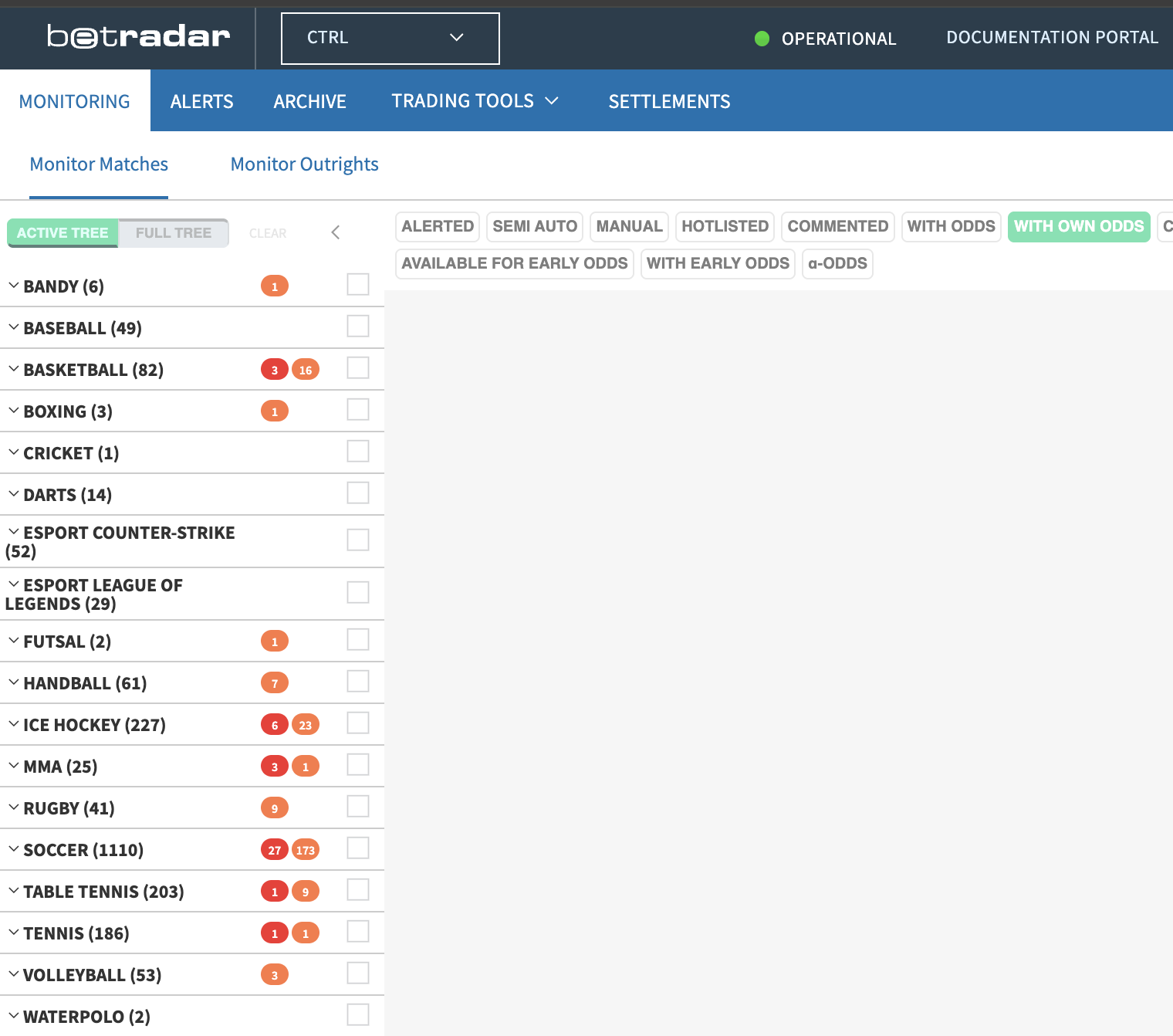
Once you log into the Betradar Portal, CTRL can be accessed via the dropdown on the right-hand side. Navigate to the Monitor Outrights tab to display both **Active** and **Full trees** for the full Betradar sports offering.
From the Active sports tree, select the sport, category, and tournament for which you want to create a custom outright.
### Creating a Custom Outright
{% hint style="info" %}
Complete steps to create a custom Outright.
{% endhint %}
{% @storylane/embed subdomain="app" linkValue="jkzq2vwtny6i" url="" %}
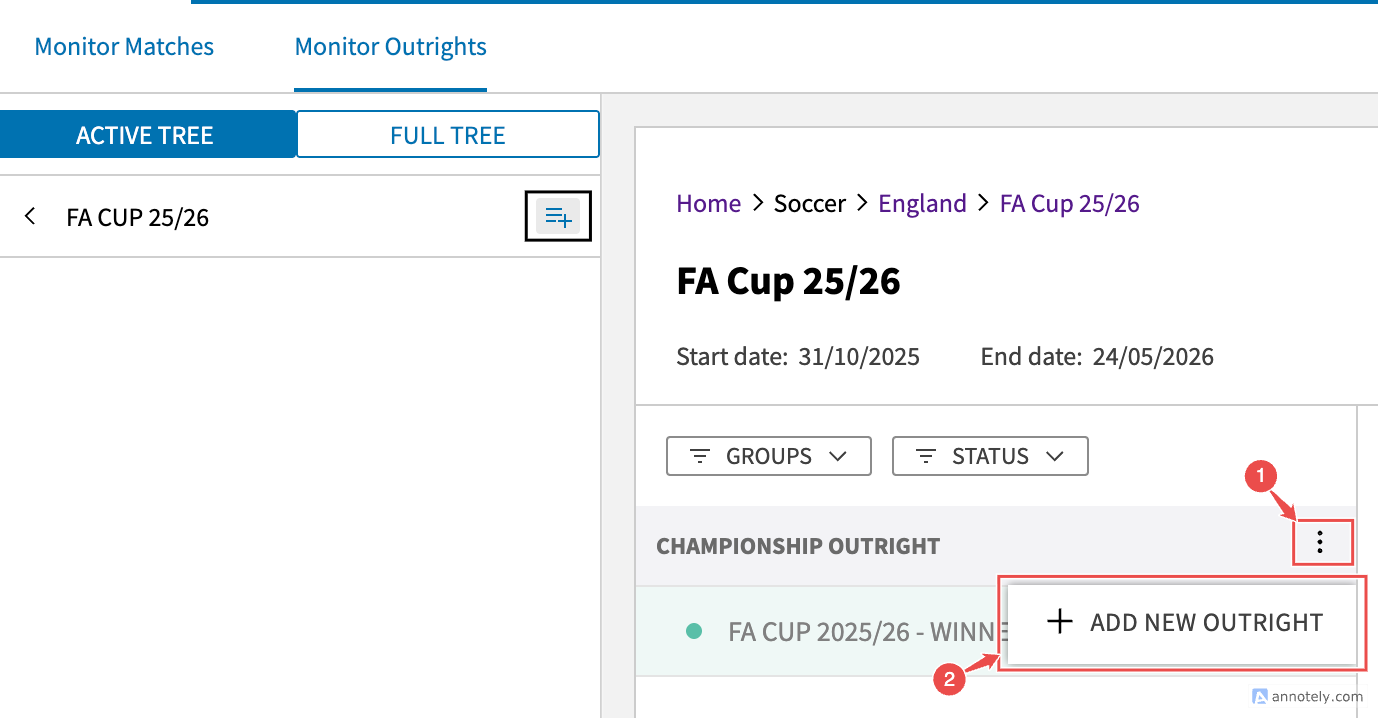
When you have found the tournament you want to add a custom outright to (**following the steps: Sports>Category>Tournament**), you will have two options to create the new custom outright.
The first option is the icon on the left-hand side near the top of the page, located under the Active tree and Full trees at the Tournament level. The second option is on the right-hand side. where the user will see ‘Add New Outright’.
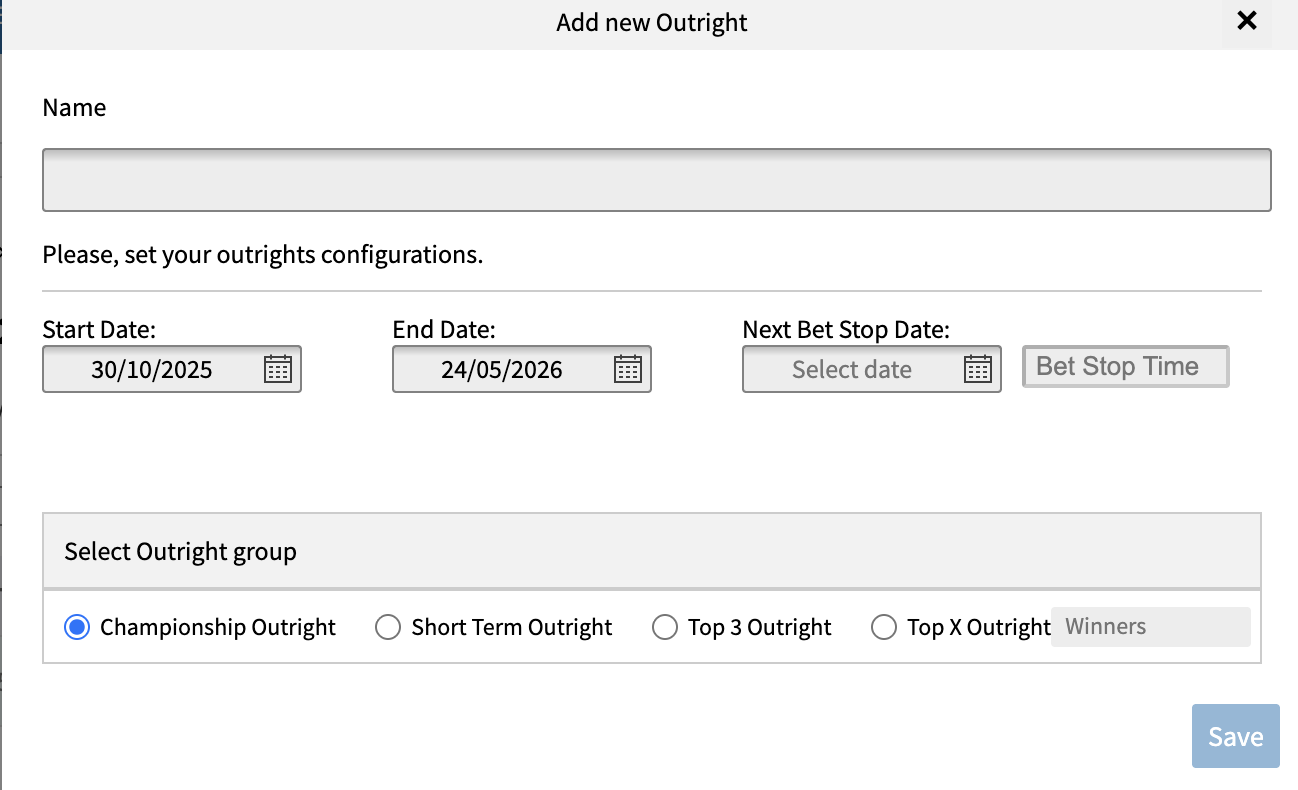
When you click on the ‘Add New Outright’, a pop-up will appear. You can then name the Outright they wish to create and enter the start date, end date, and next bet stop date. The Bet stop date allows you to automatically suspend the outright when necessary, such as matchdays or any circumstance that would impact the market.
Once you have provided a name and adjusted the relevant dates, they can choose the type of Outright they require from the following options: Championship Outright, Short Term Outright, Top 3 Outright, Top X Outright.
### Configuring the Outright
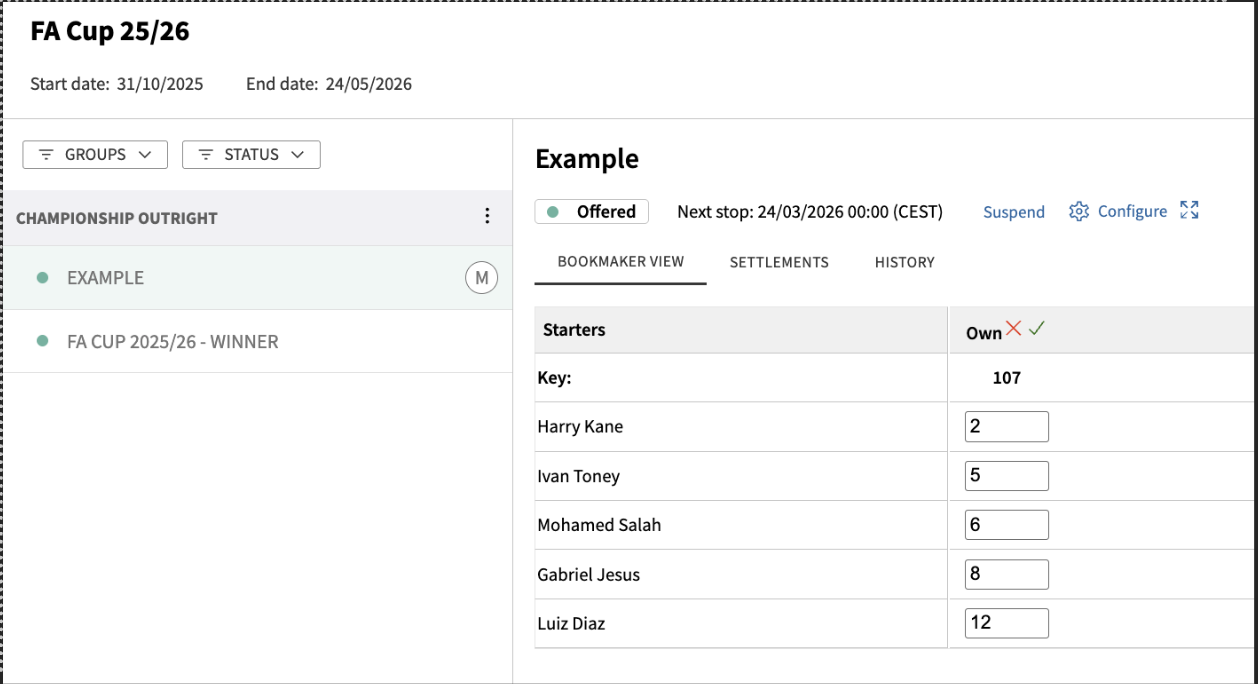
Once a Custom Outright has been created, you can add Outcomes by entering the desired number of selections required, then manually adding the Outcome names.
After all Outcomes have been created and named, you can enter odds values in decimal format, with the minimum allowed value being 1.001. The Odds Key value must be over 100% for Championship Outright and Short Term Outrights, over 300% for Top 3 Outrights and over the value of ‘x’ for Top X Outrights (e.g., Top 4 Outrights must have an odds key value of 400% or greater).
Once you are satisfied with the Outcomes and odds values entered, the Outright can be published, making it live and open for betting.
#### Suspending the Outright
You can suspend the Outright at any time using the SUSPEND button at either the Outright level or the Competition level.
Once suspended, the Outright will be closed for betting. The Outright can be reopened by using the PUBLISH button.
#### Adjusting the odds and Odds Key value
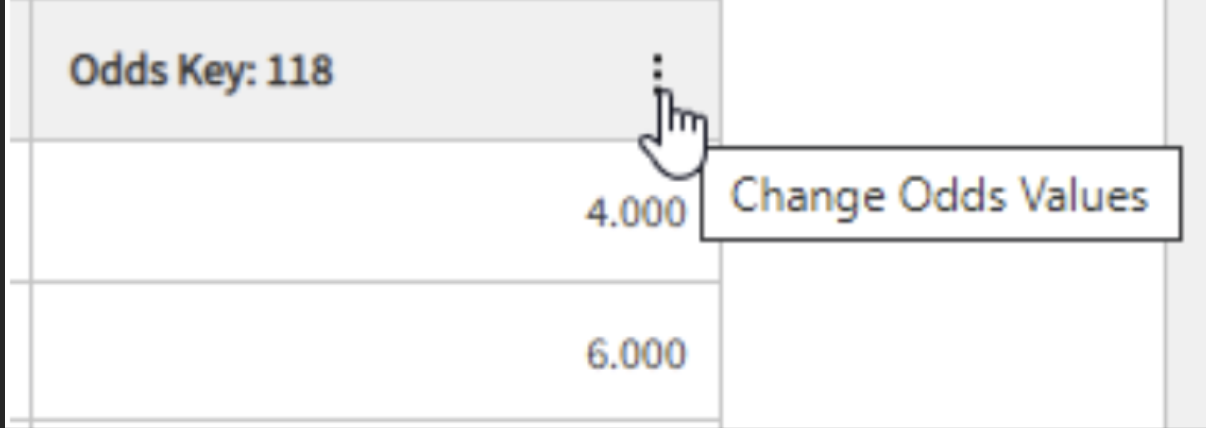
Once a Custom Outright is created and offered, the odds and Odds Key value can be adjusted to provide the desired odds. This can be done by clicking the icon next to the Odds Key value.
Manually adjusting the odds will automatically update the odds key value without any need to adjust the configuration. Once the odds have been adjusted the SAVE button needs to be clicked to save the changes.
### Outright History
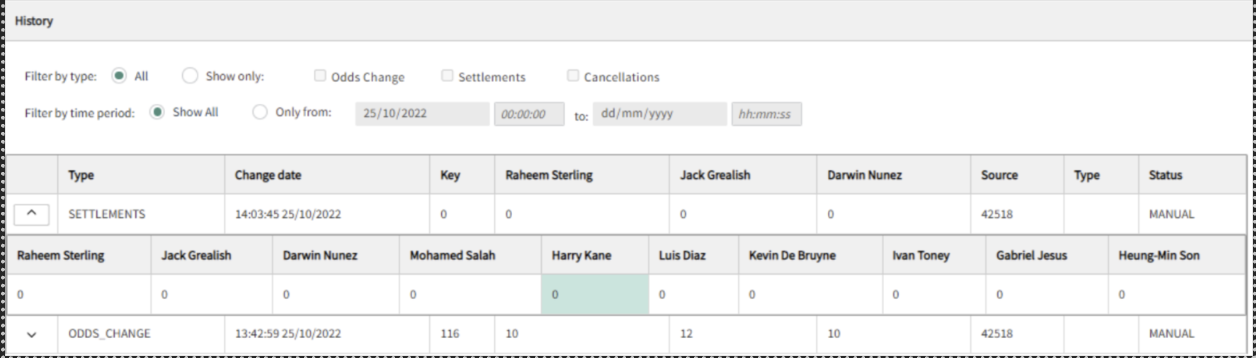
Once the Outright is offered, you can view all relevant changes within the HISTORY tab, which includes odds changes, bet stop history and settlement history.
You can filter by Odds Change, Settlements or Cancellations. Colours are used for Odds Changes to indicate in which direction the odds have changed. If the odds value has increased, the outcome will appear in RED, whereas if the odds value has decreased, the outcome will appear in BLUE.
### Settlements
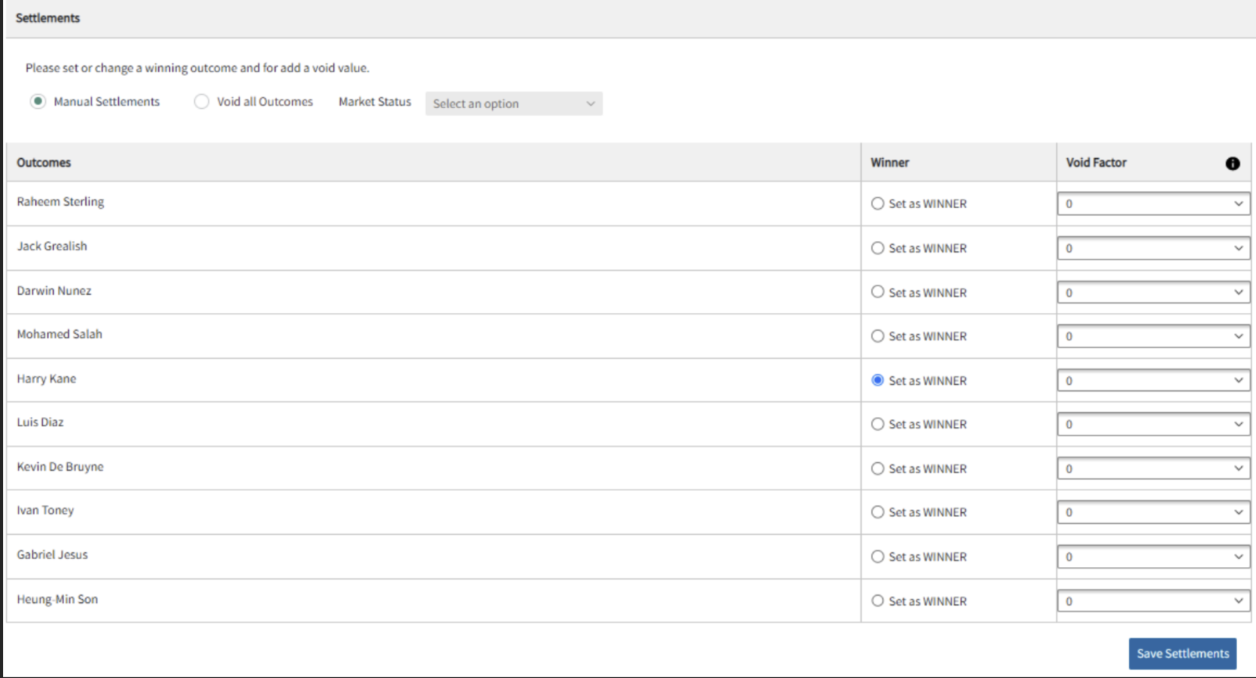
Custom Outrights need to be manually settled as these cannot be settled by Betradar. You can settle or void outcomes as well as using a void factor to partially void if desired. You can re-settle outcomes in case of any errors. The ‘Edit Settlements’ button can be used to manually settle or void the outright. Once clicked, the ‘Set as WINNER’ radio button can be used to select a winning outcome, or the ‘Void all Outcomes’ can be used if the outright needs to be voided, with several different void outcomes available.
Once the desired settlements have been applied. the ‘Save Settlements’ button can be used to save these changes. The Settlement history can be seen in the HISTORY tab.
### Technical Documentation
Outrights are ordinary markets in the Unified Odds Feed. Hence, odds updates are provided with ordinary odds\_change messages and resulting is provided with normal bet\_settlement messages. This is no different with Custom Outrights.
Currently, we only support custom free-text custom outrights. Free text markets can be identified using the market description endpoint (see/descriptions/{language}/markets.xml endpoint on ) by inspecting the includes\_outcomes\_of\_type XML attribute, which is set to “pre\_outcometext”. Please note, this attribute only identifies free-text markets and cannot be used to distinguish between SR and custom free-text markets.
Custom outrights can be distinguished from SR outrights, by reviwing the content of the UOF messages:
* Custom outrights will have the “variant” specifier prefixed with value “ccc:markettext” (instead of “pre:markettext” for SR outrights)
* Outcomes on custom outrights will have identifiers prefixed with value “ccc:outcometext” (instead of “pre:outcometext” for SR outrights) \
Example:
```xml
```
### API info
Using , information about Custom Outrights can be requested in two endpoints:
* /descriptions/(language)/markets/(market\_id)/variants/variant\_urn)
* /(product)/descriptions/(language)/markets/(market\_id/variants/(variant\_urn)
```xml
``
```
---
# Agent Instructions
This documentation is published with GitBook. GitBook is the documentation platform designed so that both humans and AI agents can read, navigate, and reason over technical content effectively. Learn more at gitbook.com.
## Querying This Documentation
If you need additional information that is not directly available in this page, you can query the documentation dynamically by asking a question.
Perform an HTTP GET request on the current page URL with the `ask` query parameter, and the optional `goal` query parameter:
```
GET https://docs.sportradar.com/ctrl/guide/custom-outrights.md?ask=&goal=
```
`ask` is the immediate question: it should be specific, self-contained, and written in natural language.
`goal` is optional and describes the broader end goal you are ultimately trying to accomplish on behalf of the user. GitBook uses it to tailor the answer towards what is most useful for that goal.
The response will contain a direct answer to the question and relevant excerpts and sources from the documentation.
Use this mechanism when the answer is not explicitly present in the current page, you need clarification or additional context, or you want to retrieve related documentation sections.